Known Participant
October 13, 2017
Answered

How would I blur the background of an image?

  • October 13, 2017
  • 3 replies
  • 6385 views

I'm running PSE9 on an iMac running Sierra.

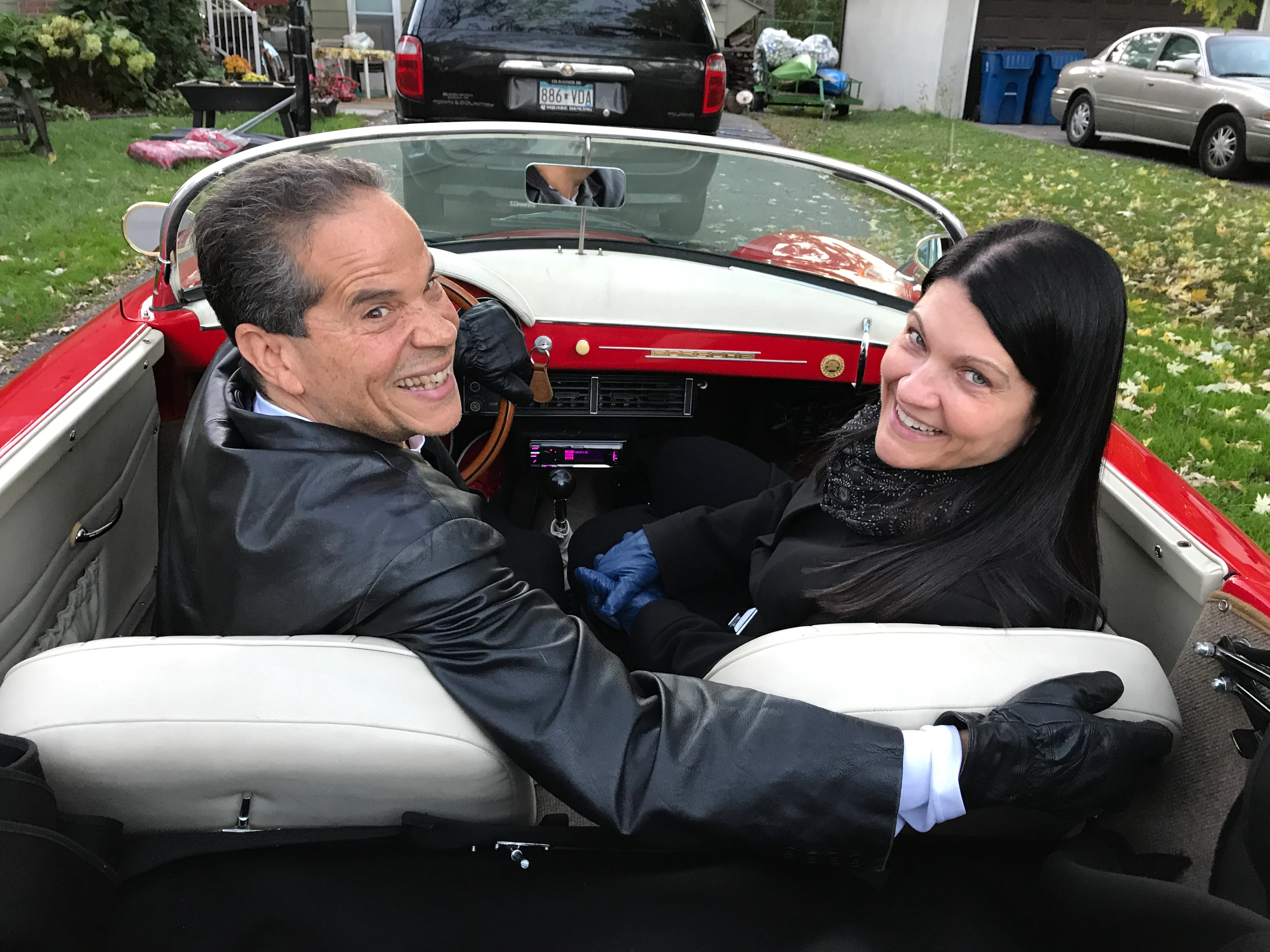
I have a nice shot of a couple, sitting in a nice car, with a background of unattractive junk, including a car.  I think I would like to put a heavy blur on that background so that the viewer might see something that looks like a car (maybe) and a yard full of unidentifiable items (kinda) -- as opposed to feathering out all the ugly stuff to a plain white with no character at all.  I should be able to take the car out of the windshield using the Clone Stamp to copy the driveway.

I'd appreciate any suggestions.
This topic has been closed for replies.
Correct answer hatstead

BudV  wrote

Hatstead,

Close, but no cigar.

I just noticed that you have PSEv.9

REVISED for your PSEv.9

  1. Open the picture file
  2. Duplicate the Background Layer
  3. Apply gaussian blur (Filter>Blur)to the background layer
  4. Open a Levels adjustment layer between the Background and Background Copy Layers (In the layers panel, background layer will be at the bottom, Adjustment layer in the middle, Background copy Layer at the top)
  5. Make the Background copy layer active and go to Layer menu>Create Clipping Mask
  6. Set the foreground color chip to black and activate the brush tool
  7. Left click on the mask (the white rectangle) on the adjustment layer in the palette and paint with the black brush where you wish to retain the information in focus. If you go too far, correct with a white brush.

N.B. You can change the opacity of the brush if you wish to fine tune background details to suit. This is a non-destructive process which can be reversed with a white brush. That's the advantage of using a mask vs. one of the selection tools and makes this program so powerful.

3 replies

Participant
June 21, 2022
  1. Open the Image file
  2. Apply Duplicate the Background Layer
  3. Then Apply gaussian blur (Filter>Blur) to the background layer of the image
  4. Click on Activate the Background Copy Layer and apply a mask to selected layer
  5. Set your foreground color chip to black, and activate the brush tool,
  6. Left click on the mask (the white rectangle) and paint the area that should remain in focus. If you go too far, correct with a white brush. ("Black hides, white reveals")
  7.  Congratulation! You did safely blur your background without getting any damage.
99jon
Genius
October 13, 2017

I suggest making a selection of the bottom half of the image with the couple and car. Then use:

Select >> Inverse

Filter >> Blur >> Gaussian Blur

I selected the windshield separately – see my example below - excluding the mirror and applied a slightly reduced blur/opacity.

You can experiment with different strengths of blur (threshold) and you should be able to make more careful selection, as I did it quite quickly.

hatstead
Inspiring
October 13, 2017
  1. Open the picture file
  2. Duplicate the Background Layer
  3. Apply gaussian blur (Filter>Blur)to the background layer
  4. Activate the Background Copy Layer and apply a mask to this layer
  5. Set your foreground color chip to black, activate the brush tool,
  6. Left click on the mask (the white rectangle) and paint the area that should remain in focus. If you go too far, correct with a white brush. ("Black hides, white reveals")

BudVAuthor
Known Participant
October 14, 2017

Hatstead,

Close, but no cigar.

I don't understand  #4's "apply a mask to this layer".

I did use the Brush Tool to black out all the stuff that was to remain in focus, but still "mask" is an unknown term at this point, and -- unless you're talking about a selected layer's detail in the right pane -- there's no white rectangle in sight.

Finally, I knew that with all the in-focus stuff a solid black, there was at least one more step I had to take to combine the two effects-- probably something so basic you didn't think I needed it explained to me.  Unfortunately, I do.  I'm getting too old for this stuff.

Please fill in the blanks for me.  Thanks.

I noticed that your result had a stronger blur than 99Jon's, but his still mitigated the effect of the leaves around the woman's head.   Comment?

Bud

hatstead
hatsteadCorrect answer
Inspiring
October 14, 2017

BudV  wrote

Hatstead,

Close, but no cigar.

I just noticed that you have PSEv.9

REVISED for your PSEv.9

  1. Open the picture file
  2. Duplicate the Background Layer
  3. Apply gaussian blur (Filter>Blur)to the background layer
  4. Open a Levels adjustment layer between the Background and Background Copy Layers (In the layers panel, background layer will be at the bottom, Adjustment layer in the middle, Background copy Layer at the top)
  5. Make the Background copy layer active and go to Layer menu>Create Clipping Mask
  6. Set the foreground color chip to black and activate the brush tool
  7. Left click on the mask (the white rectangle) on the adjustment layer in the palette and paint with the black brush where you wish to retain the information in focus. If you go too far, correct with a white brush.

N.B. You can change the opacity of the brush if you wish to fine tune background details to suit. This is a non-destructive process which can be reversed with a white brush. That's the advantage of using a mask vs. one of the selection tools and makes this program so powerful.