Participant
January 6, 2022
Answered

“Live” results while using Hue/Sat or Levels sliders?

  • January 6, 2022
  • 3 replies
  • 724 views

I have upgraded to PSE 2022 from 2018. Why can’t I see “live” results when I use the sliders for Hue/Saturation or Levels? In the older versions, you can move the sliders and see the change take place "live"... now, the only option seems to be to stop moving the slider and wait for the change to show up.  Thoughts?  Thanks!

This topic has been closed for replies.
Correct answer Walter_H

Hi Deb,


It seems to make a difference on my Win10 PC/PSE 2022 how I access the Levels panel.


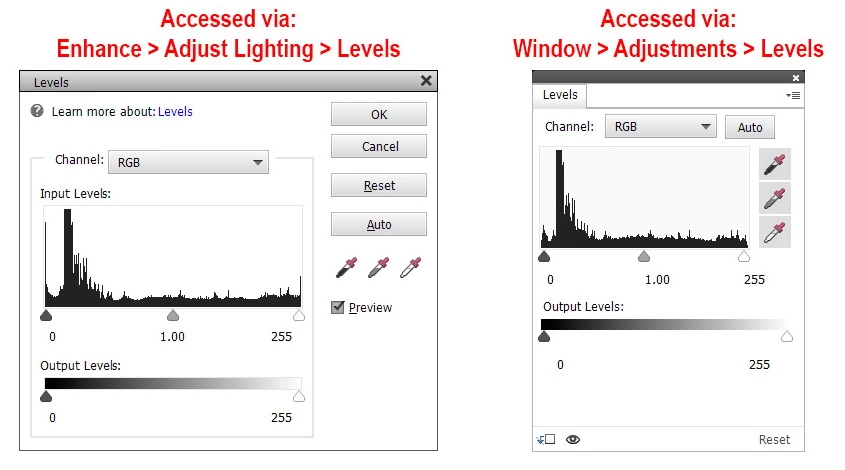
If I access Levels via the Enhance menu, there is a small delay - maybe 1/2 second - till you see the effect when you move the slider. The visibility eyeball IS NOT shown in the dialog.


If I access Levels via the Window menu, an adjustment layer is created and I can see the change instantly as I move the slider. The visibility eyeball IS shown in the dialog.


3 replies

Walter_H
Walter_HCorrect answer
Legend
January 7, 2022

Hi Deb,


It seems to make a difference on my Win10 PC/PSE 2022 how I access the Levels panel.


If I access Levels via the Enhance menu, there is a small delay - maybe 1/2 second - till you see the effect when you move the slider. The visibility eyeball IS NOT shown in the dialog.


If I access Levels via the Window menu, an adjustment layer is created and I can see the change instantly as I move the slider. The visibility eyeball IS shown in the dialog.


--Walter in Davie, FL
DebBoothAuthor
Participant
January 7, 2022

Hi, Walter!  thanks so much for responding - this is an EXCELLENT piece of advice and a great workaround  - I'd always used the keyboard shortcut "cont/L" for accessing levels - wouldn't have thought to use an adjustment layer.  It's clunkier than the keyboard shortcut, but it WORKS - the change in levels or hue/sat is instantaneous.  Wonder why they haven't fixed that yet.  Regardless - you are my new hero.  THANK you for helping me!!

Walter_H
Legend
January 7, 2022

Hi Deb! You can also achieve the same by clicking "Create new fill or adjustment layer" icon on the toolbar at the top of the layers panel.


--Walter in Davie, FL
Medha_Sharma
Adobe Employee
Adobe Employee
January 7, 2022

Hello,


Thank you for reporting this issue. We already have a bug to track this and we're looking into it.


Regards,

Medha

Greg_S.
Community Expert
Community Expert
January 7, 2022

Make sure you have the layer visibility toggle turned on.  You may have accidentally turned it off.


DebBoothAuthor
Participant
January 7, 2022

Hey, Greg!  My levels box doesn't even *have* that eyeball box - so you're probably on to something with your suggestion, but my levels option box doesnt' show what yours does.