



Glenn 8675309
Legend
April 7, 2024
Question

Manually Install Adobe Camera RAW (ACR)---Nicer to Look at

  • April 7, 2024
  • 14 replies
  • 9706 views

Last updated on April 6th, 2024 :  Also Applies to Elements Organizer, Premiere Elements

The following is a workaround to update Camera Raw within Elements. It is recommended to wait for Camera Raw updates within the product for issue fixes. 

If you haven't been able to update the Camera Raw plug-in for Elements, follow these steps, Primarilly because your new camera needs a newer version of ACR to support RAW files:

Download and install the latest Camera Raw version from https://helpx.adobe.com/camera-raw/kb/camera-raw-plug-in-installer.html

Quit all Adobe applications.

On macOS, double-click the .dmg file to mount it.


On Windows double-click the downloaded .zip file to unzip it.
(Windows might unzip the file for you.)


On macOS, double-click the .pkg file to start the installer. 


On Windows, double-click the resulting .exe file to start the installer.


Follow the on-screen instructions.

 Once installed successfully, close the installer window.

 
Navigate to the following folder:
On macOS: /Library/Application Support/Adobe/Plug-ins/CC/File Formats

On Windows: C:\Program Files\Common Files\Adobe\Plug-Ins\CC\File Formats

Copy the Camera Raw plug-in (just the .8bi file) from the CC > File Formats folder that is mentioned in the above step.

Navigate to the following folder: 

On macOS: /Library/Application Support/Adobe/Plug-ins/Elements<Version Number>/File Formats


On Windows: C:\Program Files\Common Files\Adobe\Plug-Ins\Elements<Version Number>\File Formats


Replace the existing Camera Raw plugin in Elements<Version Number> folder with the plug-in that you copied earlier.

Prior to PSE 2024 PSE used a version numbering system that made the actual version number “2 OFF” from the Product name.  FOR EXAMPLE:  pse 2021 was version 19:  pse 2022 was version 20, and pse 2023 was version 21.  THERE IS NO VERSION 22 OR 23.

BEGINNING WITH PSE 2024 THE INSTALLED FILES MATCH UP WITH THE PRODUCT NAME.   Version 24 is PSE 2024.   I expect PSE 2025 to be version 25.

Below is where I manually installed version 16.0 of ACR on my windows computer after using the above instructions on my computer- yours should be in the same location if you used the default settings when installing the program
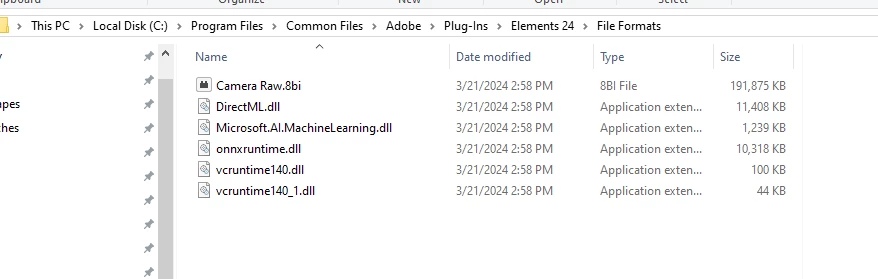


Depending upon how many versions of PSE you have installed the contents of this view may be, probably will be, different for you.  This is just the view on my computer.
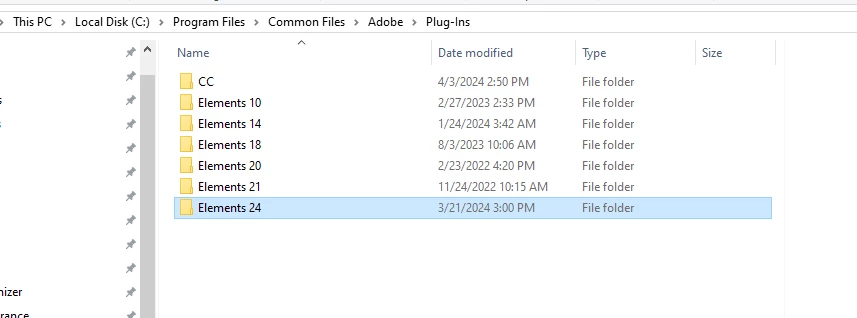


You will notice I have a directory called “CC”- That is where the latest version of ACR is installed.   As of this document date (April 6th 2024) The latest version of ACR version 16.2.1.1767.


As of FEB 8th 2025 it is up to ACR 17.1


14 replies

Greg_S.
Community Expert
Community Expert
March 13, 2025

@amyvegte I think you are sufficiently computer savvy that I wouldn't worry about changing it back.

amyvegte
Inspiring
March 13, 2025

@Greg_S. ok, thanks!

Greg_S.
Community Expert
Community Expert
March 13, 2025

@harish_ as Glenn says, the Microsoft version is different than the Adobe version and I believe one of the differences is in the location of the camera raw plug-in file.  ISTR that Microsoft hides the folder where ACR is stored.  You may want to try showing hidden files and folders in Windows Explorer options and then searching for the plug-in file named Camera Raw.8bi.

If you find it, you can try replacing it with the updated version.  But I have no idea whether this will work for you.


Greg_S.
Community Expert
Community Expert
March 11, 2025

@amyvegte I don't think you are missing anything.  I haven't looked at all of them, but it makes sense that Quick Edits can be performed on 16 bit files.


As for your question about batch converting files from 16 bit to 8 bit, I'm not exactly sure what you are asking.  When you edit a raw file in the ACR, the original file never changes.  So, if it was a 16 bit file to begin with, it will always remain a 16 bit file.  Once you edit your file in the regular PSE Editor, you will save it to a different format.  Jpegs do not support 16 bit color, but .psd files do and I just tested that Elements can save .psd files in 16 bit.


So, if you want to send a batch of raw files from the Organizer to the ACR, if you make sure that the ACR is set to 8 bit and then open the raw files in the regular editor, they will come over as 8 bit.  If you then (edit and) save the files as jpegs or .psd files, they will be saved as 8 bit files and can be reopened in the Editor again as 8 bit files for further editing. 


Also note that if you open multiple files in the ACR, you have to select all of them in the ACR filmstrip before clicking the Open button in order for the batch operation to work.


Hope this answers your question.

amyvegte
Inspiring
March 12, 2025

I'm following you, yes - thank you. That worked and I was able to get a batch of .raw files in editor all changed from 16 bit to 8 bit without having to do one at a time. 

Greg_S.
Community Expert
Community Expert
March 11, 2025

As you have seen, Elements cannot perform many functions when you open a raw file with 16 bit depth.  (Many menu items are simply greyed out.)  It seems that the latest versions of ACR default to 16 bit depth files.  However you can change this at the bottom of the ACR Editor.  Once you make this change, it should remain sticky and all future raw files will be opened in 8 bit depth until you change it again.


You can determine whether a file is 8 or 16 bit because that information will appear in the title tab of the file as (RGB/8 or 16)


I don't know why the conversion to 8 bit is not working for you after you receive the message and presumably OK the conversion.  If the file has not converted to 8 bit, you can make the change manually under the Image>Mode menu by clicking on the 8 Bits/Channel item.  (It will only be active if the open file is 16 bits.)  Once the conversion to 8 bit has been made, you should be able to perform all edits.


amyvegte
Inspiring
March 11, 2025

Thank you Greg, I was able to find the setting as you explained. I am able to make changes in the quick edit without getting the pop-up, however, I am still having to acknowledge the pop-up with any additional filters or edits done in guided or or expert. Am I missing a step?


Also, is there a way to batch files after import from 16 to 8 bit?

Greg_S.
Community Expert
Community Expert
March 8, 2025

@amyvegte even Mark ii of your camera only requires ACR version 15.  What version of Camera Raw did you install?  Go to the Editor's Help>About Plug-in>Camera Raw menu and a splash screen will appear with the installed camera raw version.   If you installed the latest version (ACR 17.2), it may not work with Elements 2022.  I haven't tested that, but I do have ACR 16.x installed in Elements 2022.

Since you only need ACR 15, you can download it from this link on Archive.org.  You can install it and follow Glenn's instructions to place the plug-in into Elements 2022.


Added: It may take a while for the download link to appear.  Archive.org can sometimes be very slow.

amyvegte
Inspiring
March 10, 2025

I was running 14.1 but thanks to your archive.org link I was able to get this installed (after having to give myself admin priveledges) and can now upload the .raw files from my Canon L6. I am having a new issue in the editor, however. I am getting a pop up that says, "Could not perform the requested action because Photoshop Elements provides only limted support for files with 16 bit color depth. Do you want to convert the image to 8 bit?" I'm getting this pop up with any edit I try to make. Whether I convert to 8 bit or not, my edits are not taking place. When I click the 'undo' button, it does undo the action taken, although no change was made. If I do not click to convert the depth, I get a nonfunctional icon that appears where the functional icon would normally appear. Any idea on what might have happened with the Plug-In being installed?

amyvegte
Inspiring
March 13, 2025

@Greg_S. I mentioned that I needed to give myself admin priveledges to be able to install Camera Raw version 15. Do you recommend I set my security priveledges back (they were at 'read' and 'read & execute') or is it recommended or okay to 'allow all' under Properties | Security? 

amyvegte
Inspiring
March 8, 2025

I have PSE2022 and recently got a Canon R6. I am unable to upload my raw files even after following the instructions above and rebooting Elements. When I'm in Elements Editor and navigate to the file to open, it shows in the drop down that .CR3 is supported, however I'm still getting this message -  "Could not complete your request because it is not the right kind of document."

Known Participant
February 2, 2025

this message is from April 2024, it is now Jan 2025.  why did Camera Raw work on my desktop with Elements 2025?  

Glenn 8675309
Legend
February 2, 2025

The ACR version that you  first install (When prompted) when you go to use it  in PSE 2025 was ACR 17.0.  That's why.   It's always worked.  It just may not work if you get a new camera, a brand new camera, which is not currently supported.

Known Participant
February 2, 2025
I have no idea why I received that reply. I am not at home, so can't be 100% sure, but, I do believe that the version at home works. When I look at cameras supported, my Nikon Z50ii is said to be supported.

steven
Participant
January 16, 2025

@Greg_S. and @Glenn 8675309 This solution doesnt seem to work for the Photoshop Elements 2022 purchased via Microsoft Store. 
Could you please suggest any alternate method to update the Camera RAW to 15 or above.

Glenn 8675309
Legend
January 16, 2025

Yes.  Purchase the program from Adobe so that you don't have such issues- you purchased it through the MS store, that's where you gotta go for help on this.  

The Microsoft Store handles the download, installation, licensing, and updating of all products purchased through it. If you encounter an issue with an Adobe product during one of these four processes, visit http://www.support.microsoft.com.

Greg_S.
Community Expert
Community Expert
January 15, 2025

@harish_ I haven't tested it, but I am fairly confident that Elements 2022 will not run ACR 17, which you say you have downloaded.   Try using the link I posted earlier, from Archive.org, which will download  the ACR 15 installer.  That version of ACR supports your camera.  Copy the Camera Raw.8bi file from the CC folder to the one you have created for Elements 2022 (Elements 20).

Participant
January 15, 2025

Thanks for the reply @Com-Su 

Still no luck even with the V15.3 you posted.

Mine is brought via Microsoft Store, do you think thats the reason may be?

Glenn 8675309
Legend
March 12, 2025

Yes.  Microsoft store versions are slightly different. 

Greg_S.
Community Expert
Community Expert
October 22, 2024

@Alien36783924j1gz try this link which I obtained from the Archive.org website.  It should take you to a download for ACR 15.x.

Participant
January 15, 2025

I am using Photoshop Elements 2022, and I didnt had Elements folder under -> C:\Program Files\Common Files\Adobe\Plug-Ins\, so after running the "AdobeCameraRaw_x64_17_1" --> Manually created the folder "Elements 20\File Formats" folder and copied Camera Raw.8bi.
But still not able to open the RAW files.

Camera in question: Canon EOS R6 Mii --> The RAW files for these should be supported since v15 onwards.
Not sure what else can I try.