First look at your preferences:
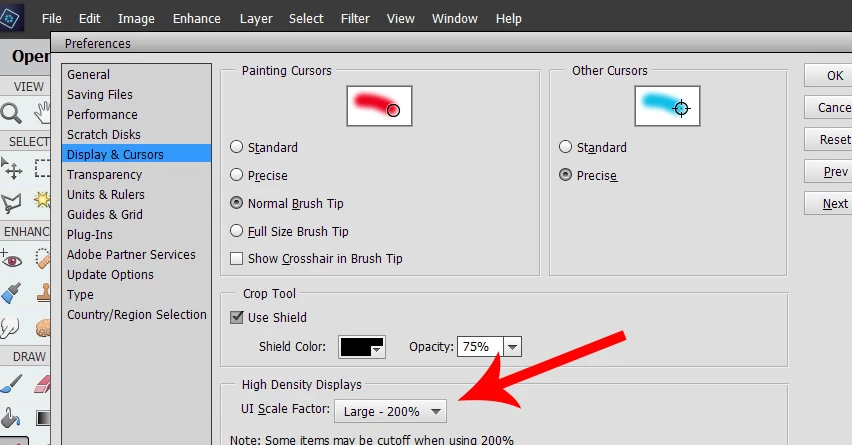
Did you try both 200% and 100%?
Your issue is that you have a semi-high resolution and small display (the worst situation now...)
Since the introduction of HiDpi (or 4k) displays some 6 years ago, the way fonts are displayed in Windows has been a problem for softwares totally based on old Microsoft APIs; they do not allow 'scaling' the menu font sizes freely. The solution provided from Elements 13 on was to allow the '200% UI Scale Factor. Good for real 4k resolution and normal size desktop monitors, but 200% setting may lead to hide part of the menus and tool bars with too big fonts .
.
Note that the scale factor is not used in the organizer, which can recognize the custom size font settings of the Windows explorer (125% for instance)
If both 100% and 200% settings are not good in your case, you'll have to set your display resolution to a lower value, like 1920 x 1080 or even less. Don't be mistaken: for photo editing lower resolutions are more comfortable and precise than HiDpi. For the image viewing, you are zooming all the time anyway, it's the ease of use of the menus which is critical; it depends from your hardware, but also on your own viewing aptitudes and tastes. Microsoft and Adobe have been working together to provide seamless scaling for the UI, but we are still on beta testing for the full Photoshop. My guess is that a future Elements version, maybe not the expected PSE16 in the Fall, will have it.



 AdChoices