Participant
December 15, 2024
Answered

Move Layer

  • December 15, 2024
  • 1 reply
  • 304 views

I just loaded Elements 2025 on a Mac M2 with Ver. 15.1.1.

I want to reposition 1 layer with respect to another but I can't seem to figure it out.  I thought you selected the layer you wnt to move and the invoke the "MOVE" command but, I can't even find a move command.  I was able to delete the layer and reinsert it using the "PLACE" command, but I can't edit it's position.


Thanks. 
This topic has been closed for replies.
Correct answer Greg_S.

@flyntm1 said:  I can't even find a move command.


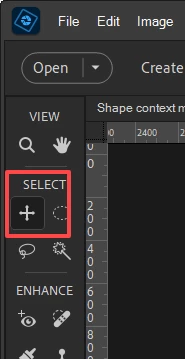
There is a Move tool which is chosen by clicking on the cross icon under the Select tools.  You can also use the keyboard shortcut V.


Before moving a layer it has to be selected.  You can do this either by clicking on the layer in the Layers panel, or by clicking on the layer in the image. 


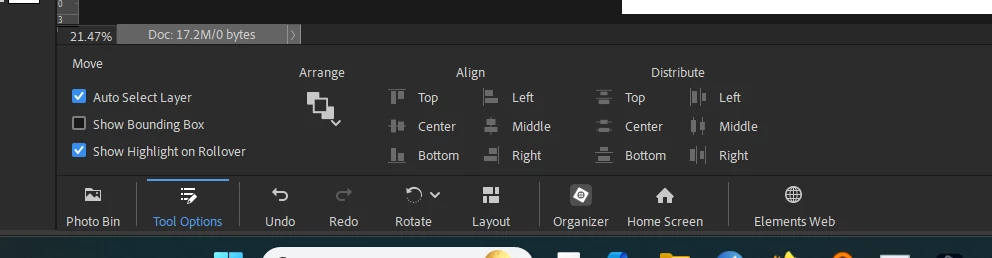
Depending on the size and arrangement of the layers in the image, there are various options in the Tool Options panel that may make this easier for you:


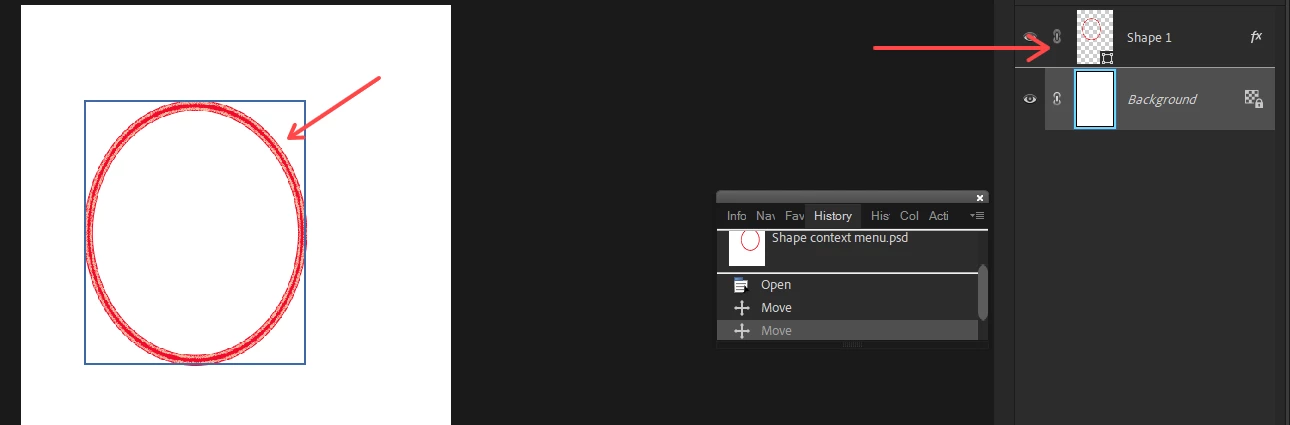
If you check the box to Show Highlight on Rollover, when you hover over each layer in the image, a blue box will appear around the layer.  If you then click on the image, that layer will be selected.


Once a layer has been selected, you can also use your keyboard arrow keys to move the layer.

1 reply

Greg_S.
Community Expert
Greg_S.Community ExpertCorrect answer
Community Expert
December 15, 2024

@flyntm1 said:  I can't even find a move command.


There is a Move tool which is chosen by clicking on the cross icon under the Select tools.  You can also use the keyboard shortcut V.


Before moving a layer it has to be selected.  You can do this either by clicking on the layer in the Layers panel, or by clicking on the layer in the image. 


Depending on the size and arrangement of the layers in the image, there are various options in the Tool Options panel that may make this easier for you:


If you check the box to Show Highlight on Rollover, when you hover over each layer in the image, a blue box will appear around the layer.  If you then click on the image, that layer will be selected.


Once a layer has been selected, you can also use your keyboard arrow keys to move the layer.

flyntm1Author
Participant
December 16, 2024

Thenks so much!  I was looking for "Move" in the menus, not a '+' sign.   🙂