
Participant
October 26, 2020
Answered

Move only one layer in a group?

  • October 26, 2020
  • 3 replies
  • 5684 views

I have several layers with one photo in each layer. These layers are grouped. I now want to move one photo but when I try do do so all grouped layers (photos) are moved. Is there a way to move only one layer in grouped layers?
This topic has been closed for replies.
Correct answer Jeff Arola

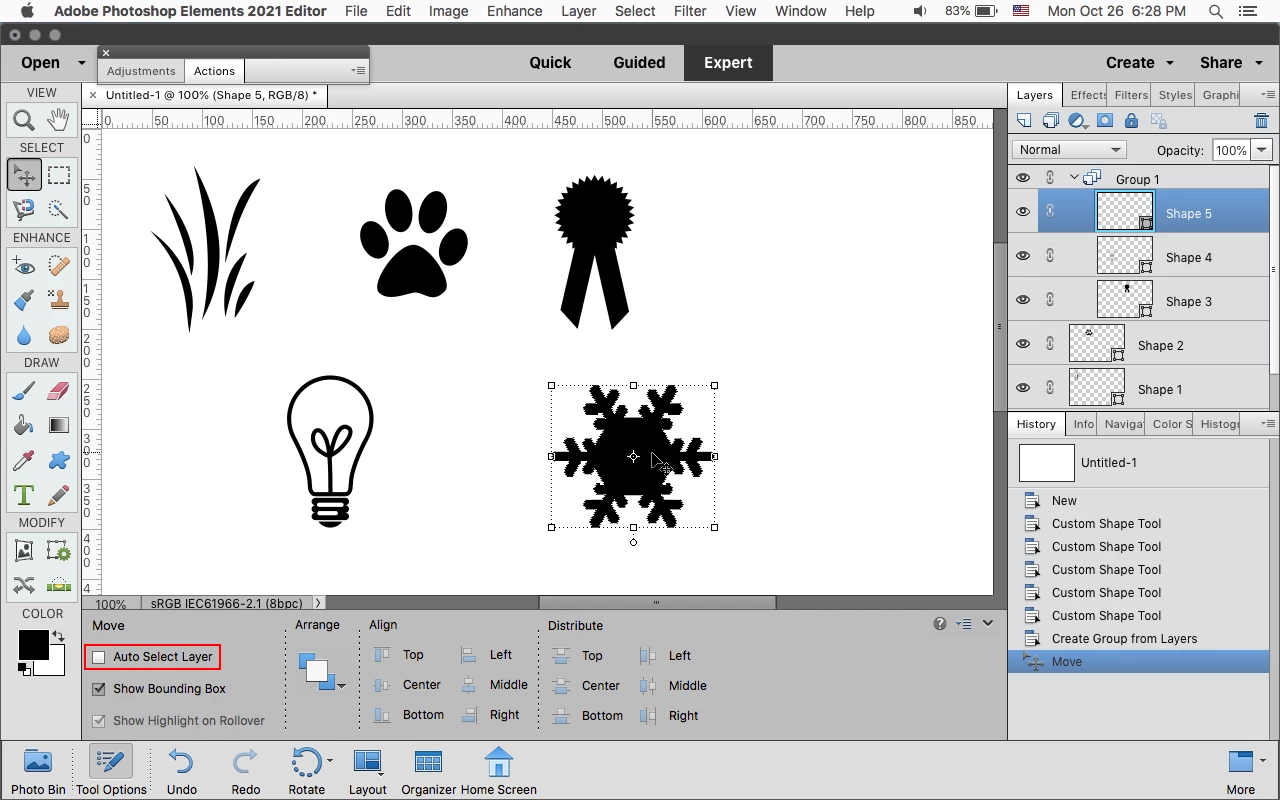
One way is to uncheck Auto Select Layer in the Move Tool options, click on the layer in the

layers panel and then drag on the object in the document area.


Or instead of turning off Auto Select Layer you can click on the layer in the layers panel, then hold down the Ctrl key while moving the object in the document area.

3 replies

Jeff Arola
Community Expert
Jeff ArolaCommunity ExpertCorrect answer
Community Expert
October 26, 2020

One way is to uncheck Auto Select Layer in the Move Tool options, click on the layer in the

layers panel and then drag on the object in the document area.


Or instead of turning off Auto Select Layer you can click on the layer in the layers panel, then hold down the Ctrl key while moving the object in the document area.

Participant
October 27, 2020

Thanks! Thought I tried the Ctrl-move, but obviously not.

When you know what to do it's easy 🙂

MichelBParis
Legend
October 26, 2020

Grouping and ungrouping layers is a full Photoshop feature which has been introduced in PSE15.

@Irenemartine 

Which is your present Elements version and from which software and version does your file come from?

Participant
October 26, 2020

My elements version is 15 and is created in 15. The file was saved as psd. 

hatstead
Inspiring
October 26, 2020
hatstead
Inspiring
October 26, 2020

Of course we don't know the maneuver which you used to "group" the photos. Did you flatten or merge down the layers? What shows up in the Layers palette?

Which file format did you use to save the project?

Participant
October 26, 2020

I grouped the layers by selecting them and dragging them to the group icon. I did not flatten or merge layers.

See screenshot for the layers palette.

I used the psd format to save the file.