Participant
January 22, 2019
Answered

Move Tool - Resizing Corners Disappeared

  • January 22, 2019
  • 1 reply
  • 5665 views

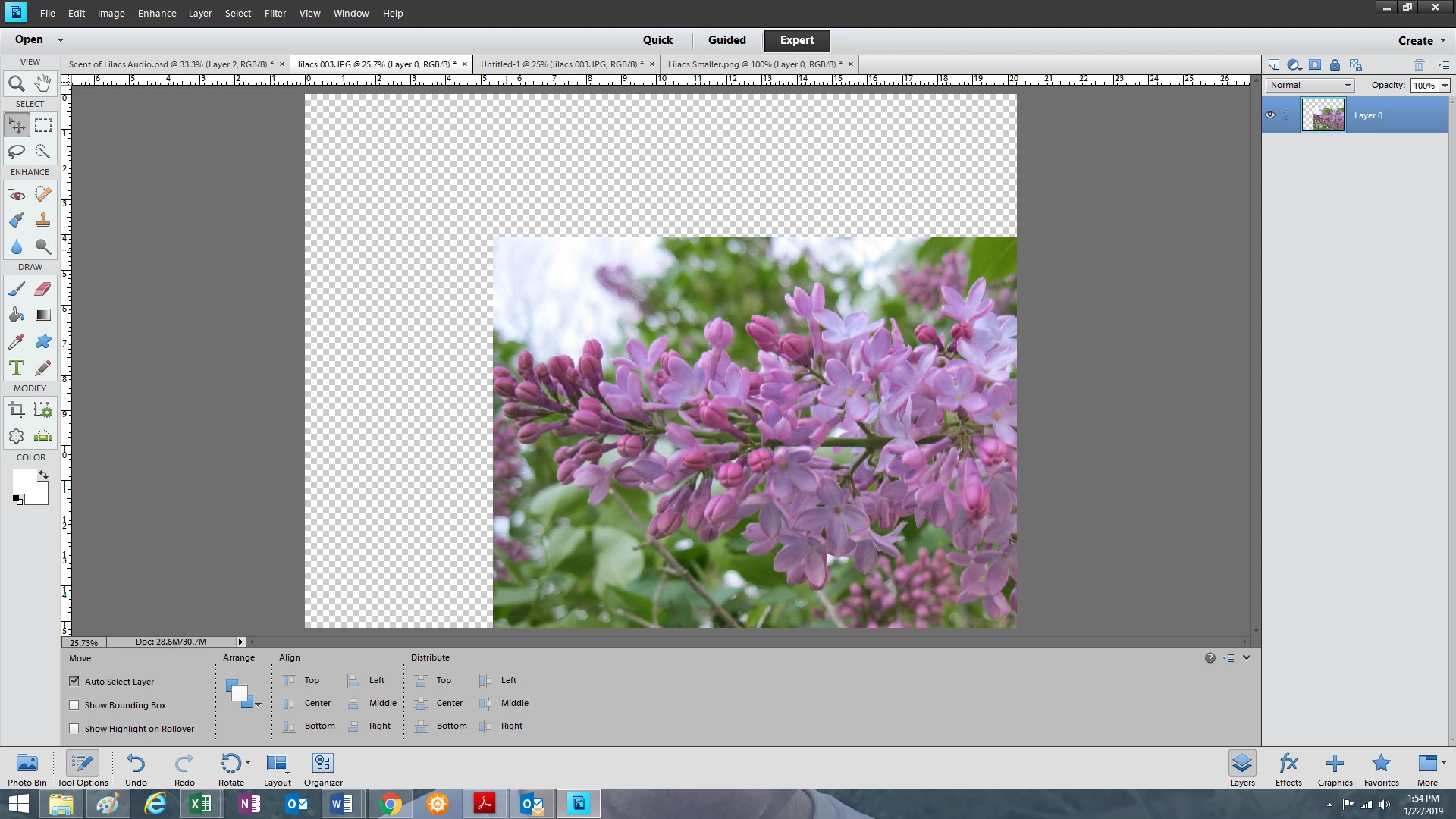
I use Photoshop Elements 11 fairly often. Today I've signed on and I can't adjust the size of a layer. I added an image as a layer, and it is too big. I want to reduce the size and keep the proportions. So I select the layer using the Move tool. The software allows me to move the entire image, but there are no resizing corners.  What happened, and how do I fix this?

Thanks!

Ginny

This topic has been closed for replies.
Correct answer hatstead

Preference settings control how Photoshop Elements displays images, cursors, and transparencies, saves files, uses plug‑ins and scratch disks, and so on. If the application exhibits unexpected behavior, the preferences file may be damaged. You can restore all preferences to their defaults.

Note:

Deleting the preferences file is an action that cannot be undone.

Do one of the following:

  • Press and hold Alt+Control+Shift (Mac: Option+Command+Shift)  immediately after Photoshop Elements begins launching. Click Yes to  delete the Adobe Photoshop Elements settings file.
  • Go to Edit > Preferences (Mac: Photoshop Elements >  Preferences > General), click the Reset Preferences on next launch  button, and then click OK. When you restart Adobe Photoshop Elements,  all preferences are reset to default settings.

A new preferences file is created the next  time you start  Photoshop Elements.

1 reply

hatstead
hatsteadCorrect answer
Inspiring
January 22, 2019

Preference settings control how Photoshop Elements displays images, cursors, and transparencies, saves files, uses plug‑ins and scratch disks, and so on. If the application exhibits unexpected behavior, the preferences file may be damaged. You can restore all preferences to their defaults.

Note:

Deleting the preferences file is an action that cannot be undone.

Do one of the following:

  • Press and hold Alt+Control+Shift (Mac: Option+Command+Shift)  immediately after Photoshop Elements begins launching. Click Yes to  delete the Adobe Photoshop Elements settings file.
  • Go to Edit > Preferences (Mac: Photoshop Elements >  Preferences > General), click the Reset Preferences on next launch  button, and then click OK. When you restart Adobe Photoshop Elements,  all preferences are reset to default settings.

A new preferences file is created the next  time you start  Photoshop Elements.

Participant
January 22, 2019

Resetting the preferences worked! Thank you, and thanks for such a speedy reply.

Ginny

hatstead
Inspiring
January 22, 2019

You're welcome. Glad to help.