
Participant
September 22, 2023
Question

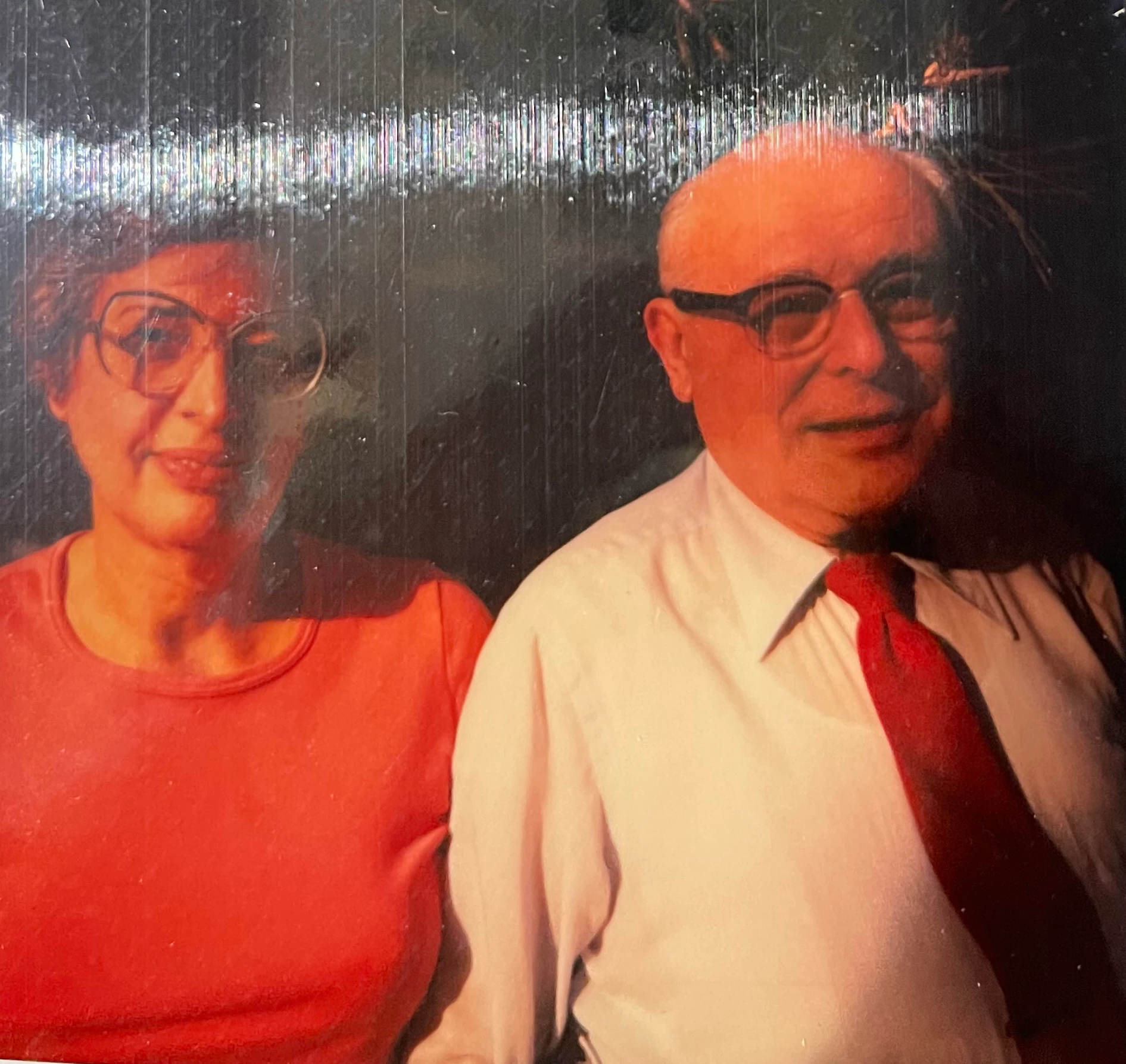
Need Help with restoring a partially ruined photo

  • September 22, 2023
  • 4 replies
  • 609 views

Hello friends.

I'm somewhat new to restoring.  I've watched a few tutorials and tried using the healing brush and clone stamp, but I'm not getting anything that could be close to passable.  This is for personal use, so it doesn't need to be perfect, but the white streak is too distracting.

Thanks,

Kimberly
This topic has been closed for replies.

4 replies

99jon
Genius
September 28, 2023

Hi Kimberly

Like Greg I tried A.I. generative function. I also tried black & white but retaining the smaller scratches for authenticity.


In Firefly you can click generate and get three choices. But you can keep generating another three until you get something you like.


Valentina ♡
Inspiring
September 27, 2023

 Hello

Hello, I've tried to adjust a little some parts. Really challenging!


And this is what AI have done:

https://ibb.co/41cgytW 


Anyway, if is possible, I give the advise to use a scanner to acquire the photo, and not a photography over the photo, as the quality of adjustments, will be much more better if we will start from a real photo scanning instead of a photo taken from another photo with a picture shot

Greg_S.
Community Expert
Community Expert
September 22, 2023

Kimberly, your photo is very challenging and @hatstead has done a great job restoring the photo for you in Elements.  I was curious to see what Adobe Firefly would do.  Here is the result. 

Participant
September 27, 2023

Thanks!  What is Firefly?  Your result was far better than I was able to get.

hatstead
Inspiring
September 22, 2023

Try this:

1. Open the picture file

2. Activate the Eyedropper tool and sample the brown background. This will be your foreground color as seen in the color chip.

3. Use the lasso tool to select the area with the white streaks but leave the gentleman's scalp area as is. Delete the selection  with streaks that you have made by hitting delete on the keyboard

4. Go to Edit menu>Fill selection>Foreground color.

5. Press CTRL+D to get rid of the marching ants outline.

6. Open a blank layer at the top and with the Brush tool paint any void areas with brown -- clean up!!

7. Open another blank layer at the top, and press CTRL+ALT+SHIFT+E to merge all the layers---- "a stamp visible layer".

8. Open another blank layer at the top, and activate the clone stamp tool. Clone the lady's hair & the gentleman's scalp.

9. I have left the streak in the eyeglasses as is.


Participant
September 27, 2023

Thanks for the help!