Participant
October 20, 2017
Answered

New frames to PSE 11?

  • October 20, 2017
  • 1 reply
  • 282 views

Is it possible to load new frames in this version, PSE 11?

And how the loading should proceed in the program, PSE?

- thanks a lot!

    This topic has been closed for replies.
    Correct answer hatstead

    niconist  wrote

    Is it possible to load new frames in this version, PSE 11?

    And how the loading should proceed in the program, PSE?

    I don't think that this is readily possible, but you can make your own frames. Try this:
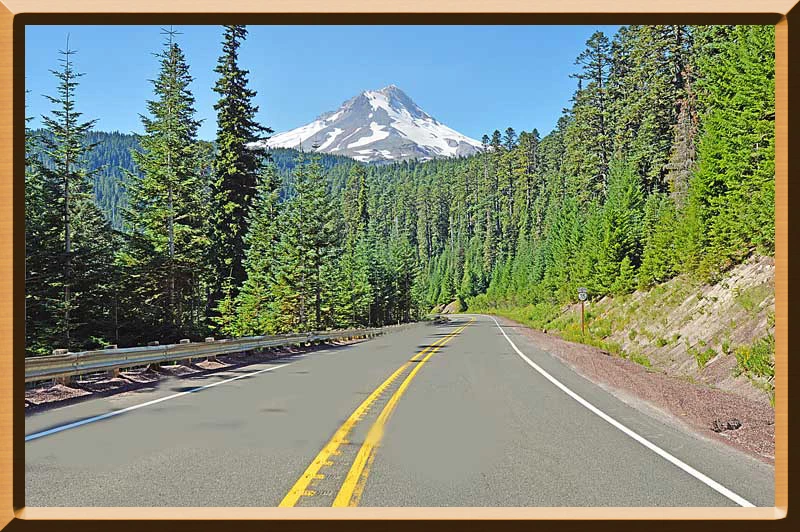
    1. Open the picture file
    2. Go to Select>all
    3. Open a blank layer above the Background Layer (Layer 1)
    4. Go to Edit>Stroke(outline)Selection. Make  stroke large - try 25 px width. Position it inside. Color does not matter.
    5. Open the Effects palette and in the drop-down select Bevels. Use Scalloped Edges. Apply.
    6. Still on the Effects palettes, in the drop-down select Patters. Use Wood. Apply.
    7. On Layer 1 double click the f on the right to bring up the Style settings dialog. Use the slider to adjust the bevel to suit.
    8. Press CTRL+D to get rid of the marching ants.

    1 reply

    hatstead
    hatsteadCorrect answer
    Inspiring
    October 20, 2017

    niconist  wrote

    Is it possible to load new frames in this version, PSE 11?

    And how the loading should proceed in the program, PSE?

    I don't think that this is readily possible, but you can make your own frames. Try this:

    1. Open the picture file
    2. Go to Select>all
    3. Open a blank layer above the Background Layer (Layer 1)
    4. Go to Edit>Stroke(outline)Selection. Make  stroke large - try 25 px width. Position it inside. Color does not matter.
    5. Open the Effects palette and in the drop-down select Bevels. Use Scalloped Edges. Apply.
    6. Still on the Effects palettes, in the drop-down select Patters. Use Wood. Apply.
    7. On Layer 1 double click the f on the right to bring up the Style settings dialog. Use the slider to adjust the bevel to suit.
    8. Press CTRL+D to get rid of the marching ants.