Participant
February 24, 2024
Answered

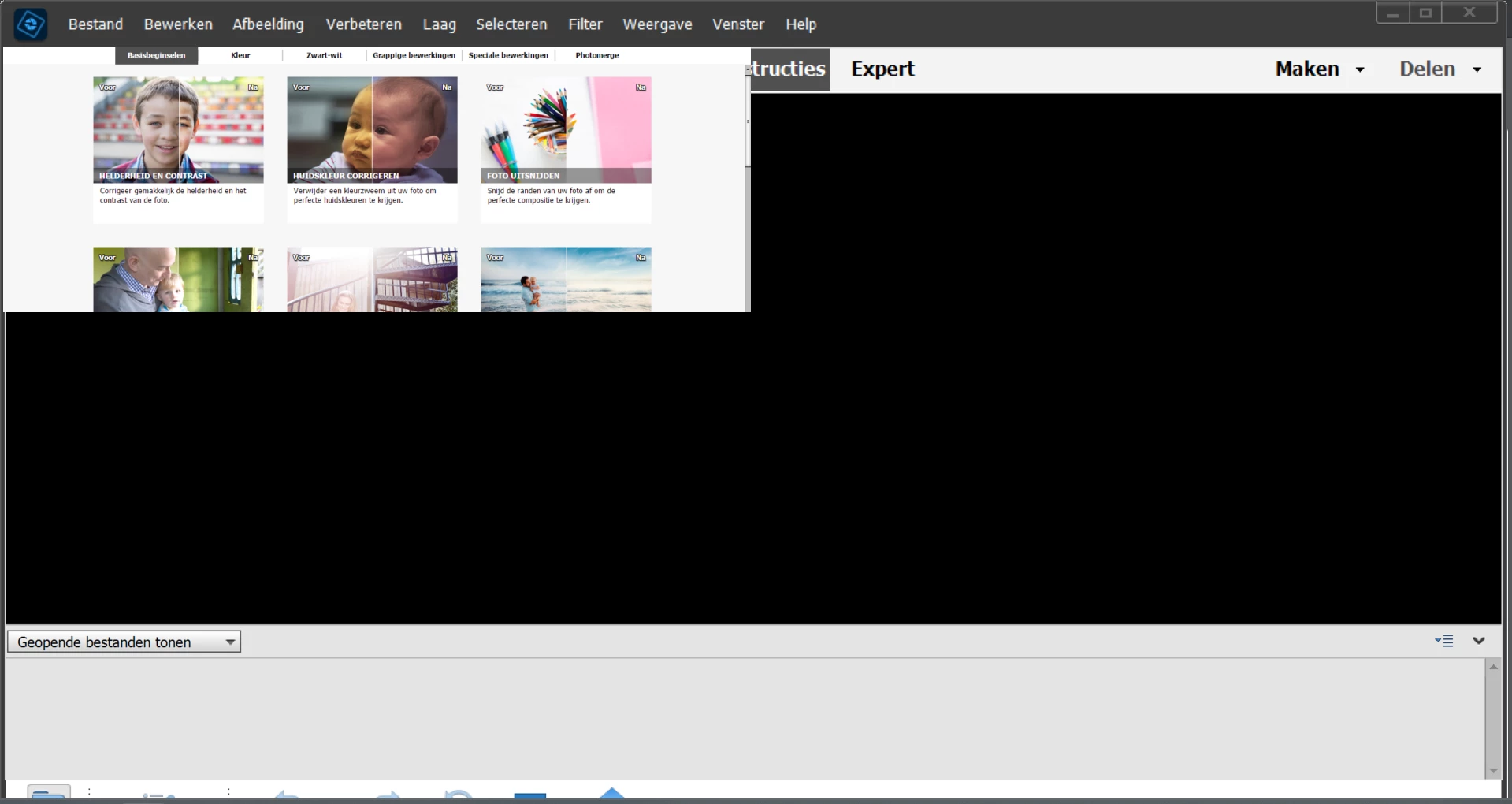
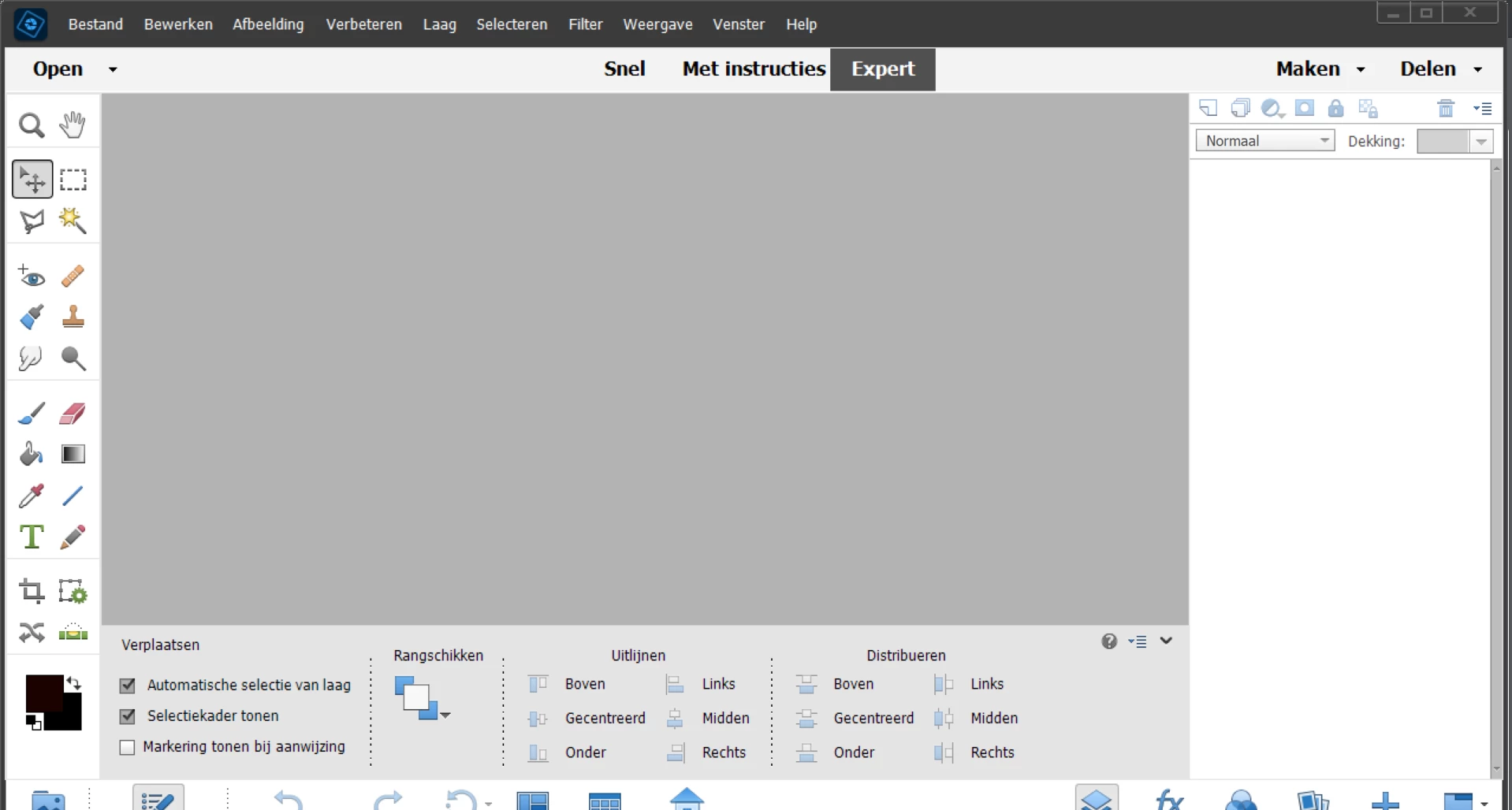
Only Expert mode
  • February 24, 2024
  • 4 replies
  • 571 views


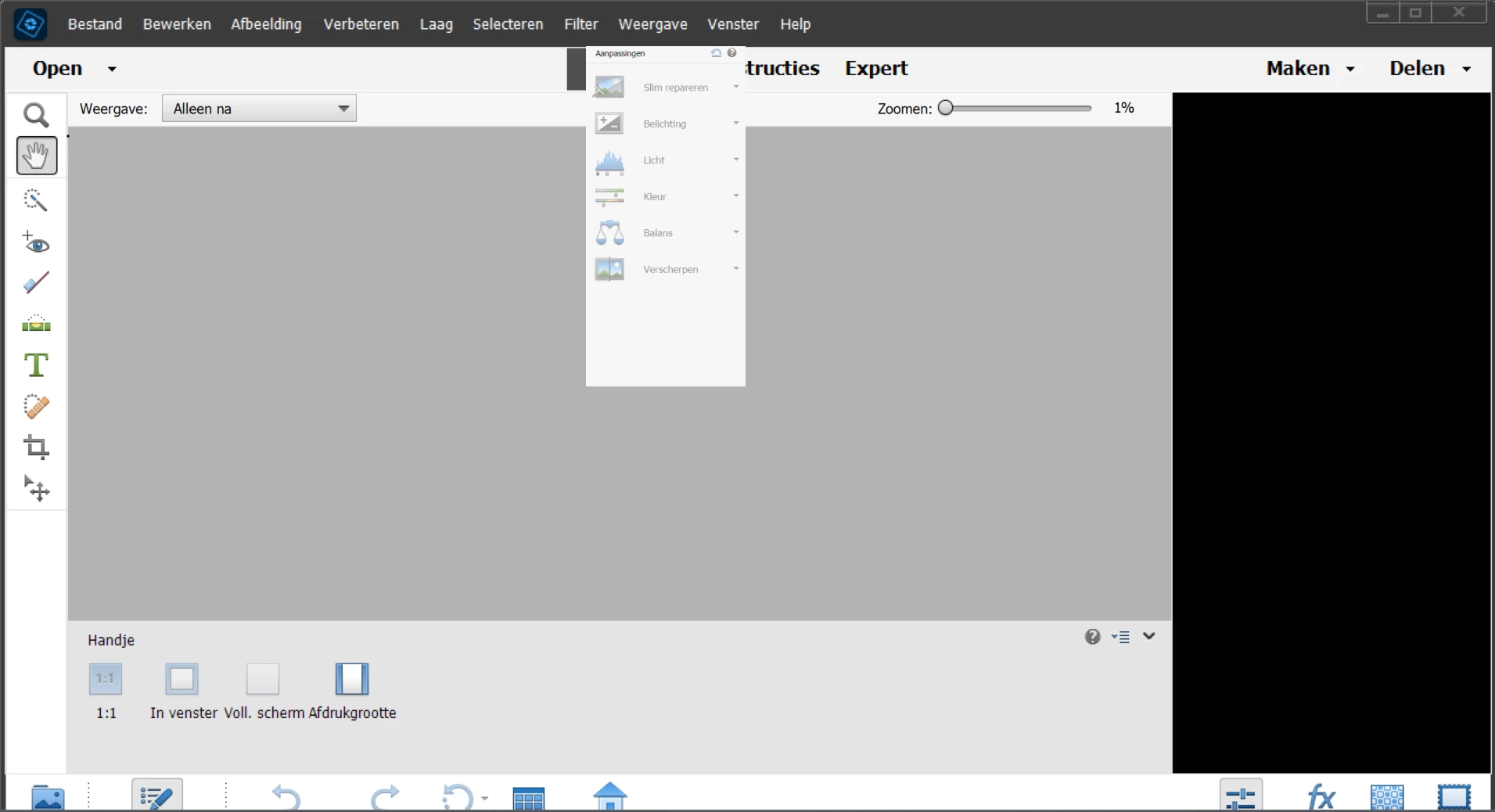
Only the expert mode is working OK in PSE2022 on my Windows 11 Asus laptop.
I updated the driver for Intel iRIS Xe,  although it din't need to be.
What more can I try?????

This topic has been closed for replies.
Correct answer SVER

I have chatted with an assistent and the final conclusion is that I spend another €85,- to upgrade my Photoshop elements 2022 to 2024 or downgrade from Windows 11 to 10 because there seems to be a compatibility issue.

I think I will dive into inkscape from now on.

I also want to warn you for this person. I didn't send an email to his given adress because I didn't trust it .

4 replies

SVERAuthorCorrect answer
Participant
March 3, 2024

I have chatted with an assistent and the final conclusion is that I spend another €85,- to upgrade my Photoshop elements 2022 to 2024 or downgrade from Windows 11 to 10 because there seems to be a compatibility issue.

I think I will dive into inkscape from now on.

I also want to warn you for this person. I didn't send an email to his given adress because I didn't trust it .

Glenn 8675309
Legend
March 3, 2024

Yup, that's BS, a scam.

Greg_S.
Community Expert
Community Expert
February 25, 2024

If your taskbar is set to automatcally hide, turn that option off.  Go to Windows Settings>Personalization>Taskbar>Taskbar behaviors:


SVERAuthor
Participant
February 25, 2024

I changed the setting but this doesn't affect the behaviour. 
Thanks!

Glenn 8675309
Legend
February 24, 2024

You have to open up an image first for those thing to not be greyed out. 

Check out these settings in your preference file: 

Most users can set the UI scale factor to automatic and not worry about it. 

SVERAuthor
Participant
February 25, 2024

Doesn't affect the problem.
Thanks!

Peru Bob
Community Expert
Community Expert
February 24, 2024

Try this:

Restore default preferences
Preference settings control how Photoshop Elements Editor displays images, cursors, and transparencies, saves files, uses plug‑ins and scratch disks, and so on. If the application exhibits unexpected behavior, the preferences file could be damaged. You can restore all preferences to their defaults.

Note: Deleting the preferences file is an action that cannot be undone.

Do one of the following:

Press and hold Alt+Control+Shift (Mac: Option+Command+Shift) immediately after Photoshop Elements begins launching. Click Yes to delete the Adobe Photoshop Elements settings file.
Go to Edit > Preferences (Mac: Photoshop Elements > Preferences > General), click the Reset Preferences on next launch button, and then click OK. When you restart Adobe Photoshop Elements, all preferences are reset to default settings.
A new preferences file is created the next time you start Photoshop Elements Editor. For information on a specific preference option, search for the preference name in Help.

from here:

https://helpx.adobe.com/photoshop-elements/kb/preference-file-locations-photoshop-elements.html