
Known Participant
February 3, 2024
Answered

Opacity Problem

  • February 3, 2024
  • 7 replies
  • 1426 views

Hello all


Anybody very expert in Photoshop Elements 2023?? I have discovered that Elements 2023 cannot do opacity that Photoshop CS 5.0 can do.


In Photoshop CS 5.0, to create water reflection, I make copy of top half of screenshot and then paste on the same screenshot and then use transform to flip the copied one vertical so that the bottom half of screenshot would show upside down and then use ocean ripple and ripple filters to create realistic water ripple and then finally use opocity to set to 50 percent to show faded out water reflectiont to enhance realism of water reflection.  I have done it thousand times,

In Photo Elements 2023, I can do same thing except Elemetnts 2023 would not let me set opocity to 50 percent. When I set it to 50 percent, nothing happens to bottom half of the screenshot.

Is it limitation that would only work in Photoshop CS 5.0 and not in Photoshop Elements 2023?  I can reinstall Photoshop CS 5.0 but it refused to recognize my valid serial key code and Adobe tech could not help me therefore I was forced to buy Photoshop Elements 2023 in hope it can do same thing as Photoshop CS 5.0.


Thank you for any assistance any of you might provide.


Regards,


Aharon
 

This topic has been closed for replies.
Correct answer Greg_S.

Elements can do everything that you want it to do, but it is apparently not working for you.


What are the specs of your computer and graphics card?

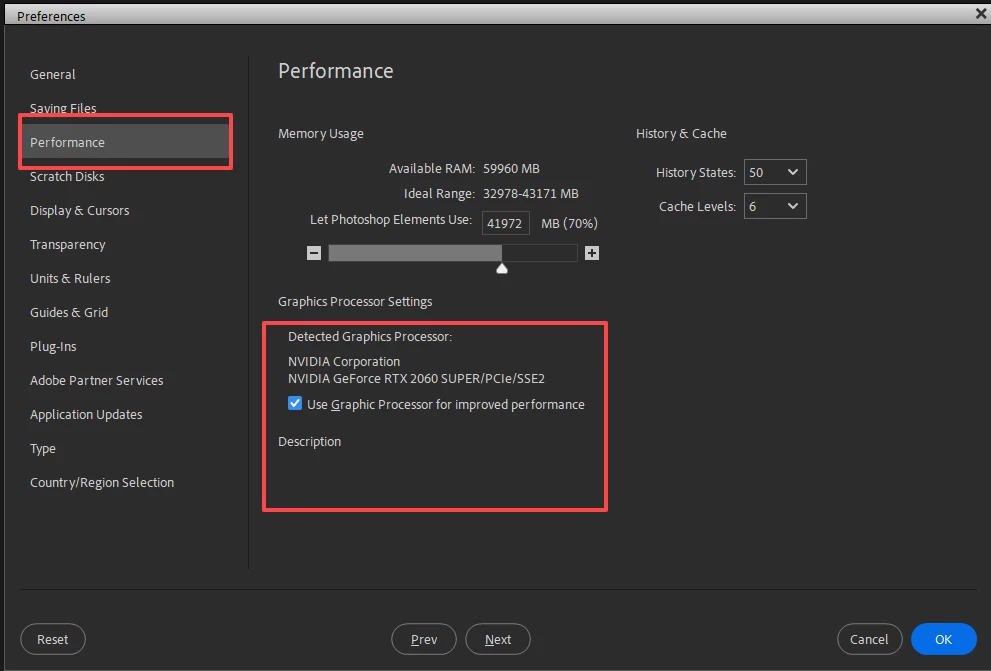
Please give us a screenshot of the Edit>Preferences>Performance tab.  If the box is checked under the Detected Graphics Processor, uncheck it.  If it is already unchecked and you are able to do so, check the box.


One other thought - are you able to use a gradient mask to change the opacity?

7 replies

Greg_S.
Community Expert
Community Expert
February 4, 2024

. . .  No need to mess with the BIOS.  You can disable one of the GPUs (display adapters) in Device Manager.  And it's probably not that the GPU is not recognized by Elements.  It just gives precedence to the Intel which is the first one it encounters.

Known Participant
February 6, 2024

Greg and Gleen,


Thanks for your more kind answers.


Gleen,  Nice to see another flight sim fellow here on Adobe!!! Thank you for your screenshot and for your more tips.   I am using laptop therefore I cannot open it and do what you suggest but I can assure you that 6 GB NVIDIA GeForce RTX 3060 graphics card  is working fine.  Just do not know why Adobe Elements 2023 is set to Intel video instead of 6 GB NVIDIA GeForce RTX 3060 graphics card.  I looked at NVidia Control Panel and made sure that Element 2023 is using NVidia instead of Intel.  I also looked at settings of Windows 10 operating system and made sure that everything should be set to NVidia instead of Intel.  Still do not know why preferences section of Element 2023 still shows Intel as main video.


Greg,  In state of excitement yesterday, I forgot to thank you promptly and properly for solving the mystery of non functioning opacity feature.  So thanks a zillion to you and allow me to present you proof of how opacity is working well in Elements 2023 where you can see reflection of the plane WHILE retaining the markings on runway to enhance or present realism


Regards


Aharon

Greg_S.
Community Expert
Community Expert
February 4, 2024

Try disabling the Intel GPU.

Greg_S.
Community Expert
Greg_S.Community ExpertCorrect answer
Community Expert
February 4, 2024

Elements can do everything that you want it to do, but it is apparently not working for you.


What are the specs of your computer and graphics card?

Please give us a screenshot of the Edit>Preferences>Performance tab.  If the box is checked under the Detected Graphics Processor, uncheck it.  If it is already unchecked and you are able to do so, check the box.


One other thought - are you able to use a gradient mask to change the opacity?

Known Participant
February 4, 2024

Greg,


Here are two answers for you to answer your question on pc specs (one here and one via attached file)


operating_system: Windows 10

System_Drive: C64bit: 

Bitmotherboard: Intelprocessor: Intel Core i7 8-Core 11th Gen

ram: 16GB

Video Card: 6 GB NVIDIA GeForce RTX 3060 graphics card

Hard_Drive_Capacity: 1 TB

Monitor/Display Make & Model: 16" 3072 x 1920 ComfyView IPS display 100% DCI-P3


I do not know why Photoshop Elements 2023 is set to Intel graphics instead of Niviada Geoforce even though I checked the settings of Niviada telling me that it is set to Geoforce and I checked graphic settings of Windows which tells me that Elements 2023 is set to use Geoforce.


As for gardient mask, I tried that trick and it just made my screenshot disappeared into checkerboard when using opacity as 50 percent.


Regards,


Aharon

Known Participant
February 4, 2024

Greg,


GOOD NEWS GOOD NEWS GOOD NEWS  GOOD NEWS


You asking me to uncheck and check the box of Detected Graphics Process made opacity working NOW!!!  It can fade the water reflection!!!!  Now opacity is WORKING


Now one remaining question is why is it set to Intel Graphics instead of Nivida Geforce?  Is that important or not?


Regards,


Aharon

Greg_S.
Community Expert
Community Expert
February 4, 2024

Did you try resetting the preferences as I suggested?

Known Participant
February 4, 2024

Good morning Gleen and Greg,

Thank you for more kind answers.

Greg,  yes I reset the preferences even though I did not set any preferences.

Gleen,  take look at what I did to the same screenshot using Photoshop CS 5.0 as seen via attached file. You can see that my step by step works in Photoshop CS 5.0 and it works too in Photshop Elements 2023 with exception of inability to set opacity at 50 percent.


Glenn 8675309
Legend
February 3, 2024

It really helps to post a screenshot of the entire program.   The layers panel is pretty important to look at. 

Known Participant
February 4, 2024

Thanks Greg and Gleen for kind answers.

Sorry, Gleen  I did not realize I would need to post screenshot of the Elements 2023 to help all of you to solve the mystery.

Meanwhile I tried different approach on new screenshot to try to get opocaity working by copying only the water reflection and pasting into same place and then try 52 percent opcity. So far no results and no change for Element 2023 as seen on the screenshot view of the Element 2023 via attached file. Meanwhile  I do normal things on Photoshop CS 5.0 and it worked fine using steps that I described in the original post in this thread.

Regards,

Aharon


Glenn 8675309
Legend
February 4, 2024

You do know there is a guided edit, under the "fun" guided edits thay create reflections?

https://helpx.adobe.com/photoshop-elements/using/guided-mode-fun.html#the_reflection_guided_edit


Greg_S.
Community Expert
Community Expert
February 3, 2024

I don't remember how CS5 applied layer opacity, but here is where it is in Elements:


If this is not working for you, then I suggest that you try resetting the preferences file. Go to the Edit>Preferences>General tab and click the Reset Preferences on next launch button.

Known Participant
February 3, 2024

Here is example where you can see that the bottom showing reflection is not faded away because setting opacity to 50 percent in Elements 2023 does not work

Known Participant
February 3, 2024

This second screenshot shows more realistic relfection because I used Photoshop CS 5.0 to set opacity to 50 percent