HBarrison
Known Participant
February 20, 2020
Answered

Organizer Folders

  • February 20, 2020
  • 2 replies
  • 1036 views

In Photoshop Elements is there a way to clump folders into a Collection other than by using an alphabetical Order that creates an order that will be imperfect.  I travel often and will go, e.g. to a region.  That take me to cities, parks, UNESCO sites, etc and I like to make each a folder and then upload to Flickr for what they call an Album.  Then I would like to put them into a collection e.g.  I might visit lots of Fjords each with its own folder and then have a collection of Norway.


If it can't be done because of significant technical issues I will understand, but, I thought many of us in the Community would like this specific feature so I thought I would ask.


[Post edited by Moderator for legibility]

This topic has been closed for replies.
Correct answer Greg_S.

Perhaps I should wait until I see your screenshot before commenting further.  You can only post a screenshot on the forum, not by email.  You do so by clicking on the icon in the editor ribbon.  See the following screenshot:

 

However, I think you need to understand the difference between the Organizer, which is a relational database, and a file browser such as Windows File Explorer.  It seems to me that you only want to use a file browser.  The Organizer can be used in this fashion via the Folders view.  The problem you are facing, I think, is that you are in the default flat view, which as your original post suggests only provides an alpha-numeric list of folders that contain images within your catalog.  If you click on the "hamburger" button at the top of the My Folders panel, you can change it to View as Tree:
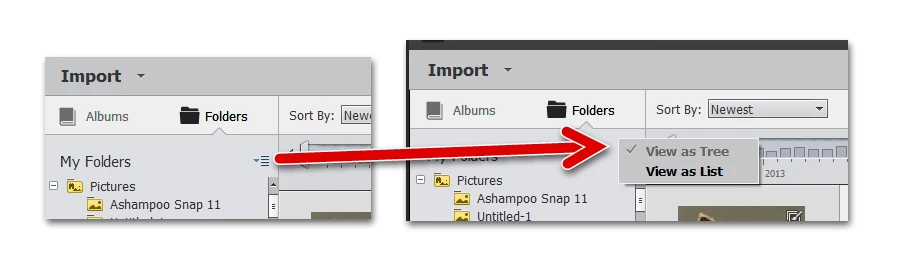
This will replicate your Windows File organization showing folders and sub-folders containing images within your catalog.

While Albums may not serve your purpose, keyword tags would, and they are a much more powerful tool for finding images.  As I suggested earlier, you could have Africa as a category and Victoria Falls and Western Serengeti as keyword tags.  You would tag all of the Africa images in your catalog with an Africa (category) keyword tag.  Each individual place would be tagged with its own location name.  If you then checked Africa in the keyword hierarchy, all photos of Africa will be in view in the media grid. If you only want to see the ones from Victoria Falls, you would then check the box for that location, and the Africa photos will be filtered down.


I hope this helps, but let us know if you have any further questions.

2 replies

Greg_S.
Community Expert
Greg_S.Community ExpertCorrect answer
Community Expert
February 20, 2020

Perhaps I should wait until I see your screenshot before commenting further.  You can only post a screenshot on the forum, not by email.  You do so by clicking on the icon in the editor ribbon.  See the following screenshot:


However, I think you need to understand the difference between the Organizer, which is a relational database, and a file browser such as Windows File Explorer.  It seems to me that you only want to use a file browser.  The Organizer can be used in this fashion via the Folders view.  The problem you are facing, I think, is that you are in the default flat view, which as your original post suggests only provides an alpha-numeric list of folders that contain images within your catalog.  If you click on the "hamburger" button at the top of the My Folders panel, you can change it to View as Tree:

This will replicate your Windows File organization showing folders and sub-folders containing images within your catalog.

While Albums may not serve your purpose, keyword tags would, and they are a much more powerful tool for finding images.  As I suggested earlier, you could have Africa as a category and Victoria Falls and Western Serengeti as keyword tags.  You would tag all of the Africa images in your catalog with an Africa (category) keyword tag.  Each individual place would be tagged with its own location name.  If you then checked Africa in the keyword hierarchy, all photos of Africa will be in view in the media grid. If you only want to see the ones from Victoria Falls, you would then check the box for that location, and the Africa photos will be filtered down.


I hope this helps, but let us know if you have any further questions.

HBarrison
HBarrisonAuthor
Known Participant
February 20, 2020

Your answer is as I suspected and I do not generally look for specific images and I found in the past with my large folio, the tagging system is tedious and I can find specific images, in the rare instance I need one, to be much easier using the Flickr Search function.  Thanks so much for your help.

H Barrison
Greg_S.
Community Expert
Community Expert
February 20, 2020

The Organizer already has an Album feature that does what I think you want.  You can create an Album category e.g. Norway, and then place an Album for each Fjord under it.

There are many other organizational tools that would serve a similar goal.  For example, you can create keyword tag categories and sub-catagories followed by keyword tags in a hierarchy. 

Or you could use the system Places tags to place your photos on a map.

HBarrison
HBarrisonAuthor
Known Participant
February 20, 2020

Thank you - I will test each suggestion later today and let you know how they meet my need.  Windows already has my Photos in the groups that I am looking for in a separate external drive so the album might really work.  I had thought, perhaps from my early use of PSE, that the Albums were associated with slide shows.  I have 36,000 images in PSE with 32,500 images in approximately 60 Albums uploaded to Flickr so organization is very important.  Again, Thank you for the response.

H Barrison