
Inspiring
November 5, 2017
Question

People Tab: Named: No Thumbnails for images

  • November 5, 2017
  • 3 replies
  • 665 views

PSE 2018. Windows 10.

I go to the People tab.

Then to Named.

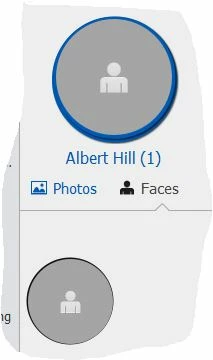
I have a large number of people in this tab where the icon does not have a thumbnail.

When I click on 'Faces' I also get an icon without a thumbnail or any other type of image

on it.

If I click on Photos I do see a photo that appears to be related to the person that

was identified.

How can I get the thumbnails to show up for the all the people in Named section of the

People tab?

Thanks for any help or advice!

Below is an image of one of my people:
This topic has been closed for replies.

3 replies

Inspiring
February 21, 2018

I understand that deleting the Thumbnail Cache will force Elements to regenerate all thumbnails again on the next boot up. This worked for me on E14 some time ago, but I can't say if later versions have changed this.

Adobe Employee
February 21, 2018

Can you let me know they way you applied People tag to your image. There could be 2 ways:

1. Go to the Unnamed tab of People view, choose one of the many face stacks, click on 'AddName', and then add a name.

2. Use drag and drop in the Media view.

In case you do not remember the approach you followed:

1. Double click on the face stack in Named tab, one which does not have a thumbnail.

2. The image of the person will appear.

3. Double click on the image.

4. See if the person in the image is tagged.

If the person in the image is not tagged, you had only tagged the image using drag and drop, not the person. Hence, no thumbnail is generated.

Participant
February 21, 2018

only use option 1

Regards

Etienne

Participant
February 19, 2018

Same issue. Reset my facial recognition reinstalled but nothing works. Had abobe login and could also not resolve the issue