
Participant
March 26, 2020
Question

Photo display (without frame)

  • March 26, 2020
  • 2 replies
  • 357 views

Hi, does anyone know how can I display a photo without the gray frame around in Photoshop Elements 2020? (see photo)
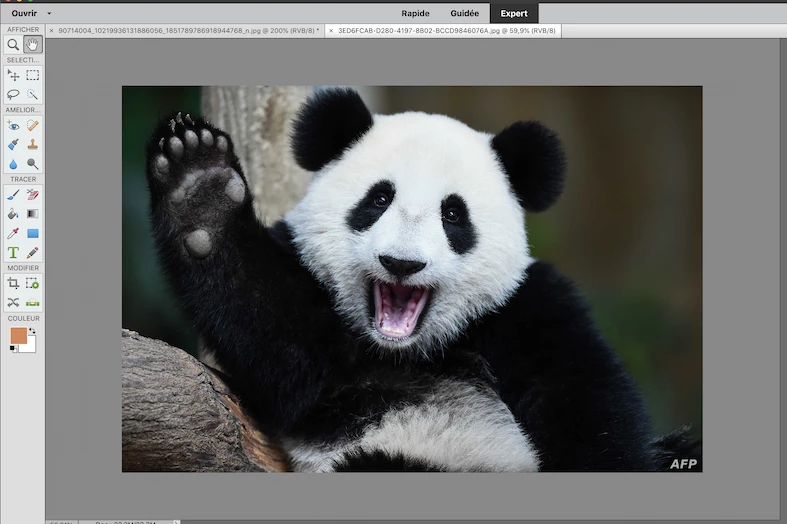
That means that I need just the photo, as it was on the old Elements versions. (I can't find it at the "Help" section). I can't have immediate access and interact between many opened photos because the one I'm working on, takes the whole screen space. It's very frustrating.


Thanks for your help! 

Constantin

This topic has been closed for replies.

2 replies

Phinny
Legend
March 26, 2020

In a perfect world they'd look something like this.  Try clicking the magnifying glass in the tool pallete then experimenting with zoom options, in the setting bar, along the bottom of your screen.  If that doesn't help I don't know what might fix that.


Phinny
Legend
March 26, 2020

Constantin, hold down ctl-k (cmd-k on Mac) and check the box, "Allow Floating Documents in Expert Mode"

copapAuthor
Participant
March 26, 2020

Thanks a lot fot your quick and valuable answer Phinny, it worked.. half 🙂

That means that when I open a new photo effectively there's not any gray frame, it's perfect. But when I try to work on it and I touch it, the frame comes again, hiding everything else. Is there any way to keep it in floating mode (I suppose this is the name), or to turn it to that mode when it's open with the frame?


  Thanks again, Constantin