
Inspiring
July 23, 2017
Answered

Photoshop elements 14 having trouble with selection and feathered edges

  • July 23, 2017
  • 6 replies
  • 842 views

Hi everyone,

I'm trying something new which I haven't done before, and while at first it looked just fine, when printing, it came out different than it appeared on screen.  I have a lot of African wildlife images and I just make some selections (oval and round for different shots), feathered the edges and saved for web png-24 with transparency.  I thought they might print nicely on tee shirts instead of having just a square or rectangle etc.  I've got some greeting card stock at home, so I tried a couple of images on that first to see how it might print.  While the image itself appears to be okay and shaped correctly, when I print I get oval curved edges all around EXCEPT for a straight edge on the bottom.  I've tried image/transform/free transform and made the images smaller, but still get the same line at the bottom.   I would attach examples, but I can't figure out how to attach images to this post.  Does anyone have any ideas?  I may be missing something very simple, but I'm fairly new to this particular editing trick and I'm learning as I go along.  I don't want to send an image to be printed on a tee shirt and have it come back to me looking bad.  If anyone can tell me how to attach an image, I'll be happy to attach a couple of examples.

Thanks for input.

Mary Lippold,  Los Angeles
    This topic has been closed for replies.
    Correct answer hatstead

    Try the following on the Expert tab:

    1. Open picture file
    2. Duplicate background layer
    3. Add a blank layer between the background layer and the background copy layer.
    4. Fill the blank layer with white. (Background layer is at bottom, white layer in the middle, background copy layer is at the top.)
    5. On the top layer, make your selection with the Elliptical marquee tool, to embrace that which you wish to retain. Note that you can nudge the ellipse with the arrow keys on the keyboard.
    6. Go to Select>Inverse, then Select>Feather - - try 25 (experiment)
    7. Hit delete on the keyboard
    8. Press CTRL+D to get rid of the marching ants

    6 replies

    Inspiring
    July 27, 2017

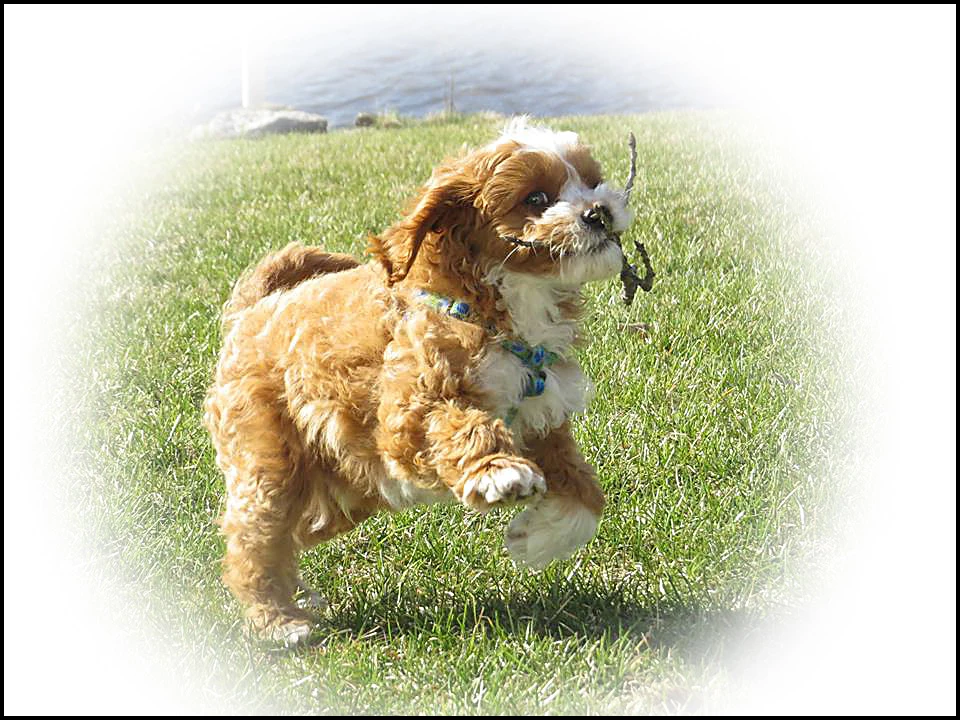
    ...and here's the final result!   More fun than I've had in weeks online.  Although the other answers were also great, hatstead's process worked like a charm.  So much better than what I had tried to do by combining various edits mentioned in one of my Photoshop Elements 14 how to books, since I was really apparently combining things in a way that just made it more complicated.  Now I'm going to try creating one light color and one dark color tee shirt on my Zazzle site and see how they turn out. If I like them, I'll post many different ones for sale.  Hopefully this is what I was looking for to get away from a photo-within-a-square appearance on tees.  If anyone is interested, my "store" on Zazzle is "lippoldsafariphotos" (or is it impolite to mention that?).   Thank you all so very much for helping me - every time I have a question it has been answered in great style and without criticism.  I appreciate it.

    Mary

    hatstead
    Inspiring
    July 27, 2017

    You're welcome. Glad to help.

    Inspiring
    July 25, 2017

    ...and thanks for "hatstead" also.  Good info.

    Thanks,

    Mary

    Inspiring
    July 24, 2017

    Thanks much Michel and Mark.   I think Mark's explanation might be the fix I was looking for.  That's exactly what my images are doing.  I'll give it a try and if it works I'll post the final.   Here (if I can make it work) is the "offending" version. (saved as a jpg for this posting)

    Mary

    Inspiring
    July 24, 2017

    I might have an explanation of your problem.

    Here I selected the dog, inverted the selection, feathered 20 px, deleted the selection, and saved as a png.

    Here I selected the dog, inverted the selection, feathered 30 px, deleted the selection, and saved as a png.

    Here I inserted both onto a blue background.

    Note that in the first case the feather did not extend to the picture's border.

    In the second case, the feather extended beyond the top and bottom borders.

    Perhaps this is what is causing your problem?

    hatstead
    hatsteadCorrect answer
    Inspiring
    July 24, 2017

    Try the following on the Expert tab:

    1. Open picture file
    2. Duplicate background layer
    3. Add a blank layer between the background layer and the background copy layer.
    4. Fill the blank layer with white. (Background layer is at bottom, white layer in the middle, background copy layer is at the top.)
    5. On the top layer, make your selection with the Elliptical marquee tool, to embrace that which you wish to retain. Note that you can nudge the ellipse with the arrow keys on the keyboard.
    6. Go to Select>Inverse, then Select>Feather - - try 25 (experiment)
    7. Hit delete on the keyboard
    8. Press CTRL+D to get rid of the marching ants

    MichelBParis
    Legend
    July 24, 2017

    You can attach a screenshot in this forum by using the 7th icon on top of your post.

    Note that you can't attach a screenshot if you answer by mail, only directly in this forum.

    Inspiring
    July 24, 2017

    Insert Image icon