jp27No
Participant
August 16, 2021
Answered

Photoshop Elements 2021.2, problem with opening ARW files

  • August 16, 2021
  • 3 replies
  • 1866 views

Hello 


I have an iMac, running Bug Sur, 11.4. I am using Photoshop Elements 2021.2


When I try to open ARW files — raw files from a Sony Alpha 1(A1) camera — I get a dialogue box saying: 


“Photoshop Elements cannot open this file.

If you are attempting to open a raw file from a digital camera, make sure you have the latest Camera Raw update installed via Help > Updates…

 If the problem persists, visit the following link for more information:

http:/www.adobe.com/go/kb407111" 


Here is what I am finding:

1. When I go to Help on the Photoshop Elements menu, there is no update offered. 


2. When I click on the link suggested by the dialogue box, I see that the “Minimum Camera Raw plug-in version required” for the “Sony Alpha 1 (ILCE-1)” is 13.2. 


3. In the menu bar of the app: Adobe Photoshop Elements 2021 Editor > About Plug-In shows the Camera Raw version as 13.0.0612 — so that’s not up to date. 


I downloaded the file “CameraRaw_13_3.dmg” and installed it, as directed. But it does not seem to have “taken”. (I can’t remember where I found it on the Adobe website, if that matters). I also updated the “Camera Raw” section on Creative Cloud, but this hasn’t transferred to my Photoshop Elements app. 


I also downloaded Adobe Bridge, and I can see previews of my pics, but when I try to open in raw I get a box saying: “Camera Raw editing is not enabled. Camera Raw editing requires that a qualifying product has been licensed.” 


I am stymied. I’ve spent hours trying to sort this.


Can anyone help? Thank you!
This topic has been closed for replies.
Correct answer Jeff Arola

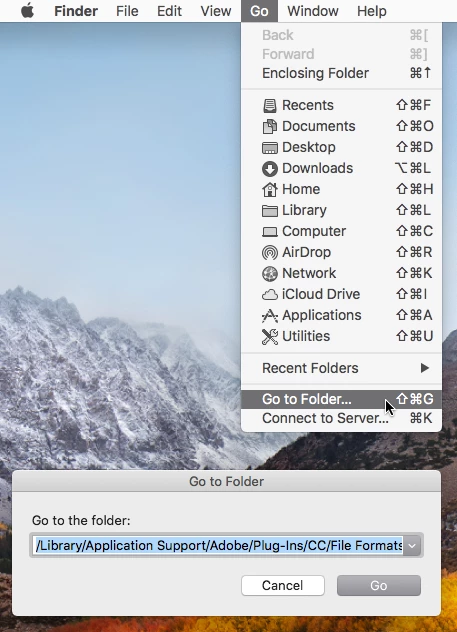
/Library/Application Support/Adobe/Plug-ins/CC/File Formats is the Machintosh HD Library.

You've most likely been looking at your User Library


An easy way to get to the Machintosh HD Library is click on your desktop, in the Go menu click on Go to Folder then paste /Library/Application Support/Adobe/Plug-ins/CC/File Formats and click Go.


3 replies

Jeff Arola
Community Expert
Jeff ArolaCommunity ExpertCorrect answer
Community Expert
August 16, 2021

/Library/Application Support/Adobe/Plug-ins/CC/File Formats is the Machintosh HD Library.

You've most likely been looking at your User Library


An easy way to get to the Machintosh HD Library is click on your desktop, in the Go menu click on Go to Folder then paste /Library/Application Support/Adobe/Plug-ins/CC/File Formats and click Go.


jp27No
jp27NoAuthor
Participant
August 17, 2021

Hooray! That works. Thank you so much. 

Greg_S.
Community Expert
Community Expert
August 16, 2021

Don't worry.  Just follow the instructions in Walter's link and you will be able to edit your 50 MP files just fine.  Hope you're loving the camera as much as I am. 

jp27No
jp27NoAuthor
Participant
August 16, 2021

I love the camera — but it's not mine! Just a loan for the moment — from the husband, so I can borrow it when he's not using it!

Walter_H
Legend
August 16, 2021

Hello jp27No,


You can update to Camera Raw v13.3 by following the instructions in this link: https://helpx.adobe.com/photoshop-elements/kb/camera-raw-update-not-available.html


--Walter in Davie, FL
jp27No
jp27NoAuthor
Participant
August 16, 2021

Thank you, Walter.


That was the update I'd loaded before. I tried again, but for some weird reason there is no "Plug-ins" in the Adobe folder in the Application Support folder in the Library folder (as suggested in Step 7 of the procedure below).  


Navigate to the following folder:

  • On macOS: /Library/Application Support/Adobe/Plug-ins/CC/File Formats


I don't know what to do now!


Walter_H
Legend
August 16, 2021

jp27No, I have a Windows 10 PC. The file you're looking for in step 8 is "Camera Raw.8bi". I assume it will have the same name on your Mac.


--Walter in Davie, FL