mikeb77512201
Participant
May 15, 2021
Answered

Photoshop Elements 2021 panel won't dock

  • May 15, 2021
  • 2 replies
  • 1120 views

Basically, the title says it all.


I have just upgraded from 14 to 2021 and now I can't get my panel with Navigator, Info etc to dock at the side. It will dock next to the Layers panel, but that takes up far too much additional screen space.


When I drag there is no blue bar except when it allows me to drop it as above.


Any suggestions?

This topic has been closed for replies.
Correct answer Greg_S.

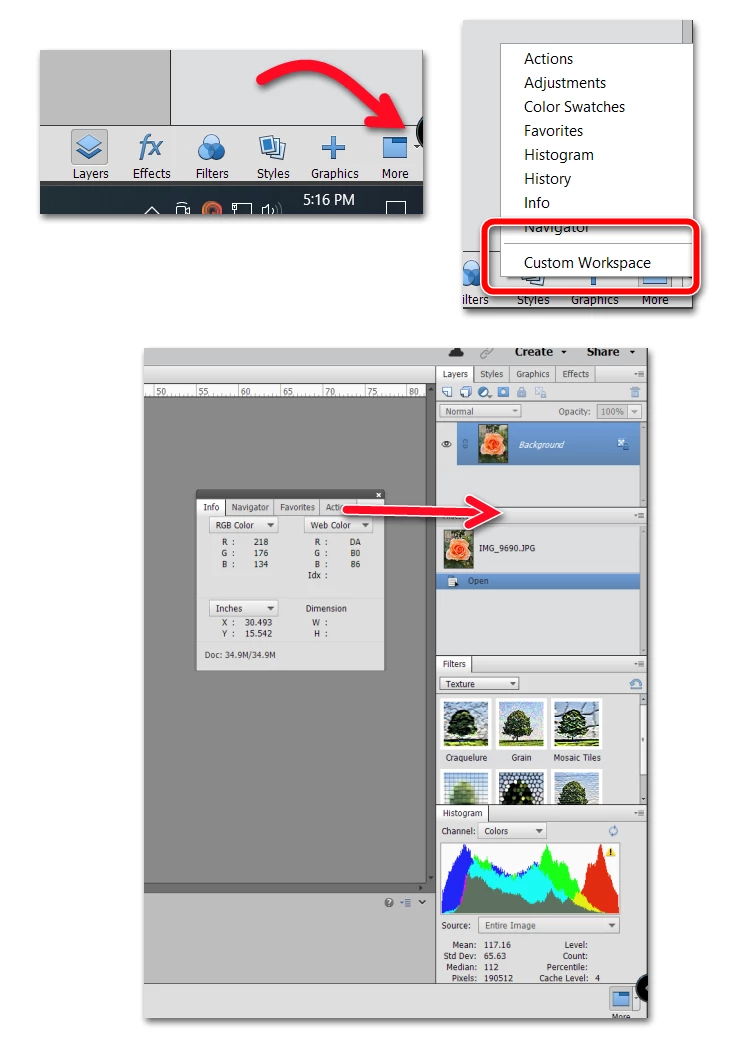
You are in the Basic Workspace. 

  • Click on the tiny arrow next to the More button at the lower right of the screen.
  • Click on Custom Workspace.
  • Go to the Window menu and select the panels that you want to have open.
  • Click and drag the individual panels from the floating dock to the right panel.

You can resize and reorder the panels in the Custom Workspace panel.

2 replies

Greg_S.
Community Expert
Community Expert
May 16, 2021

Hmmm . . .  I just took a quick look at Elements 14 and it has exactly the same workspace panel layout as Elements 2021.  But I also went back to Elements 10, and I agree it was simpler to use back then.

Greg_S.
Community Expert
Greg_S.Community ExpertCorrect answer
Community Expert
May 16, 2021

You are in the Basic Workspace. 

  • Click on the tiny arrow next to the More button at the lower right of the screen.
  • Click on Custom Workspace.
  • Go to the Window menu and select the panels that you want to have open.
  • Click and drag the individual panels from the floating dock to the right panel.

You can resize and reorder the panels in the Custom Workspace panel.

mikeb77512201
Participant
May 16, 2021

Thanks Greg. That fixed it, with a little experimentation. It feels that it was easier on previous versions I have used, but that may just be wishful thinking!