


Known Participant
Oct 15, 2026 6:38 AM UTC
Question

Photoshop Elements 26 printing issues

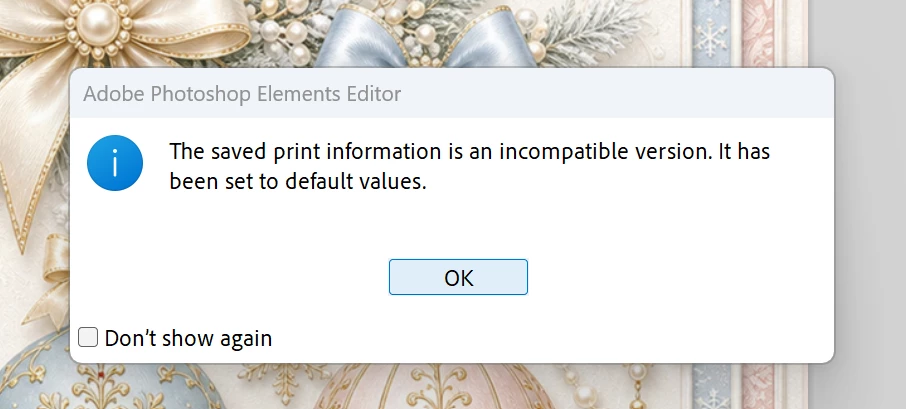
I had PSE21 and suddenly started having issues printing so upgraded to PSE 26 and it was fine for about a week then started doing exactly the same thing. It says “because the default printer cannot be opened” and this. I have been on remote access with Adobe but they can’t fix it and now don’t seem at all interested and keep closing my help tickets down! I have tried every fix going that I can find on the web and it is driving me crazy. It just won’t print at all. I managed to get one print out of it by holding down the space bar before clicking print but it won’t even do that now!
 

    21 replies

    Participant
    Nov 1, 2026 10:55 PM UTC

    I'm experiencing the exact same printing issue with Photoshop Elements 2026 (version 26.3) on Windows 11. Neither my Canon G3270 nor Microsoft Print to PDF works when printing normally, although both work perfectly from other applications. I've tried resetting Photoshop preferences, removing preference files, changing the default printer, and running Photoshop as administrator, with no success. However, holding the Spacebar while clicking File > Print works perfectly and allows me to print without any issues. This seems to point toward a compatibility issue with how Photoshop Elements handles saved printer settings, possibly triggered by a recent Adobe or Windows update. Hopefully Adobe can investigate and release a fix, as this appears to be affecting multiple users.

    Translate
    Participant
    Nov 2, 2026 2:29 AM UTC

    UPDATE – I believe I've found the cause and a working fix!

    After extensive troubleshooting, including completely uninstalling and reinstalling Photoshop Elements 2026 and reinstalling my Canon printer drivers, I discovered that the problem appears to be saved printer information embedded in the PSD file itself, not necessarily Photoshop Elements, Windows, or the printer driver.

    Here's what finally worked for me:

    1. Open the PSD file that is giving you the printer error.

    2. Hold down the Spacebar while clicking File > Print. This resets/bypasses the saved printer settings and allows the print dialog to open.

    3. Select your printer and print normally.

    4. IMPORTANT: After printing, go to File > Save (Ctrl + S) and save the PSD file again.

    5. Close the PSD file and reopen it.

    6. Try File > Print normally, WITHOUT holding Spacebar.

    The error is now gone for that PSD file, and normal printing works again!

    I also tested a newly created blank document, which printed without any problems. This helped me isolate the issue to the existing PSD file rather than the printer or application.

    My understanding is that Photoshop stores certain print settings within PSD files. If those settings become incompatible or corrupted, Photoshop may repeatedly throw the same error, even after reinstalling the application or printer drivers.

    Holding Spacebar resets the problematic print settings, but saving the PSD afterward appears to be the critical step that makes the correction stick.

    This worked for me in Photoshop Elements 2026 (version 26.3) on Windows 11 with a Canon G3270. Other affected PSD files may need the same procedure.

    I hope this helps others experiencing this frustrating issue. I'd be interested to hear whether it works for anyone else!

    Translate
    Participant
    Nov 2, 2026 10:34 PM UTC

    Canon printer.  This helped get my prints out.  Not perfect but an improvement.

    Translate
    imjack2
    Inspiring
    Oct 17, 2026 9:55 PM UTC

    Thanks for sending that screenshot. That tells alot.

    1. What brand and model is the printer you are actually using right now? 
    2. Is it connected by USB or Wi-Fi?
    3. Which printer does Photoshop Elements show in File > Print?

    In the meantime, I recommend deleting any stale print queues.

    Translate
    Kim59UKAuthor
    Known Participant
    Oct 18, 2026 7:15 AM UTC

    HP smart tank is the one I originally was using but I got a new Brother and the same thing happens with that. It is connected by USB as it won’t work with bluetooth. In File>print it shows the HP as that is set as default printer. I don’t have any print queues when I go into the printers.

    Translate
    imjack2
    Inspiring
    Oct 18, 2026 7:28 PM UTC

    Neither HP nor Brother drivers are installed in your Windows OS. Photoshop Elements cannot cope with the two Microsoft IPP Class Drivers.
    Are both printers connected by USB to your computer, or only one of them? 
    Photoshop Elements thinks that the HP printer is connected, but there is no driver.
    You need to install at least the correct HP basic driver if this is your default printer!
    If you have only your Brother printer connected, you need to install its print driver and for easy printing, set it as your default printer, so Photoshop Elements will find it easily and automatically.

    Translate
    Kim59UKAuthor
    Known Participant
    Oct 17, 2026 5:23 PM UTC

    I am using Windows 11 and windows can print fine from everywhere else. No warning triangles or anything next to the printer and no print queues. I don’t think anyone is going to be able to solve this anytime soon.

    Translate
    Peru Bob
    Community Expert
    Community Expert
    Oct 17, 2026 5:02 PM UTC

    Try this:

    Restore default preferences
    Preference settings control how Photoshop Elements Editor displays images, cursors, and transparencies, saves files, uses plug‑ins and scratch disks, and so on. If the application exhibits unexpected behavior, the preferences file could be damaged. You can restore all preferences to their defaults.

    Note: Deleting the preferences file is an action that cannot be undone.

    Do one of the following:

    Press and hold Alt+Control+Shift (Mac: Option+Command+Shift) immediately after Photoshop Elements begins launching. Click Yes to delete the Adobe Photoshop Elements settings file.
    Go to Edit > Preferences (Mac: Photoshop Elements > Preferences > General), click the Reset Preferences on next launch button, and then click OK. When you restart Adobe Photoshop Elements, all preferences are reset to default settings.
    A new preferences file is created the next time you start Photoshop Elements Editor. For information on a specific preference option, search for the preference name in Help.

    from here:

    https://helpx.adobe.com/photoshop-elements/kb/preference-file-locations-photoshop-elements.html

    Translate
    Kim59UKAuthor
    Known Participant
    Oct 17, 2026 5:24 PM UTC

    Tried that several times, sadly it doesn’t work.

    Translate
    Phinny
    Legend
    Oct 15, 2026 4:42 PM UTC

    Go to File > Print.

    Select Microsoft Print to PDF.

    Click Print.

    Does this still work?


    Translate
    Kim59UKAuthor
    Known Participant
    Oct 16, 2026 1:53 PM UTC

    No I just get this before I can select anything


    Translate
    imjack2
    Inspiring
    Oct 17, 2026 4:55 PM UTC

    Hi,

    First, check whether Windows can print without any problems. Which version of Windows are you using?

    Right-click the Start button and select Device Manager. Find the Printers section. Is there a yellow warning triangle or any other symbol next to it?

    Expand the Printers section and locate your printer. Also check the Print queues section. Do you see anything like this?


    Translate