Participating Frequently
April 4, 2018
Answered

PSE 2018 Doesn't locate MY Catalog

  • April 4, 2018
  • 1 reply
  • 2733 views

I had PSE 2018 running with no problem and had done a recent full backup of my catalog.  Then my computer crashed.  To fix it, Windows 10 needed to be re-installed.  All of my documents, including photos, are still on my computer's C-Drive, but I needed to re-install all software, including PSE 2018.  During the installation process, there was no dialog regarding locating My Catalog.  When I opened Organizer, there were no images and it wanted to begin searching my computer for images.  I assumed that this was starting the import process from scratch rather than locating My Catalog so I cancelled out of that process.

I then searched this forum for help.  I found where I can hold down the shift key while opening Organizer to get to the Manage Catalog dialog box.  I highlighted My Catalog and then clicked Open.  The dialog closed, but there was nothing apparent that happened otherwise.  In my catalog, I had many Tags, Keywords, facial recognition etc. that I do not want to do over.

1) Am I doing something wrong?

2) Do I need to Browse somewhere to find My Catalog?

3) Do I need to Restore Catalog or Repair Catalog?

Thanks.  I appreciate any help anyone can give.

Jim
    This topic has been closed for replies.
    Correct answer Little_Pale_Face

    Hi Jim,

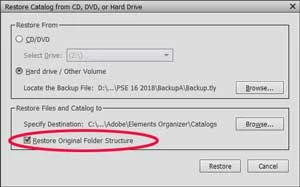
    Sorry but I had a mental block and forgot that the restore interface changed at PSE 2018. Before that, there was an option for original location.

    The restore dialog asks where to restore the actual catalog to so, in your case, as you correctly specified, it was probably:-

    C:\ProgramData\Adobe\Elements Organizer\Catalogs\

    The important thing is to check the option to recreate the file structure. This ensures that everything goes back where it was.

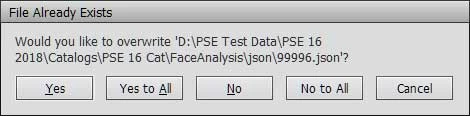
    When it starts the restore you should get a warning about overwriting the various files:-

    Click on the No to All button to avoid copying the files - it will still take a while because it has to check ever file.

    As for the extra copy of the images, are they under ProgramData?

    When you have done the restore, I'll step you through checking the location of your images to make sure you don't delete the wrong set.

    Good luck

    Brian

    1 reply

    Little_Pale_Face
    Inspiring
    April 5, 2018

    Hi,

    1) Probably not - it was the system crash

    2) My guess is that you had your catalog setup to be accessible by all users in which case the default location is

    C:\ProgramData\Adobe\Elements Organizer\Catalogs\

    [Note: ProgramData is normally hidden in file explorer - you will need to go to the view ribbon and turn Hidden Files on]

    If you catalog was there, the reinstall of Windows 10 may have cleared out ProgramData - why you can't see it.

    If your catalog was only accessible by you, then the default location is

    C:\Users\<yourusernae>\AppData\Roaming\Adobe\Elements Organizer\Catalogs\

    That should still be there in that case.

    3) Probably, providing you used the organizer backup catalog function  Restore to the original location.

    Good luck

    Brian

    Participating Frequently
    April 5, 2018

    Brian,

    Thank you so very much for the speedy and thorough reply.  I have attempted to follow your instructions.  I used Organizer to Restore Catalog.  Because It took a couple hours, I suspected that all of my photos were being copied from my external drive (where I had done the backup) to my C: drive.  When the Restore was 90% finished, I received an error message saying that there was not sufficient room to complete the restore.  I checked and found that my C: drive was red-lined.

    So here is why my C: drive is full.  The guy that reinstalled Windows 10 was able to save all my documents including all of my photos.  Before he began, he created a file of all of my documents so that he could restore them after re-installing Windows 10.  He left that file on my computer in case while I was reinstalling my software, I discovered something missing.  He said to delete this file when I was finished.  When you said "Restore to the original location.", I assumed you meant  "C:\ProgramData\Adobe\Elements Organizer\Catalogs\"   where My Catalog originally was.  So with all of my pictures already on the C: drive twice, when Organizer tried to Restore Catalog, it tried to put all of my pictures on the C: drive a third time.  That's when my C: drive ran out of room.

    So the first fix is easy.  I can delete the extra file of all my documents that the guy put on my computer to use to restore my data after he re-installed Windows.   Here's the parts I don't understand.  How can I get Organizer to find My Catalog without copying all of my pictures from my external hard drive on to my C: drive. When you said "Restore to the original location." did you mean the original location of MY Catalog (i.e. C:\ProgramData\Adobe\Elements Organizer\Catalogs\) or the original location of my photos (i.e. This PC > PICTURES)?  What I am trying to accomplish is to retain all of the tags, keywords, star ratings, facial recognition, etc., information that I have been inputting into Organizer for years.  My photos are all in This PC > PICTURES   where they had always been.

    Sorry for being so long winded,

    Jim

    Little_Pale_Face
    Little_Pale_FaceCorrect answer
    Inspiring
    April 6, 2018

    Hi Jim,

    Sorry but I had a mental block and forgot that the restore interface changed at PSE 2018. Before that, there was an option for original location.

    The restore dialog asks where to restore the actual catalog to so, in your case, as you correctly specified, it was probably:-

    C:\ProgramData\Adobe\Elements Organizer\Catalogs\

    The important thing is to check the option to recreate the file structure. This ensures that everything goes back where it was.

    When it starts the restore you should get a warning about overwriting the various files:-

    Click on the No to All button to avoid copying the files - it will still take a while because it has to check ever file.

    As for the extra copy of the images, are they under ProgramData?

    When you have done the restore, I'll step you through checking the location of your images to make sure you don't delete the wrong set.

    Good luck

    Brian