joannaw70989873
Participant
July 20, 2018
Answered

PSE 2018 Guided panel not fully visible

  • July 20, 2018
  • 1 reply
  • 269 views

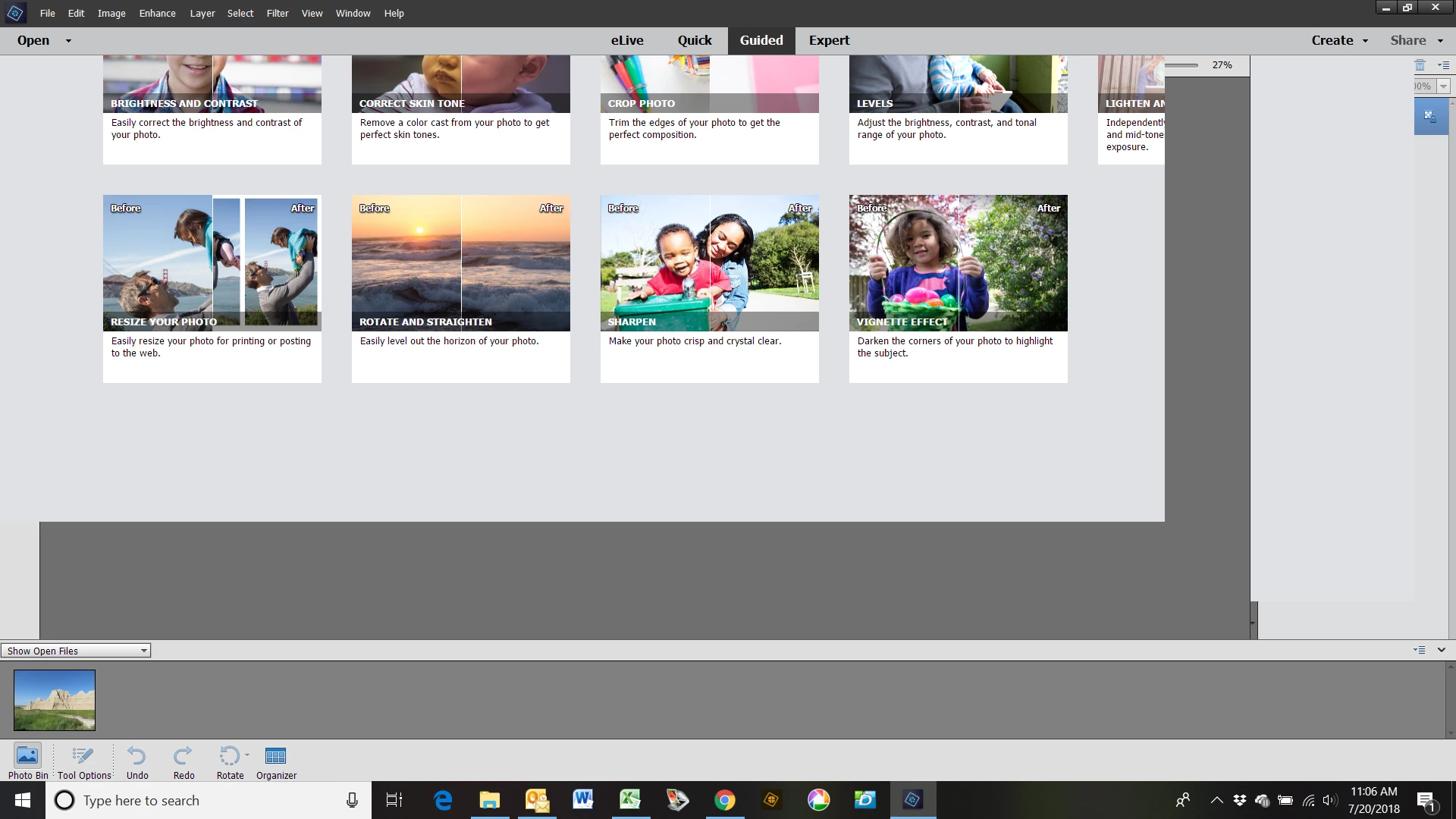
Running on Windows 10 Home.  This is all I see of the Guided panel.  I've looked for every way I can think of to get it back to the original view.  It opens up this way everytime.  I have no idea how this occured.  Please help!

    This topic has been closed for replies.
    Correct answer Peru Bob

    What is your monitor resolution set at?

    Is it only the guided panel that has a problem? If so, reset the preferences:

    Restore default preferences

    Preference settings control how Photoshop Elements Editor displays images, cursors, and transparencies, saves files, uses plug‑ins and scratch disks, and so on. If the application exhibits unexpected behavior, the preferences file could be damaged. You can restore all preferences to their defaults.

    Note: Deleting the preferences file is an action that cannot be undone.

    Do one of the following:

    • Press and hold Alt+Control+Shift (Mac: Option+Command+Shift) immediately after Photoshop Elements begins launching. Click Yes to delete the Adobe Photoshop Elements settings file.
    • Go to Edit > Preferences (Mac: Photoshop Elements > Preferences > General), click the Reset Preferences on next launch button, and then click OK. When you restart Adobe Photoshop Elements, all preferences are reset to default settings.

    A new preferences file is created the next time you start Photoshop Elements Editor. For information on a specific preference option, search for the preference name in Help.

    from here:

    Preference file locations for Photoshop Elements and Premiere Elements

    1 reply

    Peru Bob
    Community Expert
    Peru BobCommunity ExpertCorrect answer
    Community Expert
    July 20, 2018

    What is your monitor resolution set at?

    Is it only the guided panel that has a problem? If so, reset the preferences:

    Restore default preferences

    Preference settings control how Photoshop Elements Editor displays images, cursors, and transparencies, saves files, uses plug‑ins and scratch disks, and so on. If the application exhibits unexpected behavior, the preferences file could be damaged. You can restore all preferences to their defaults.

    Note: Deleting the preferences file is an action that cannot be undone.

    Do one of the following:

    • Press and hold Alt+Control+Shift (Mac: Option+Command+Shift) immediately after Photoshop Elements begins launching. Click Yes to delete the Adobe Photoshop Elements settings file.
    • Go to Edit > Preferences (Mac: Photoshop Elements > Preferences > General), click the Reset Preferences on next launch button, and then click OK. When you restart Adobe Photoshop Elements, all preferences are reset to default settings.

    A new preferences file is created the next time you start Photoshop Elements Editor. For information on a specific preference option, search for the preference name in Help.

    from here:

    Preference file locations for Photoshop Elements and Premiere Elements