
Participating Frequently
February 12, 2022
質問

PSE 2021 Organizer: How to find location of a JPG displayed in a screenful of images

  • February 12, 2022
  • 返信数 2.
  • 230 ビュー

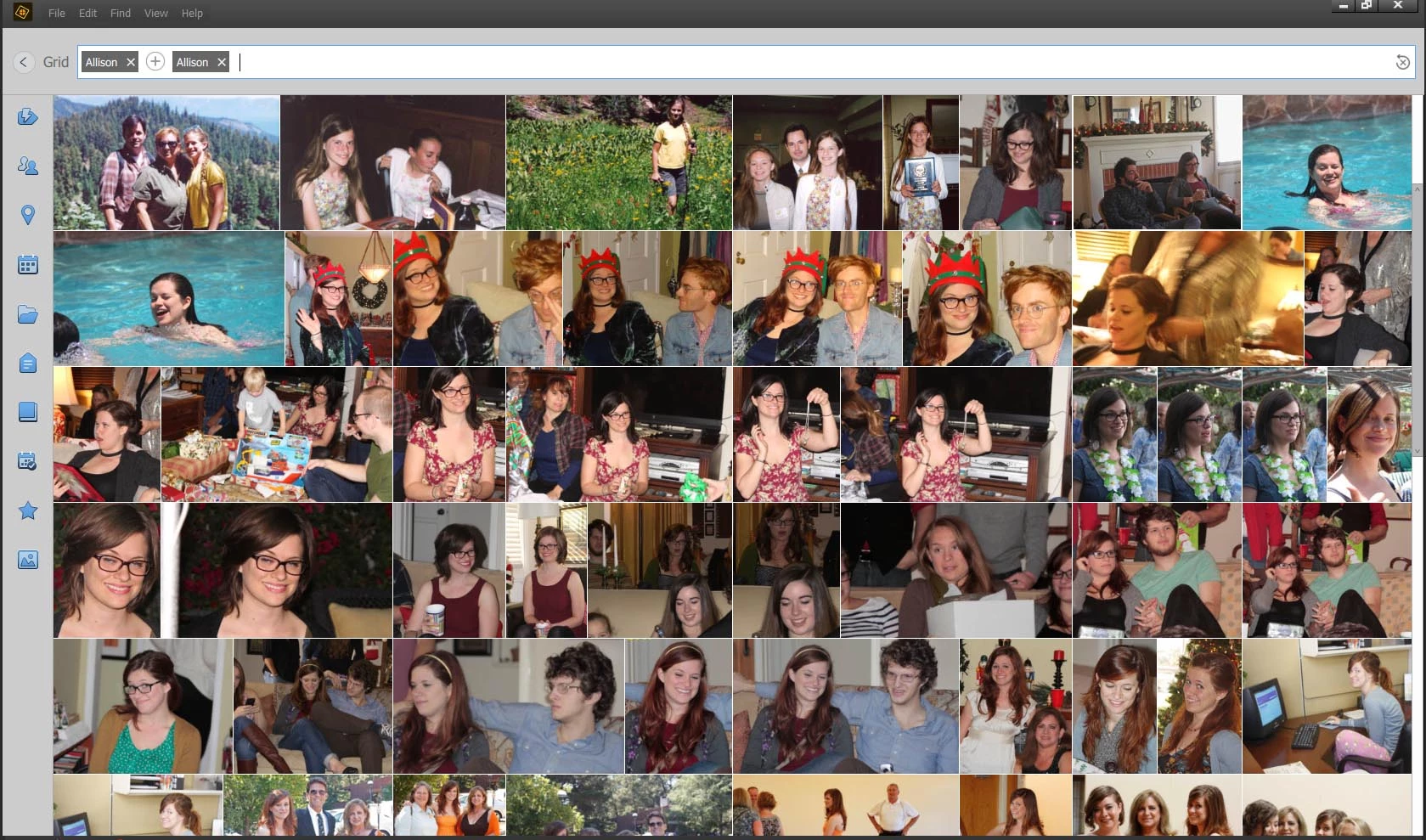
I tagged 142 faces of "Allison" and then searched for them.  Result is row upon row of rectangular images of varying dimensions. Right OR left clicking on an image displays a white check mark in a field of blue, and subsequent clicks toggles the check mark.  I see no information about the selected JPG.  Almost any information about it could lead me to its location, enabling me to work with it, such as using it in a birthday card.  How can I learn the desired information?
このトピックへの返信は締め切られました。

返信数 2

Greg_S.
Community Expert
Community Expert
February 12, 2022

Although @reedesign1912  has provided you with a solution to your immediate issue, I have a couple more comments that may be helpful to you in the future.

First, your screenshot shows that you have entered Alison's name in the Search box twice.  Now, it is possible that you have two different tags identified as Alison.  For example, you may have a People tag and a regular keyword tag named Alison.  (It is also possible to have two People tags with the same name.)  If that is the case, the Search term you have used would only show images that contain both tags.   You would probably want to change the operator to OR:


But rather than use the Search box to find tagged People (or any keyword tag), it is far easier to simply check the tag box in the Tags panel:


When you select a particular image in the grid, you can then send it directly to the Photoshop Elements Editor (to create your birthday card) using the keyboard shortcut Ctrl+I.  But if you need to find the location of the file to perhaps use it in other software, you can open the Information panel and there will be a direct link to the OS folder, if you click on the Location link.  The folder path is also shown but may be abbreviated, depending on the size of your monitor.  Hovering over the location will display the full path.


reedesign1912
Inspiring
February 12, 2022

Click on < Grid on the top left corner.  Your searched photos should still be there and then you can right click on the photo you want to Show File Info.  Happy Birthday Allison.  🙂


Rob R, Photographer