
Participant
May 17, 2024
Question

PSE 2024 Freezes

  • May 17, 2024
  • 12 replies
  • 1372 views

I am running Windows 11 with PSE 2024.  Elements freezes for extened periods and may or may not recover.  Looking at the "System Information" with in Elements 2024, it indicates that the machine has Windows 10 on it.  
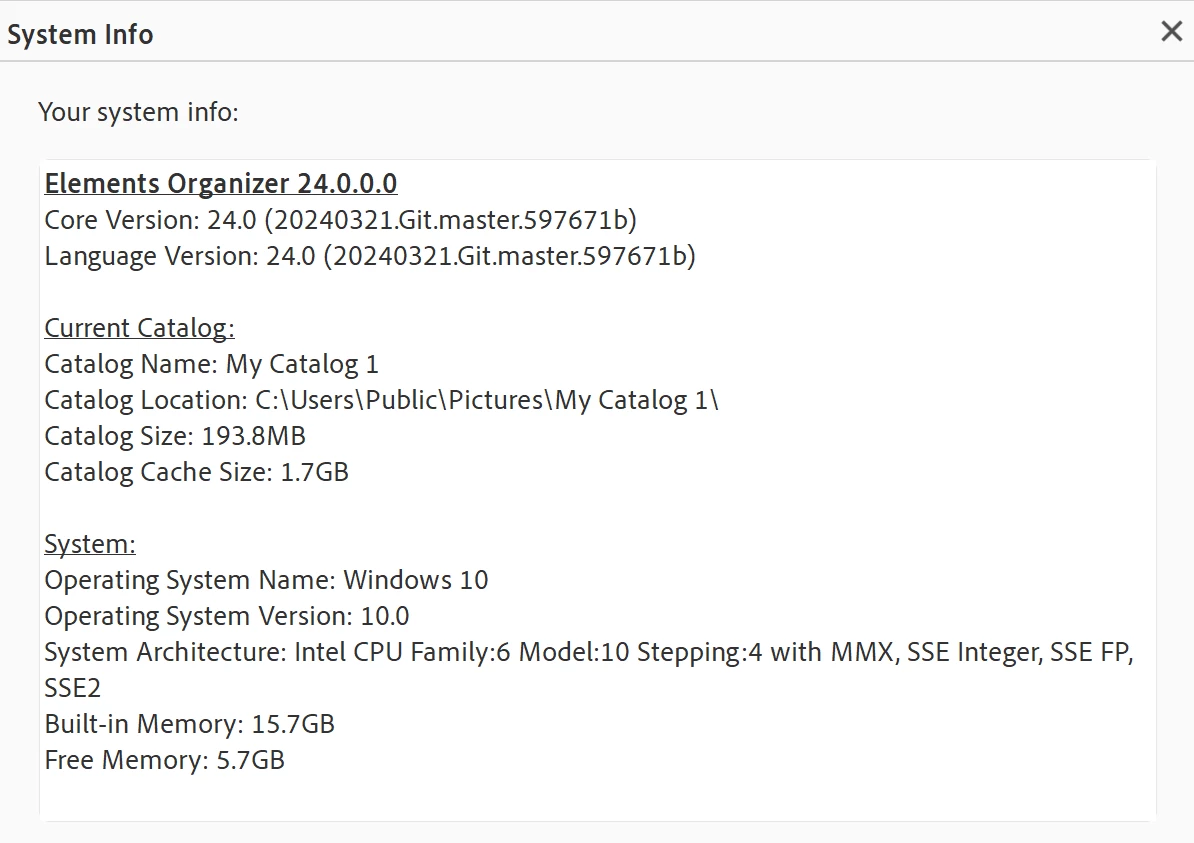


Any ideas?

This topic has been closed for replies.

12 replies

Greg_S.
Community Expert
Community Expert
May 18, 2024

Please let us know if resetting the preferences has any effect.


I think you are third person in the last few days who has put the catalog folder under the Pictures folder and has problems.  (Adobe has not changed the system info dialog to display Windows 11.  So don't be concerned about that.  AFAIK, it's the same for everyone.) 


The name of your catalog suggests that you have upgraded to Elements 2024 from an earlier version.  What is the version history of this catalog?  Please show us a screenshot of the contents of the folder:  . . . Pictures\My Catalog 1.


If you are able to open the Organizer, the problem may be that Media Analysis is taking place in the background.  This can cause freezes for long periods and may even affect the Editor.  To determine if this is the problem, go to Edit>Preferences>Media Analysis and uncheck all of the boxes.  If this fixes the freezes, I suggest that you recheck the boxes and leave the computer running overnight or when you are not using it.  Depending on the size of your catalog, this may take several days of  running 24/7.


Peru Bob
Community Expert
Community Expert
May 18, 2024

Try this:

Restore default preferences
Preference settings control how Photoshop Elements Editor displays images, cursors, and transparencies, saves files, uses plug‑ins and scratch disks, and so on. If the application exhibits unexpected behavior, the preferences file could be damaged. You can restore all preferences to their defaults.

Note: Deleting the preferences file is an action that cannot be undone.

Do one of the following:

Press and hold Alt+Control+Shift (Mac: Option+Command+Shift) immediately after Photoshop Elements begins launching. Click Yes to delete the Adobe Photoshop Elements settings file.
Go to Edit > Preferences (Mac: Photoshop Elements > Preferences > General), click the Reset Preferences on next launch button, and then click OK. When you restart Adobe Photoshop Elements, all preferences are reset to default settings.
A new preferences file is created the next time you start Photoshop Elements Editor. For information on a specific preference option, search for the preference name in Help.

from here:

https://helpx.adobe.com/photoshop-elements/kb/preference-file-locations-photoshop-elements.html