
Participant
October 8, 2020
Answered

Quick and Guided Edit Tools Selection Panel Unpinned and Stuck

  • October 8, 2020
  • 1 reply
  • 640 views

The tools panel in Quick Edit and Guided Edit Tools mode is "unpinned" and "stuck."  Previously working, I just selected Guided and the tools menu has moved to the top left corner and I cannot "pin" it back to the right border. It doesn't appear to be draggable and there are no left/right-click actions.  The same for Quick Edit Tools except the Adjustments panel is mid-frame. The Expert Mode is fine.


I've tried View > Guides selections; nothing is active. The Window > Panel Bin is stuck too. Window > Reset Panel doesn't do anything in Quick or Guided modes, but works fine in Expert selecting, activating, and resetting any of the Layer/ Effects,.. 


This topic has been closed for replies.
Correct answer jimroberts

There's a bit of progress in the reload.  Did more testing. The misplaced panels are somewhat active.  I can click on a guided selection and get the wrong Correct panel.  It comes up in the same wrong place as the Quick mode panel. 

I may not have tried it before, but turning on Window > Tools gives me an active and working (?) set of tools.


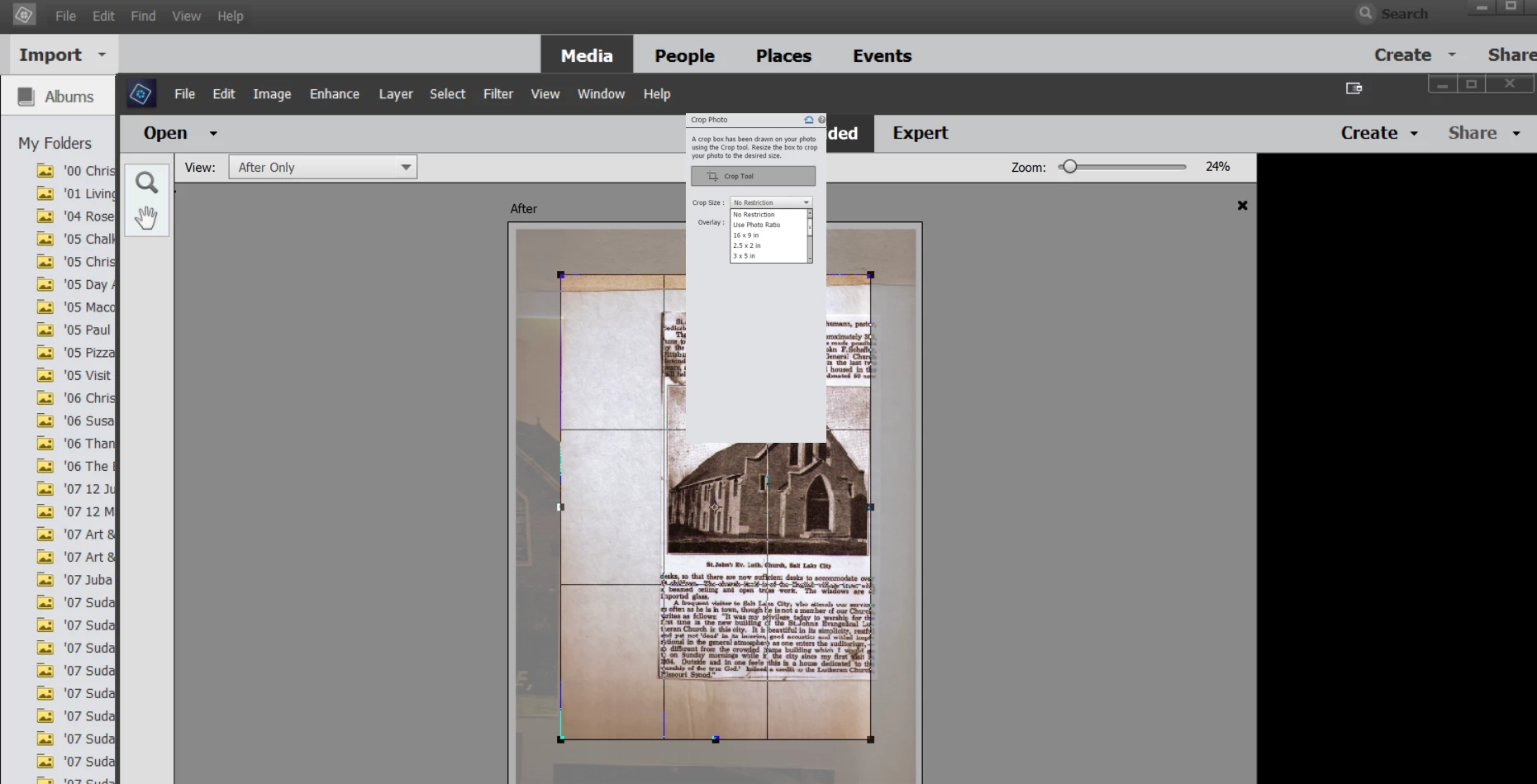
Major ah-ha (!?)  I can bring up a Correct tool by clicking over where the panel is supposed to be (right side). Here's a shot where I got the Crop Photo just by clicking around in the black space.


Jim


SOLVED.  Had this amazing Adobe guy (Ajay) take over my machine and he roared through all the drivers, settings, options fixing things.  There was nothing wrong, but a couple of driver options were fighting.  He cleaned everything up and set some customizations that will be helpful.  I am totally amazed at the support.  Was feeling negative about not having an email address to send a big Word doc with all the symptoms and screen snaps.  Make the Chat, they are TOPS.

1 reply

Greg_S.
Community Expert
Community Expert
October 8, 2020

Try resetting the preferences file. Go to Edit>Preferences>General tab and click the Reset Preferences on next launch button.

Participant
October 8, 2020

Thanks, Greg.  Just tried that a couple of times.  No help. 


Tried rebooting. I even deleted and reinstalled Elements 2020.


Here's an image of what I'm getting in Guided Mode.


Thanks,

Jim

Participant
October 8, 2020

There's a bit of progress in the reload.  Did more testing. The misplaced panels are somewhat active.  I can click on a guided selection and get the wrong Correct panel.  It comes up in the same wrong place as the Quick mode panel. 

I may not have tried it before, but turning on Window > Tools gives me an active and working (?) set of tools.


Major ah-ha (!?)  I can bring up a Correct tool by clicking over where the panel is supposed to be (right side). Here's a shot where I got the Crop Photo just by clicking around in the black space.


Jim