IIRC, the green check icons means that the photo has already been synced with the Elements Web. (Can you hover over the green check icon and tell me what the popup says. I have auto sync turned off and don't remember exactly what all the icons mean.)
@dianef31111009 said: I clicked on the cloud icon and unchecked all icloud options to sync.
I'm not clear what you did. Please explain further. To turn off auto sync with the Elements Web, you have to go to the Organizer's Edit>Preferences>Auto sync tab and uncheck all the boxes. Is this what you did?
Once you uncheck the auto sync option for your catalog, you still need to delete the files that have already been uploaded to the Elements Web (if that is your goal). To do this:
- Click on the Elements Web button in the lower tool bar.
- In the webpage that appears, click on the Cloud icon in the top right next to your profile avatar
- Click Manage
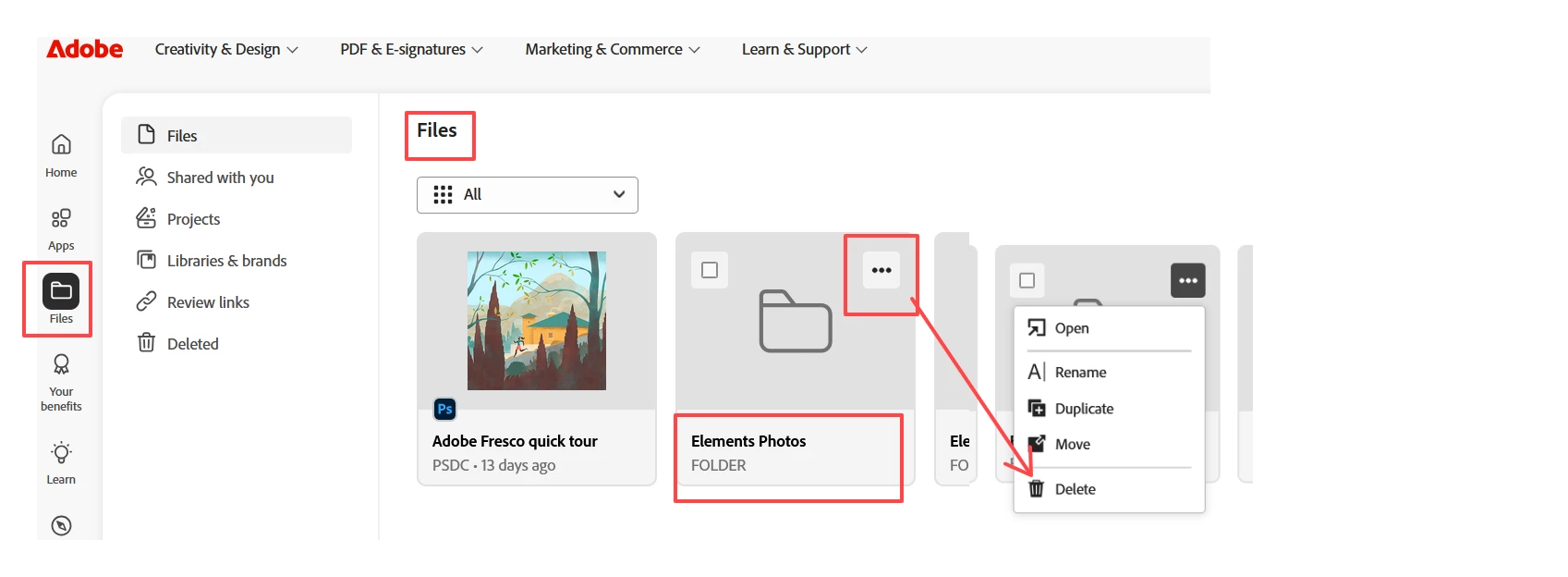
- In the dialog that opens, under the Files tab, you will see an Elements Photos folder
- Click on the 3 dots icon in the corner of the folder icon
- Select Delete from the context menu that appears.




 AdChoices