
Participant
October 31, 2024
Question

Re: P: Allow customization/hiding of the splash screen

  • October 31, 2024
  • 5 replies
  • 528 views

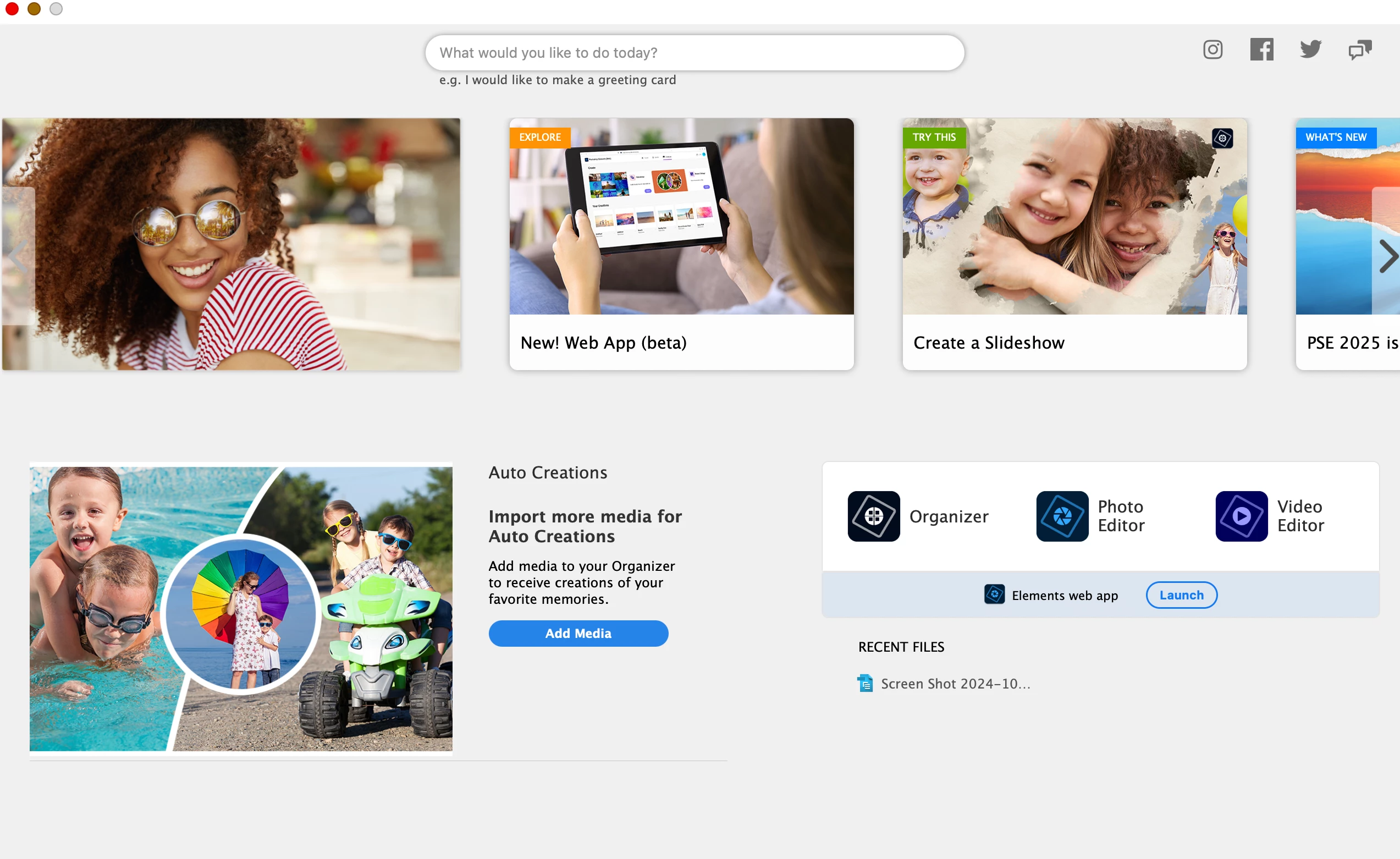
I find the automatic HOME SCREEN as pictured HIGHLY ANNOYING as I only want to use photoshop elements and not the organiser or the Video editor. I'd like to turn this off in preferences. Please UPGRADE to allow this.
    This topic has been closed for replies.

    5 replies

    Sameer K
    Community Manager
    Community Manager
    November 8, 2024

    Hey, @Pete54321. Welcome to the Photoshop Elements community. Your post was moved your response from a 7-year-old thread. 

    I'll help you skip the Home screen when you launch Photoshop Elements. 


    Follow these steps: 

    1 - At the home screen, launch Photo Editor > in your computer's dock/taskbar (macOS/Windows) you'll have two of the same icons. 


    2 - One of these is for the Home screen & the other is from the Photoshop Elements. 

    3 - Close the workspace & right-click on the remaining icon to Pin it to your dock/taskbar.


    Use the docked icon to launch Photoshop Elements & skip seeing the home screen.

    You can follow the same steps for the Organizer & Video editor. 


    Let me know if this helps. Thanks!

    Sameer K

    (Use '@mention' to tag me when you reply)


    Pete54321Author
    Participant
    November 10, 2024

    I've got it to work, see previous post answer

    thankyou

    Jeff Arola
    Community Expert
    Community Expert
    November 1, 2024

    Pete5421,


    Some older versions of Photoshop Elements did have the feature your requesting, but for some reason Adobe stop providing an easy means to bypass the Welcome Screen or as it's now called the Home Screen.


    In the meantime what you can do is create a shortcut to the Adobe Photoshop Elements 2023 Editor by going to

    Applications/Adobe Photoshop Elements 2023/Support Files

    double clicking on the

    Adobe Photoshop Elements Editor.app


    Then in the Dock right click on the Adobe Photoshop Elements Editor icon, click Options, then click Keep in Dock


    Now you have a shortcut in the dock that will open the Adobe Photoshop Elements 2023 Editor, bypassing the Home Screen.


    Pete54321Author
    Participant
    November 10, 2024

    Thank you very much that has now worked for me.

    It was quite annoying to always have to open the welcome screen first when I never use Photo organiser or Video editor, and jump thruogh 2 hoops

    Greg_S.
    Community Expert
    Community Expert
    November 1, 2024

    @Nancy OShea did you use AI to generate part of your response?  Maybe I am missing something but I don't think it is entirely accurate.

    Pete54321Author
    Participant
    November 10, 2024

    No I didn't use AI.

    I did not know the diffrence between a home and a welcome screen.

    Problem is now fixed thanks to post below.

    The Apple Command Q solution did nt work as it only quit the entire appliaction after I opened the welcome screen.


    Greg_S.
    Community Expert
    Community Expert
    November 1, 2024

    In WIndows, this is easy.  But it looks like you have a Mac, about which I know next-to-nothing.  I will therefore ping @Jeff Arola another Community Expert to see if he can provide you any advice.

    Nancy OShea
    Community Expert
    Community Expert
    November 1, 2024

    You can bypass the home screen in Photoshop Elements 2024 by clicking the home screen icon and pressing Ctrl Q (Command Q on a Mac).


    Nancy O'Shea— Product User & Community Expert
    Nancy OShea
    Community Expert
    Community Expert
    October 31, 2024

    [Moderator moved from IDEAS for Photoshop to PS Elements Discussion.]


    The first screen that appears when you launch a current version of Photoshop Elements is the Home screen.

     
    • Home screen
      This screen allows you to access features like tutorials, resources, and Auto Creations. You can also select your previously used version of Photoshop Elements from the Last Used Version section. 


    • Welcome screen
      This screen allows you to launch into the different workspaces of Photoshop Elements, such as the Photo Editor, Organizer, and Video Editor. 


    You can bypass the home screen in Photoshop Elements 2024 by clicking the home screen icon and pressing Ctrl Q (Command Q on a Mac). This will quit the home screen and leave the editor open. You can then pin the editor icon to your application bar or create a shortcut on your desktop. 
     
    Hope that helps.
     
    Nancy O'Shea— Product User & Community Expert
    Pete54321Author
    Participant
    November 9, 2024

    How do I get rid of the annoying WELCOME SCREEN upon opening Photoshop Elements. I NEVER use Organizer or Video Editor. I want to go direct to Photo Editor when opening Photoshop ELEMENTS 2023, Without having to click on the  PHOTO EDITOR TAB.

    Thank you

    Jeff Arola
    Community Expert
    Community Expert
    November 9, 2024

    Pete54321,


    There are two different ways suggested here in this thread.


    Do they not work for you?


    What version of macOS do you have?