thomasg48778124
Participant
January 17, 2019
Answered

Refreshing the folders as too many photos, Adobe Elements 2018

  • January 17, 2019
  • 1 reply
  • 316 views

Hi there I am new to Adobe Elements.

I have recently installed it onto my Mac and it has searched the whole Mac for pics, I only want to have it watch 1 folder, so how do I get rid of all the photos that are on my screen and only have the watch folder displayed.

The reason for this is that I have over 2000 photos, and elements has picked up and duplicated them with different file names and these folders I no longer use, but still keep the photos but I don't want them in elements.

Any advice would be appreciated

Thanks in advance

Tom
This topic is closed to new replies. Start a new post to keep the conversation going.
Correct answer Somya_Agarwal

Hi,

For the images which have currently got imported and you do not want them in your catalog, you could either delete those files from the catalog or start a fresh catalog.

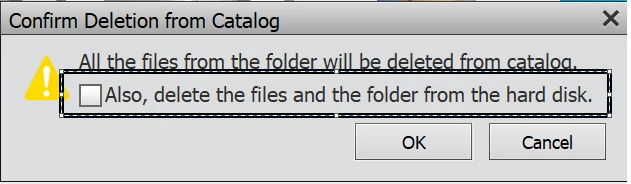
To delete the incorrectly imported images, right click on the folder to be deleted in the lef tpanel, select 'Delete Folder'. Make sure that the option, 'Also, delete the files and folder from the hard disk' is NOT SELECTED

To start with a new go to File menu> Manage catalogs> New. In this catalog you can import fresh media using Import options

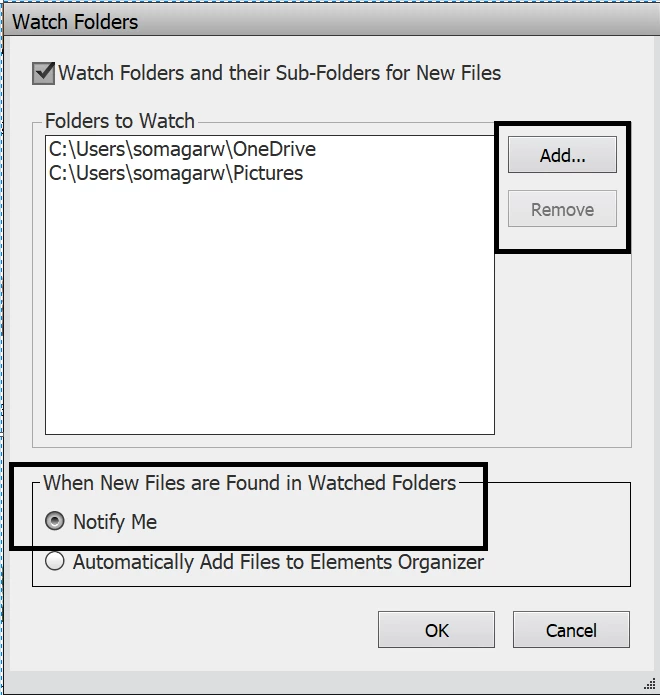
To set the required watch folders, go to File menu> Watch Folder. You can Add or Remove the watch folders here. Also, ensure that 'Notify Me' option is selected, to turn off the automatic import.

Let me know if this helps.

Thanks!

1 reply

Somya_AgarwalCorrect answer
Adobe Employee
January 18, 2019

Hi,

For the images which have currently got imported and you do not want them in your catalog, you could either delete those files from the catalog or start a fresh catalog.

To delete the incorrectly imported images, right click on the folder to be deleted in the lef tpanel, select 'Delete Folder'. Make sure that the option, 'Also, delete the files and folder from the hard disk' is NOT SELECTED

To start with a new go to File menu> Manage catalogs> New. In this catalog you can import fresh media using Import options

To set the required watch folders, go to File menu> Watch Folder. You can Add or Remove the watch folders here. Also, ensure that 'Notify Me' option is selected, to turn off the automatic import.

Let me know if this helps.

Thanks!