
Participating Frequently
July 22, 2022
Answered

Remove color cast

  • July 22, 2022
  • 5 replies
  • 3128 views

I recently acquired PE 2021 and everything in the "Photo Editor" zone works normally except that "Remove color cast" doesn't work at all.  I have opened a number of  JPEGs with a distinct color cast and clicked on an area that should be white and nothing changes at all. All other "Enhance" functions (brightness/contrast/hue/saturation/color curves etc) make changes to the image as expected. Am I missing some step? Holding down "Alt" or "Ctrl" while clicking on the desired area makes no difference.

My PE was downloaded from Adobe and properly registered. Any suggestions? Is this a known problem?

This topic has been closed for replies.
Correct answer hatstead

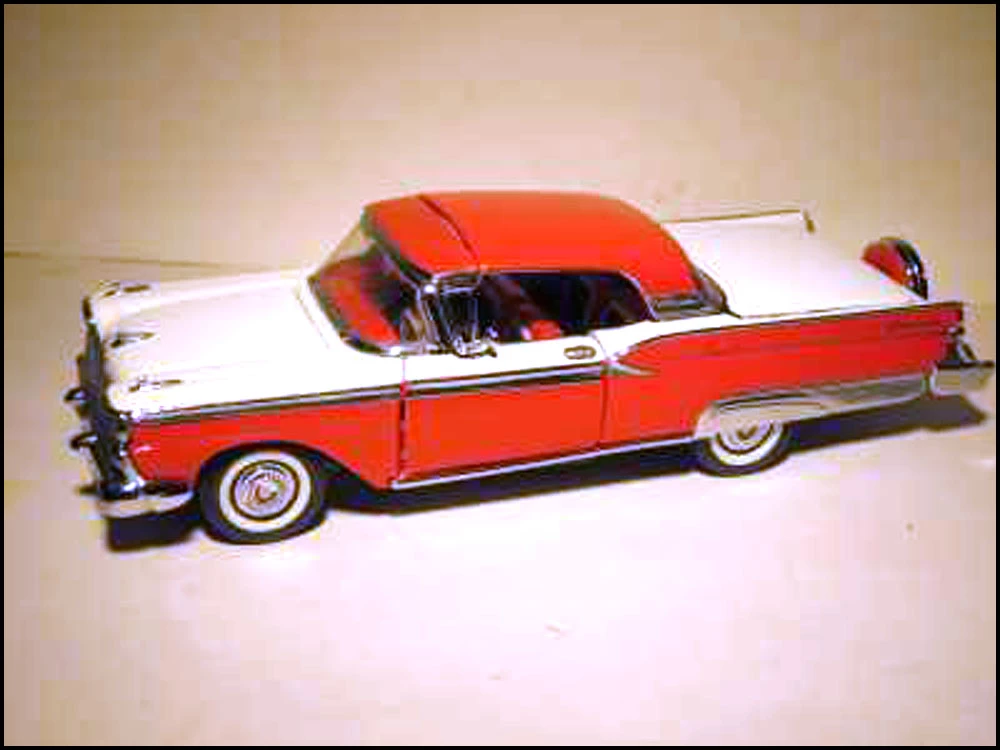
p.s. I just discovered by chance, to my amazement, that "Enhance - auto color correction" made a pretty fair attempt at doing the job (corrected image attached below). How it could possibly know that the colour cast was due to tungsten lighting, I can't imagine. Maybe it just sees that there is more yellow (or green, or whatever) than in a normal well-balanced exposure, and makes an automatic adjustment, but it worked in this case, though it might not always.

Still doesn't explain the strange loss of the color cast removal tool, though, so if anyone has found a remedy or a workaround I'd be happy to hear it.


1. I downloaded the original skyliner.JPG file from your post and opened it in PSE Editor

2. Duplicated the Background Layer and worked on the Background Copy layer

3. This file is very low resolution. I increased the resolution to 240 px/in via Image>Resize>Image size. with resample image and constrain proportions  checked. 

4. Went to Enhance>Adjust Lighting>Levels  and accessed the white eyedropper to reset the white point. Clicked on the white sidewall of the front tire.


5 replies

Greg_S.
Community Expert
Community Expert
July 23, 2022

That'll teach me to start a reply and not refresh the page after getting interrupted.  As with most operations in Photoshop/Elements, there are usually several ways to accomplish the task.  hatstead and Jeff have already given you other suggestions before I posted mine.  

As for the Crop tool, it is in the same place it has always been.  Perhaps, you have used one of the related tools and the icon showing in the tool bar has changed to e.g. the Cookie cutter tool.

Participating Frequently
July 24, 2022

Goodness. I had to sit down and read all the helpful suggestions for fixing the problem. I've never encountered such a quick and varied response on any "help" forum. Thanks to all for the time and effort.


I did also receive a couple of e-mails slapping me on the wrist for marking my own answer as the "correct answer". I was trying to mark Hatstead's answer as correct and somehow clicked in the wrong place and couldn't see how to uncheck it. Oops.


I tried re-setting "preferences" as someone suggested, although I don't quite understand why there should be a "preference" setting that says "I don't want this tool to work when I click it". Anyway, it made no difference, the color cast tool still does nothing on any image I've tried and I noticed that when I click the eyedropper icon on the "remove color cast" pop-up notice, a "Set grey point" message appears briefly and can't be cycled through "set white point" or "set black point".


Anyway,  using the eyedroppers in "Adjust lighting levels" seems to do exactly the job required at my amateur level of editing, so I'll stick with that.


Oh, and yes, the crop tool IS still there. Now you are wondering why anyone as blind or cross-eyed as me is even trying to edit photos.


Thanks again to all.

Greg_S.
Community Expert
Community Expert
July 23, 2022

You haven't told us exactly how you are using the Remove Color Cast tool.  If the eyedropper tool is indeed doing absolutely nothing, then it may need to be reset.  (I'm guessing that when you reinstalled the program, you chose not to delete the preferences file when you uninstalled the program.)  Go to Edit>Preferences>General tab and click the Reset Preferences on next launch button.  Close and open the program again and see if that makes a difference to the operation of the tool.


As you have found the Auto Color Correction tool was able to remove the Tungsten light color cast quite easily.  As I understand it, this simply involves a mathematical calculation and correction of the pixels, presumably based on the lightest and darkest pixels in the image and the shift towards the particular RGB components.

In any event, I used the Remove Color Cast tool on your image and (intentionally) got several different results which you can see in this gif:

As you already know, the tool tells you to click the eyedropper on a part of the image that is either black, white or grey.  I think this is slightly misleading because you really need to click on a pixel that should be black, white or grey.  On a low resolution image, this is not as easy as it sounds.  So, I suggest zooming into pixel level to get the best match.  Here is a portion of the hood/bonnet of the car that I'm assuming should be white.  It obviously has a yellow cast to it.  But you will also see that there are various shades of yellow. It is necessary to find the lightest shade to get as close as you can to a true white.

Clicking on the darker shades of yellow will give an inaccurate result.  The same is true for the darker/black shades of the image:

Even though you may think you are clicking on a black area of the image, you may be clicking on pixels that are much lighter than true black.


Here is another tip for finding the blacks and whites in an image.  Go to Layer>New Adjustment Layer>Threshold and click OK. 

        1.    In the dialog that opens, move the slider all the way to the left and the image will turn completely white.

        2.     Move the slider to the right gradually and the blackest areas of the photo will appear.

        3.     Click on the preview eyeball to see the photo image in color.  This will help you find the blackest areas of the photo and you can then delete the threshold layer.


You can do the same with the whitest areas of the photo by moving the slider all the way to the right and gradually moving it left.


Now having said all of that, you may just find that resetting the preferences fixes your problem.  Or, you may just want to use the Auto Color Correction tool.  Personally, I tend to use a Levels adjustment layer to fix a color cast because you can select areas of the photo that are black, white and grey with the 3 eyedropper tools that are available.

Jeff Arola
Community Expert
Community Expert
July 23, 2022

Another option is to open the image in camera raw and use the White Balance Tool

(File>Open in Camera Raw)


Greg_S.
Community Expert
Community Expert
July 22, 2022

Can you post a sample photo.

Participating Frequently
July 23, 2022
Thanks for response, but since I posted my query I had another try and Photo Editor repeatedly failed to load at all. Presumably my 3 month old Elements has corrupted, though it’s odd that “remove color cast” was the only sign of a problem.

Anyway Adobe Systems have e-mailed and recommended uninstalling and loading a fresh version so we will see if that resolves the issue.

But it’s nice to know the Support Community is there if needed.(I may be back!)

Sent from Mail for Windows


--
This email has been checked for viruses by AVG.
https://www.avg.com
Participating Frequently
July 23, 2022

Oh dear. Yes, I am back. As advised by Adobe I uninstalled Elements and dowloaded and activated a new version. Photo Editor is now working normally - but the color cast removal eyedropper still does absolutely nothing.

Someone asked to see a specimen image. Here is the image that caused the trouble. Normally I would click on a whitewall tyre and the image would be instantly transformed but in this case it had no effect. I opened several other random full-res images of models and deliberately adjusted the hue to give a colour cast, to see if Elements could correct it, but again no luck. The function is simply dead and I can't imagine I've downloaded two copies of Elements with the same unique defect? Bizarre.

Also attached is a "before and after" shot of a similar image which I successfully corrected just a few weeks ago (so I do know what I'm doing!)


hatstead
Inspiring
July 22, 2022

In have not had success using this tool over the years as well.

If the problem is a global one, try a Photofilter adjustment layer.

If the color cast is confined to a finite locus, select this area with one of the selection tools, place it on a new layer (press CTRL+J), open the adjustment layer above this, and group the top 2 layers (press CTRL+G).

Another way to go about this is to make alterations with a Hue/saturation adjustment layer. In the dialog there is a "colorize" box option which can be checked.