
Participant
January 31, 2026
Question

Restore Hanging up

  • January 31, 2026
  • 1 reply
  • 0 views

I’m doing a restore to a new computer of a pretty large catalog. (250k items). The backup goes without issue. The new computer has a single drive c: drive instead of two c:/d: in the old with the catalog on c: and all the files stored in D:.


The restore seems to go ok and I restore without bringing over the old file structure. It takes around 4 hours to copy all the files from the external drive. Afterwards it moves to the Preparing Catalog and it seems to just hang on that. Windows thinks it not responding and it’s been that way for about 4-5 hours now. 
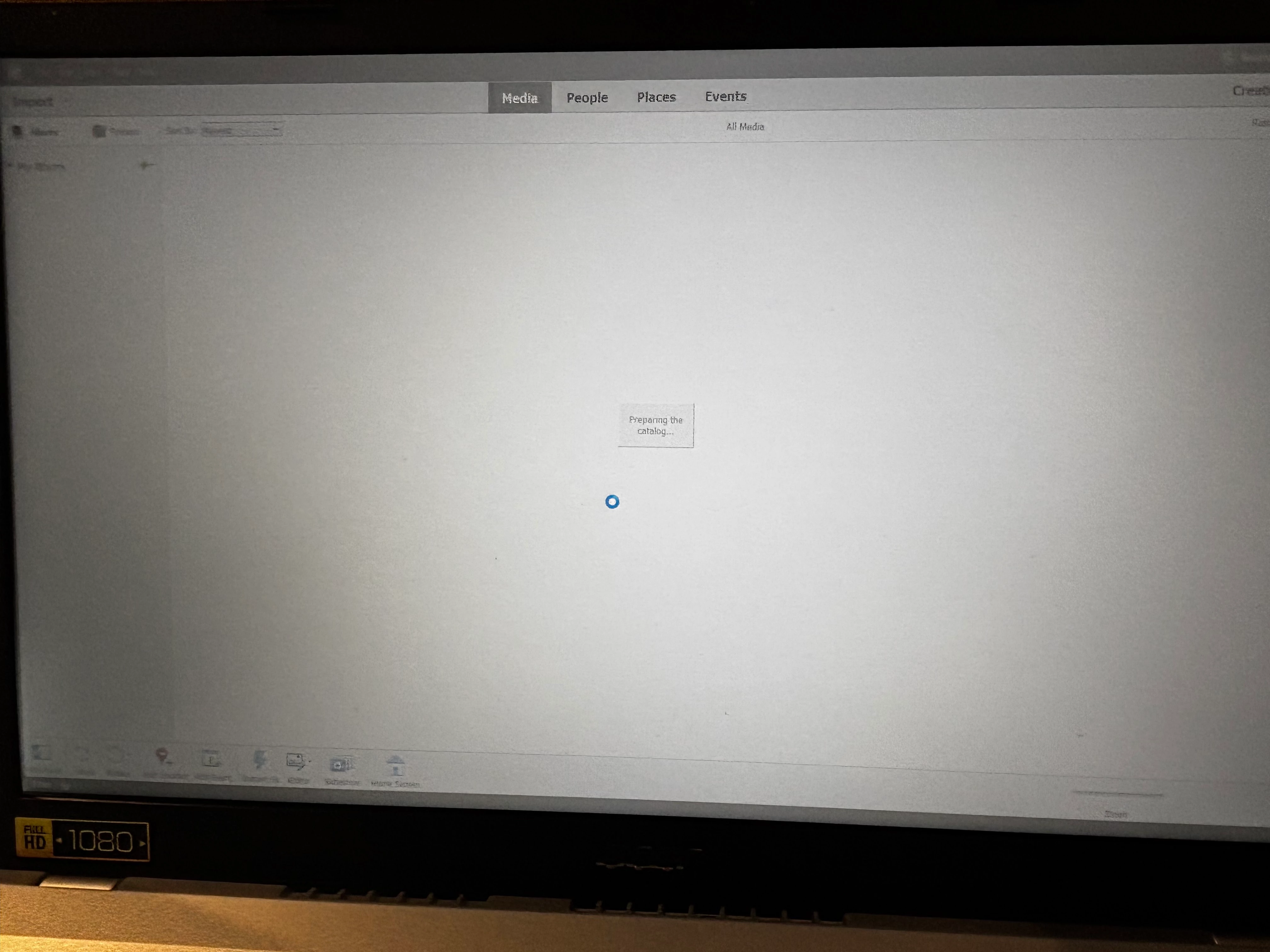

This is the second attempt to move it and the first attempt I ended after and then I had thousands of files that needed to be reconnected. 
 

Am I not waiting long enough enough? What is it doing after the file copy and it says complete. Any suggestions would be greatly appreciated. My old computer is running out of space and can’t be upgraded to Win11 because of age. 
 

Thanks

    1 reply

    Glenn 8675309
    Legend
    February 1, 2026

    Patient, you must be young padawan.

    I’d start it when you go to bed, and not worry about it too much.
     

    Preparing a catalog in Adobe Elements Organizer can range from a few minutes for small, new collections to several hours for large, existing, or upgrading catalogs, especially when generating thumbnails. 

    For a catalog of approximately 35,000 images, load times are typically around 1 minute on modern hardware. However, larger catalogs (65k to 200k+ images) and initial imports (or upgrades from older versions) can take significantly longer due to background processes. 

    Factors Influencing Time

    • Initial Import/Upgrading: If you are importing thousands of photos or converting an old catalog (from Photoshop Album or Elements 3-5), the process of creating thumbnails and rebuilding the database can take "a long time" or "several hours," and in extreme cases of metadata saving, could potentially span multiple days, say user reports.
    • Hardware: Using a high-speed SSD (solid-state drive) will significantly speed up this process compared to a platter drive.
    • Media Analysis: Background tasks like automatic face recognition or smart tag generation (auto-analyzer) add time.
    • Catalog Maintenance: If the catalog is fragmented, running the Optimize function in the Catalog Manager can reduce future load times. 

    Typical Timeframes

    • Small/Moderate Catalog: Minutes to under an hour.
    • Large Catalog (50k+ images): Several hours to overnight (especially if generating thumbnails and re-indexing visual similarity data).
    • Backup/Restore: A library with 80,000 items (0.8 TB) can take roughly 3 hours to back up. 

    Tips to Speed Up Preparation

    • Disable Auto-Analysis: Turn off "Analyze media for Smart Tags" and "Run Face Recognition Automatically" in Edit > Preferences > Media-Analysis.
    • Use SSDs: Keep your catalog on an internal SSD.
    • Let it Finish: For large catalogs, allow the application to complete thumbnail generation (you can monitor this in the task manager).