It sounds like you are indeed in the Organizer, not the Editor. You do not have to enter a serial number when using the Organizer (although you have to sign into your Adobe account). As soon as you open the Editor, you will be prompted to enter the serial number.
As for blurry photos in the Organizer, that suggests that the full size thumbnails have not yet been created. Either double-click on a blurry image to bring it into full screen view or select it and update the thumbnail from a right-click context menu or press Ctrl+Shift+U.
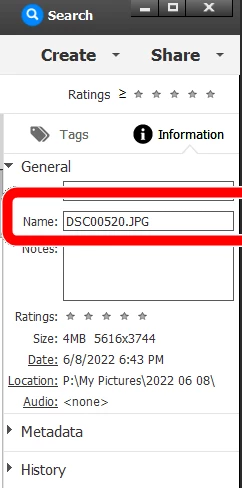
If, for some reason, you want to change the name of a file in the Organizer, you can do so from the Information panel on the right. Select the file in the grid and simply type in a new name in the Name field. Press Enter and the name will be changed.
If you want to move the files to a new location, you can do that (and should only do that) in the Organizer, using the Folder panel on the left of the Organizer window. (Or use the File>Move menu.)
If you want to copy the files to a new location from the Organizer, you can use the File>Export as New File(s) command.




 AdChoices