Participating Frequently
April 24, 2022
Answered

Sharpening a Picture

  • April 24, 2022
  • 1 reply
  • 673 views

1) I am using Adobe Photoshop Elements 2020. When I am in the Quick mode and open "Sharpen" I can not save an Auto or box selection like I can with the other five options "Quick" offers (Smart Fix, etc.) Can you tell me what I am doing wrong. 

2) I touch up many of my picutres, but I am by no means a professional. Should I upgrade to APE 2022 or  another one of their programs, or stay where I am?

Thank you very much.

Tim

This topic has been closed for replies.
Correct answer Greg_S.

I just tried out your Sharpen workflow and could not repeat the problem you are having.  The only suggestion I can make is to try resetting the preferences file. Go to Edit>Preferences>General tab and click the Reset Preferences on next launch button.


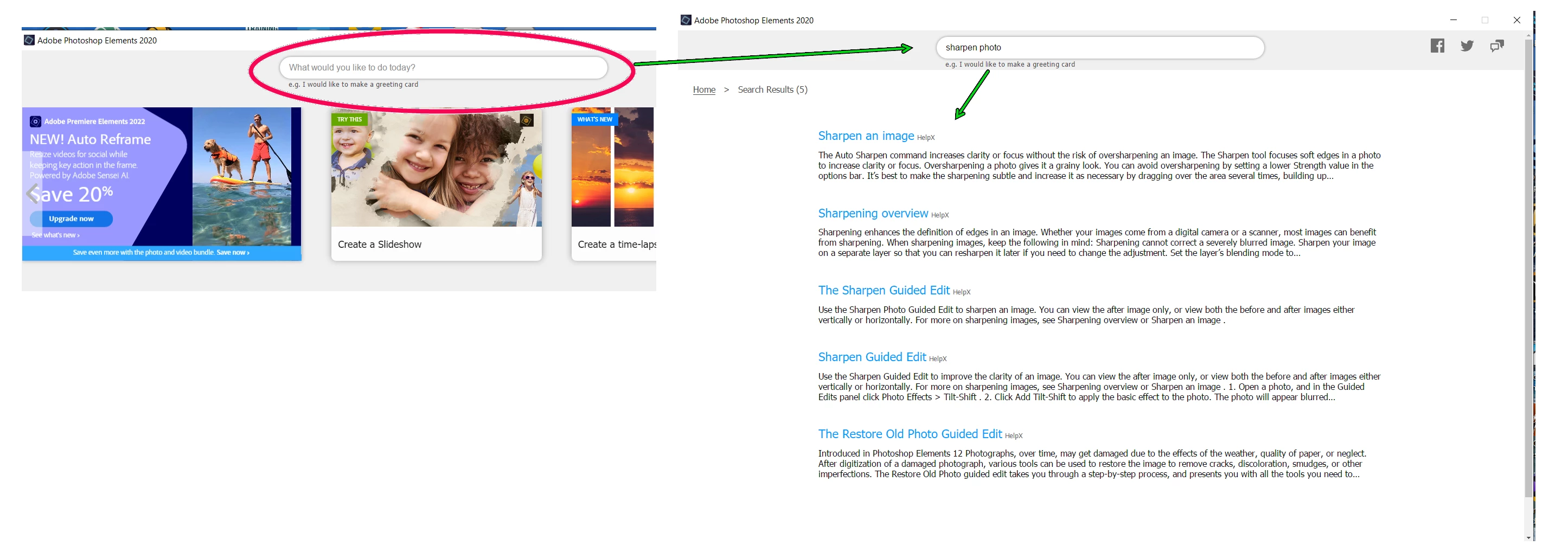
However, after playing around a little with the Quick mode>Sharpen tool, I repeat my advice to use something else.  It does not give very good results, in my opinion.  As far as tutorials are concerned, one often overlooked tool is the search box on the Elements Home Screen.  All you need do is type in "sharpen photo" and you are given a lot of helpful resources:


You might also want to try out the Sharpen Guided Edit which is one of the resources listed with the search tool.

1 reply

Greg_S.
Community Expert
Community Expert
April 24, 2022

I'm not exactly sure what you mean. Each of the options in the Quick Mode adjustment panel on the right behave the same.  You either use the slider to make the adjustment or you click on a box and the selected box has a blue outline around it.


Are you saying that you are unable to click on a Sharpen box so that it remains selected with a blue border?  I can see that if you select the slider and then hover over one of the boxes, the slider position will move.  But if you click on the slider and don't hover over the other box choices, it should stick.  Similarly, if you actively click a box, it should stick even though it may momentarily change the preview when moving the cursor over another box on the way out of the panel.  So, if that is not what you are talking about, please explain your problem in more detail.


As for whether you need to upgrade to version 2022, I don't think that will make any difference in the behavior of the Sharpen choices in Quick Mode.  I would rather suggest that you wean yourself off Quick Mode and go into the Expert Mode to have more control over your editing.  Quick Mode may be quick but it is also rather crude. 


Alternatively, use the Instant Fix that is available in the Elements Organizer.  It does a far better job than Quick Mode editing and can be used to batch process your photos.  (The Clarity slider, for example, does a much better job "sharpening" images than does a sharpen tool in Quick Mode.)  I could probably do 75% of my editing using Instant Fix, without any need to go into the Editor.

SeattleAuthor
Participating Frequently
April 25, 2022

Greg,                                                                                                                                                                                    Thank you very much for your help.

In an effort to clarify,  when I use, say Smart Fix, I select the imge I want and then go to "File" and select "Save As". This results in an upgraded copy of my original picute. However, when I try to do this with "Sharpen", as soon as I hit "Save As" the image I had selected disappers and the "After" version of my picture reverts ot the "Before" version. If you have any idea wbhat I am doing wrong, please let me know.

Your suggestion re "Instant Fix"is appreciated, and I will give this a try. I will also look into the "Expert Mode " approach. Do you know if there any tutorials on this?

Thanks again.

All the best.

Tim

Greg_S.
Community Expert
Greg_S.Community ExpertCorrect answer
Community Expert
April 25, 2022

I just tried out your Sharpen workflow and could not repeat the problem you are having.  The only suggestion I can make is to try resetting the preferences file. Go to Edit>Preferences>General tab and click the Reset Preferences on next launch button.


However, after playing around a little with the Quick mode>Sharpen tool, I repeat my advice to use something else.  It does not give very good results, in my opinion.  As far as tutorials are concerned, one often overlooked tool is the search box on the Elements Home Screen.  All you need do is type in "sharpen photo" and you are given a lot of helpful resources:


You might also want to try out the Sharpen Guided Edit which is one of the resources listed with the search tool.