No, I didn't mean "Full View". I'm trying to do exactly what you are describing - comparing 2 or more photos side by side. I used to do this via the Slideshow in a previous version.
When you say "In the buttons bar, select the 'View' icon just right of 'Film Strip'.", where is that? In Organizer or the slideshow window? I don't have a film strip icon in Organizer. Just a Slideshow icon. To the right of that is the Home Screen icon. In Slideshow, there are no bottom icons. Just a few buttons on the left for Media, Themes, and Music.
Working in Photoshop editor would be fine if I could float all the photos, but the "all floating" menu is disabled in the Layout menu. All the other layout options are available.
No, I didn't mean "Full View". I'm trying to do exactly what you are describing - comparing 2 or more photos side by side. I used to do this via the Slideshow in a previous version.
By @janterv
No idea how you did that in the previous version.
When you say "In the buttons bar, select the 'View' icon just right of 'Film Strip'.", where is that? In Organizer or the slideshow window? I don't have a film strip icon in Organizer. Just a Slideshow icon. To the right of that is the Home Screen icon. In Slideshow, there are no bottom icons. Just a few
By @janterv
I meant within the View > Full Screen menu of the organizer, the one which opens with F11 (very slowly...) and provides a way to browse your files in full view, with an optional filmstrip and ultra fast zooming. It can play an 'instant' slideshow with duration settings. It was precisely made for the comparison job.
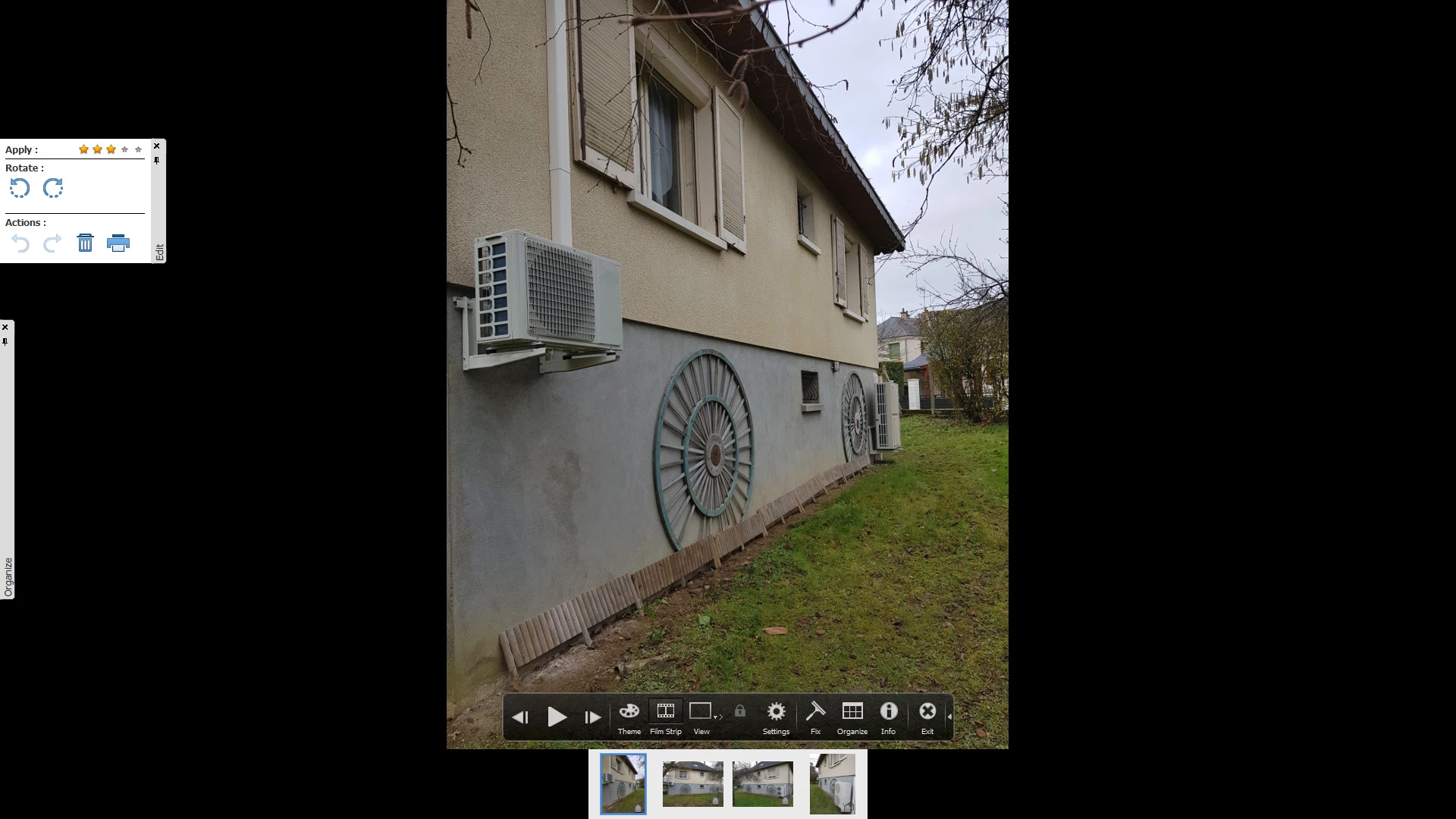
Just above the filmstrip on the bottom, the icon and navigation bar.
Working in Photoshop editor would be fine if I could float all the photos, but the "all floating" menu is disabled in the Layout menu. All the other layout options are available.
By @janterv
The 'all floating' option is probably missing is you have not used the menu Edit > Preferences > General and ticked the option to "allow floating documents in expert mode".







 AdChoices