


cliffords10226705
Known Participant
April 29, 2019
Answered

Straighten Image Question PSE 8

  • April 29, 2019
  • 2 replies
  • 905 views

I have scanned in images ages of paired pages from booklets that are misaligned during scanning. For example a photo would consist of page 10 and page 11. Each page takes up half of the image. Many of these booklets are not assembled (oriented) properly. Usually the left most page (page 10 in the example) scans correctly. The right half of the image scanned (page 11 in the example) is scanned at an angle misaligned from the first half. I have found that if I try and straightening them to the grid to match, PSE 8 just shifts the misalignment to the adjoining opposite page. It appears that PSE 8 does not allow selecting just the misaligned portion of the image, and only aligning it to the grid without moving the opposite half. It will take a lot of time to split the image, straighten both half's, then copying and pasting them into a second image. My question is, can the alignment in PSE 8 be set to only align a chosen portion of the image. If so what is this function or tool named, and how do you do this. Tnx
    This topic has been closed for replies.
    Correct answer Jeff Arola

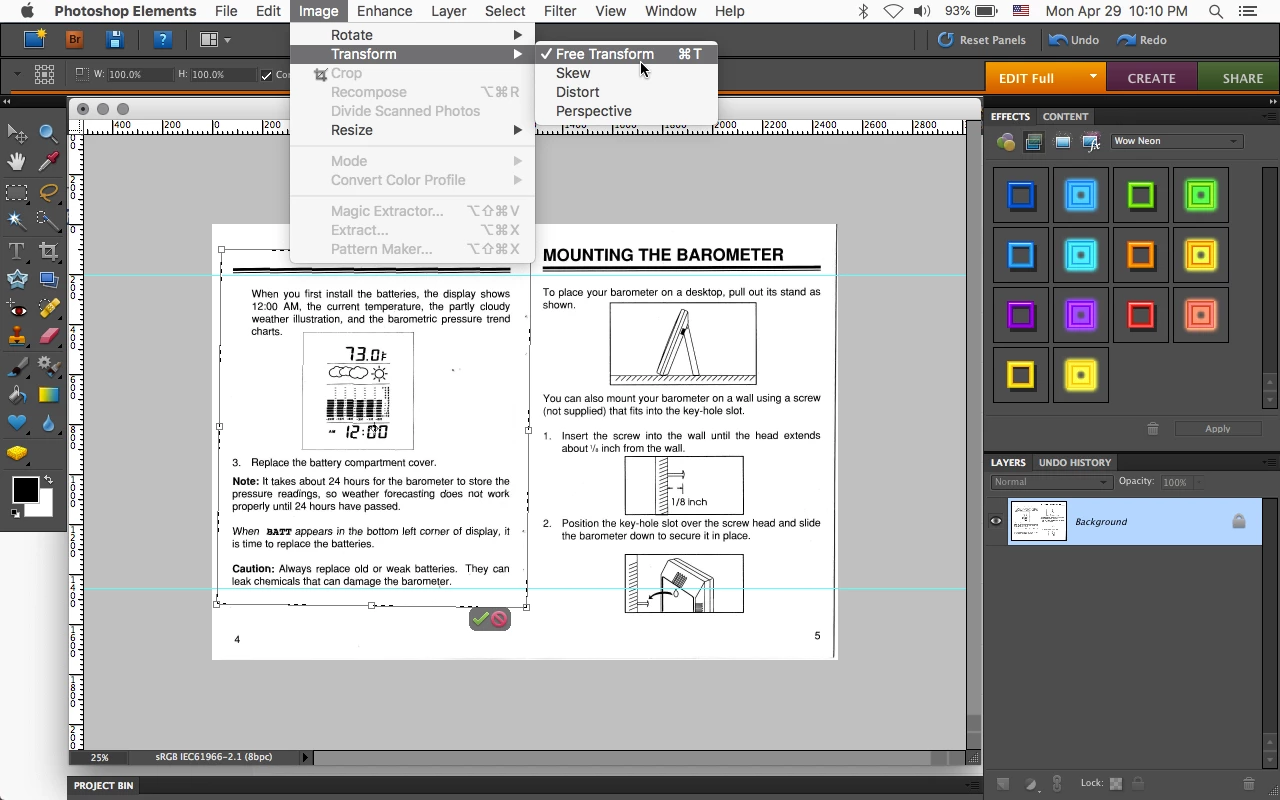
    You can draw out selections around the different areas, put down some Guides and use Image>Transform>Free Transform.

    To get something like this:

    It might just be easier to try and make the pages as straight as possible when scanning like put a couple of books on top

    of the scans to then flatter.

    2 replies

    Jeff Arola
    Community Expert
    Community Expert
    April 29, 2019

    Can you post one of the paired documents so we can better see what tool(s) might work?

    cliffords10226705
    Known Participant
    April 29, 2019

    Hi Attached is one of the scanned photos of the misaligned booklet. Initially the left side appeared aligned horizontally normal. After performing the straighten image was performed the left side was now the misaligned side. Tnx

    Jeff Arola
    Community Expert
    Jeff ArolaCommunity ExpertCorrect answer
    Community Expert
    April 30, 2019

    You can draw out selections around the different areas, put down some Guides and use Image>Transform>Free Transform.

    To get something like this:

    It might just be easier to try and make the pages as straight as possible when scanning like put a couple of books on top

    of the scans to then flatter.

    Sahil.Chawla
    Adobe Employee
    Adobe Employee
    April 29, 2019

    Moved to Photoshop Elements