
Participant
May 10, 2025
Answered

Supprimer les création automatiques

  • May 10, 2025
  • 2 replies
  • 435 views

Bonjour,
Je ne parviens pas à supprimer les créations automatique : lorsque je décoche la case "Générer des créations automatiques" dans le menu "Préférences/Analyse des supports" de l'organizer, elle se recoche toute seule après fermeture du menu (autrement dit, elle apparaît de nouveau cochée lorsque je rouvre le menu) !

J'utilise la version 2025 d'Elements.
Mon système d'exploitation est Windows 11
Correct answer Greg_S.

OK. Try the following:

  • Make a copy of the file and name it something like AutoCreatorPrefs.original.  This is so that you can restore it if something goes wrong.
  • Open the original file in WordPad or other text editor
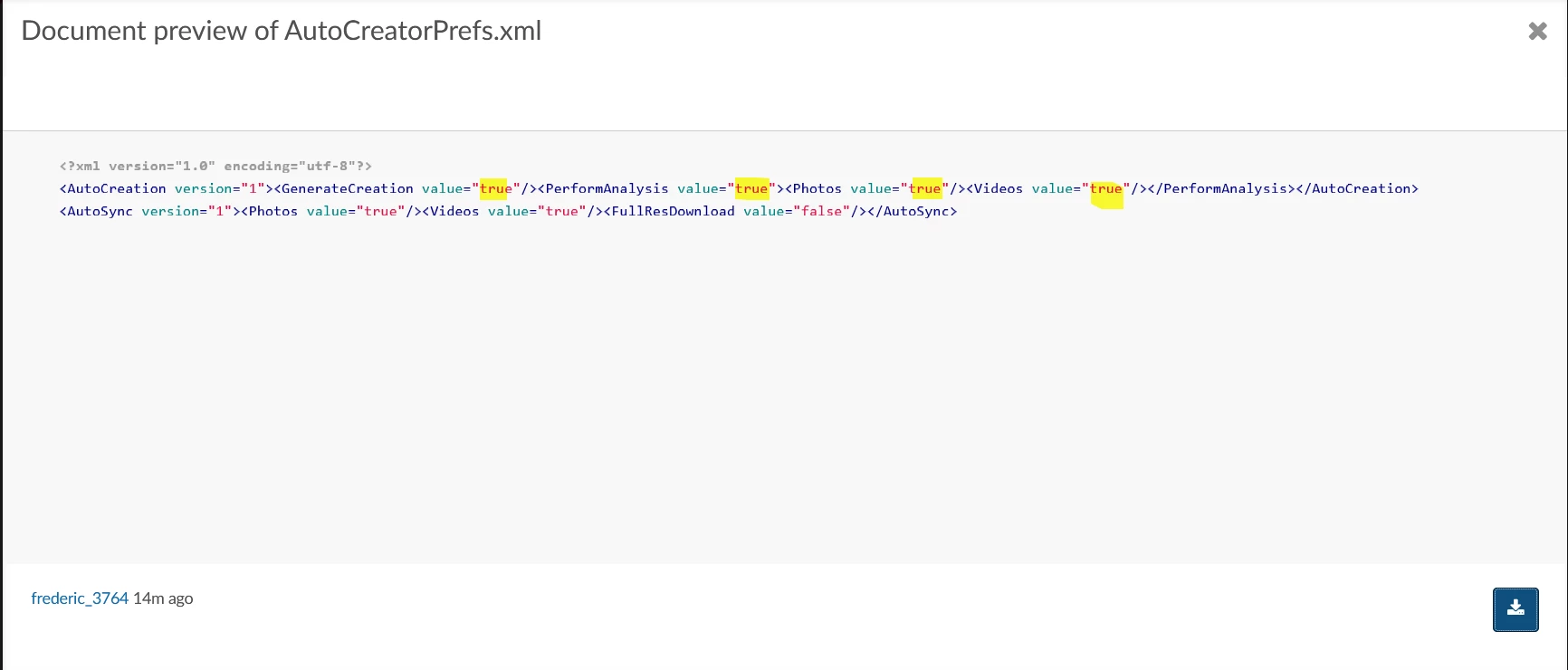
  • Change the values that I have highlighted in the screenshot below from true to false
  • Save the file and make sure that the file extension remains as .xml.  Some editors may try to change it to .txt.


2 replies

Greg_S.
Community Expert
Greg_S.Community ExpertCorrect answer
Community Expert
May 12, 2025

OK. Try the following:

  • Make a copy of the file and name it something like AutoCreatorPrefs.original.  This is so that you can restore it if something goes wrong.
  • Open the original file in WordPad or other text editor
  • Change the values that I have highlighted in the screenshot below from true to false
  • Save the file and make sure that the file extension remains as .xml.  Some editors may try to change it to .txt.


Participant
May 12, 2025

Merci ! Cela fonctionne. La case "Générer des créations automatiques" restent désormais décochée.

Greg_S.
Community Expert
Community Expert
May 10, 2025

This is a problem that seems to affect some users of non-English language versions of the program.  Please attach here a copy of the file named AutoCreatorPrefs.xml which you will find in the following directory:

C:\ProgramData\Adobe\Elements Organizer\25.0\CAHeadless\


Participant
May 12, 2025

Voici le fichier demandé.