dotwreck
Participant
June 30, 2019
Answered

Text all of a sudden doesn't look right..

  • June 30, 2019
  • 1 reply
  • 810 views

I have an issue that is frustrating me to no end because I can't figure out how to fix it.

Basically, I use the text tool a lot and have NEVER experienced any issues.

I made 4 photos back to back, each containing tons of text - no issue.

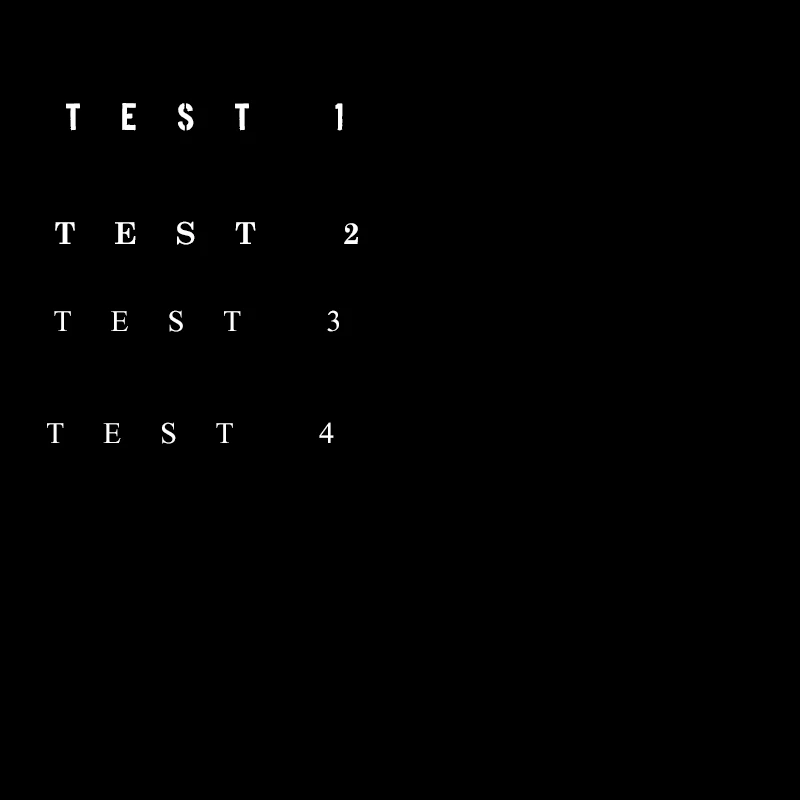
Then I start work on the 5th, and out of nowhere, the text is all messed up. It's all awkwardly spaced out now.

I've been searching online for a solution, and I've seen a lot of people talk about tracking and kerning and asian text.......but following all of the procedures people have mentioned in other forums - nothing works at all.

And again, the font use to never look like this. I have no idea what i did, or what may have happened - but it sure would be awesome to get it fixed.

Anyone have any ideas?

The picture below is just 4 random fonts that I have used on past projects - which never use to be so spaced out. ALL of my fonts are super spaced out now

Thanks for any replies that might hint towards a solution.
    This topic has been closed for replies.
    Correct answer hatstead

    Suggest that you reset the  type tool to default. In older versions of the software, on the type tool's option bar, look for a little triangle, top left. Click on this to reset. In newer versions, on the option bar, look for a box with lines in it, bottom right, then click on this.

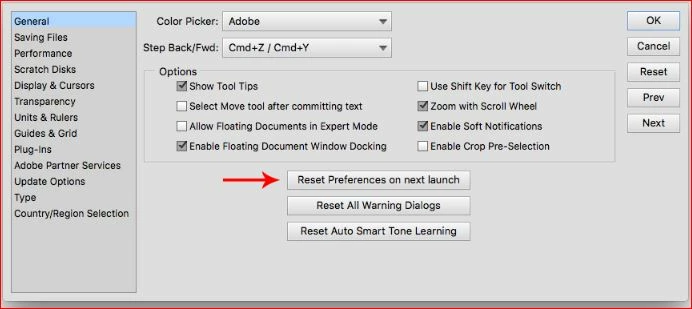
    If that does not fix it, reset preferences. To do that, go to Edit>Preferences>General and look for this:

    1 reply

    hatstead
    hatsteadCorrect answer
    Inspiring
    June 30, 2019

    Suggest that you reset the  type tool to default. In older versions of the software, on the type tool's option bar, look for a little triangle, top left. Click on this to reset. In newer versions, on the option bar, look for a box with lines in it, bottom right, then click on this.

    If that does not fix it, reset preferences. To do that, go to Edit>Preferences>General and look for this:

    dotwreck
    dotwreckAuthor
    Participant
    June 30, 2019

    Resetting the preferences as you mentioned seemed to do the trick..... Do you have any idea what I may have done to make the fonts go crazy? I have no idea because when I select the Text tool, the options that appear at the bottom of my screen - nothing out of the ordinary...for what I can see - everything is the same - but obviously there is a setting somewhere, or I accidentally hit a shortcut key to do something, i just dont know what

    Inspiring
    June 30, 2019

    Unexplained problems with PSE tools (besides the text tool) can pop up for no reason, and resetting the preferences fixes these.

    That's how it's been since day 1 of PSE.

    The "Reset Preferences on next launch" was introduced in PSE 11.

    For earlier versions, there was an undocumented trick to reset the preferences file using a particular keystroke combination upon launching PSE.