

Valentina ♡
Inspiring
January 16, 2024
Answered

There is a way to move two images (the windows) inside photoshop elements?

  • January 16, 2024
  • 5 replies
  • 721 views

Hello,
I would like to 'move' the windows of an image, over another different image while I'm in Photoshop elements? The two 'windows' are 'fixed', and I can't move them inside Photoshop?

Thanks for the info!
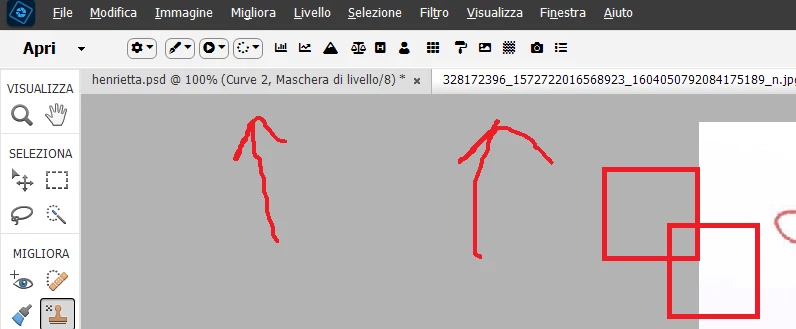


I mean, I can't do this ? Overlap two windows?
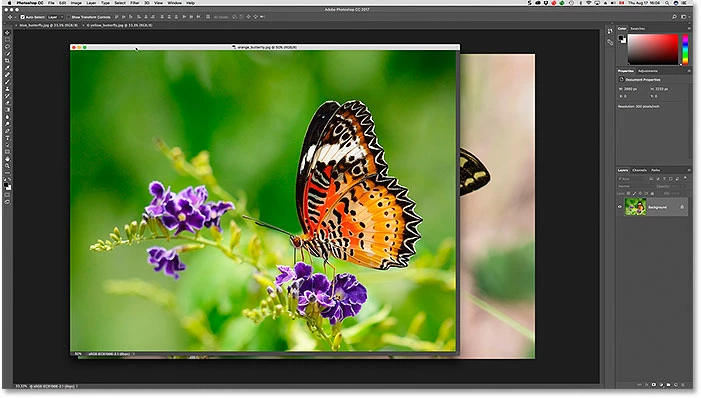


Also, the same question for the panel of layers, is possible to floating the layer panels? Thanks!

Thanks for the information! 


This topic has been closed for replies.
Correct answer Greg_S.

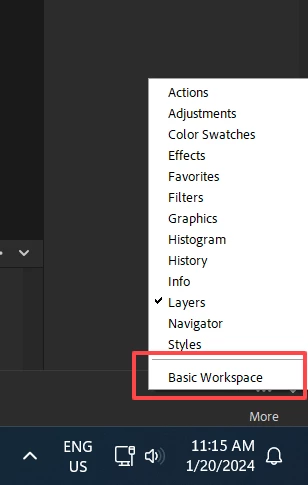
Ciao, Valentina.   Try clicking on the down arrow again and select Basic Workspace.  That should reset everything.  You can then use the Custom Workspace again to create the workspace how you want it to be.


5 replies

Greg_S.
Community Expert
Greg_S.Community ExpertCorrect answer
Community Expert
January 20, 2024

Ciao, Valentina.   Try clicking on the down arrow again and select Basic Workspace.  That should reset everything.  You can then use the Custom Workspace again to create the workspace how you want it to be.


Greg_S.
Community Expert
Community Expert
January 17, 2024

Drag the panel over to the side of the screen.  Release the panel when you see a blue line appear.


Valentina ♡
Inspiring
January 20, 2024

Thank you , Im back. 
I've tried to let the blue line appear but no matter how much I move around the panel, it doesn't attach again back in position . No idea why. ><

Greg_S.
Community Expert
Community Expert
January 16, 2024

To undock the Layers  panel and/or change the appearance and contents of the Panels Bin, you have to click on the tiny down arrow at the lower right corner of the screen and click on Custom Workspace.  You can then dock or undock the panels and move them around your screen using the top bar of each panel.  See this (older) HelpX article for more details.


Valentina ♡
Inspiring
January 17, 2024

Wow, that's exactly what I mean... that's great and finally I can clean all the screen with all those panels all around the screen,  Thanks again for the help!


Valentina ♡
Inspiring
January 17, 2024

Oh I forgot... to attach again the panels to the side, what I should do? 

Peru Bob
Community Expert
Community Expert
January 16, 2024


Then you can drag the window:


Valentina ♡
Inspiring
January 16, 2024

I also have a problem, I don't know how to 'attach' the other panels to the layer panel.. it seems all 'blocked' /fixed...
I can't work with all the panels opened , I need to attach them and resize them regulating the workspace 

This is the situation right now:


Thanks for the help!