


Inspiring
Sep 12, 2025 5:15 PM UTC
Question

Tool Bar not displaying background color

PS Elements 2024 not displaying background color when display preferences set to Automatic



It does when set to Small 100% Display, but then the whole screen is so small to comfortable see anything.
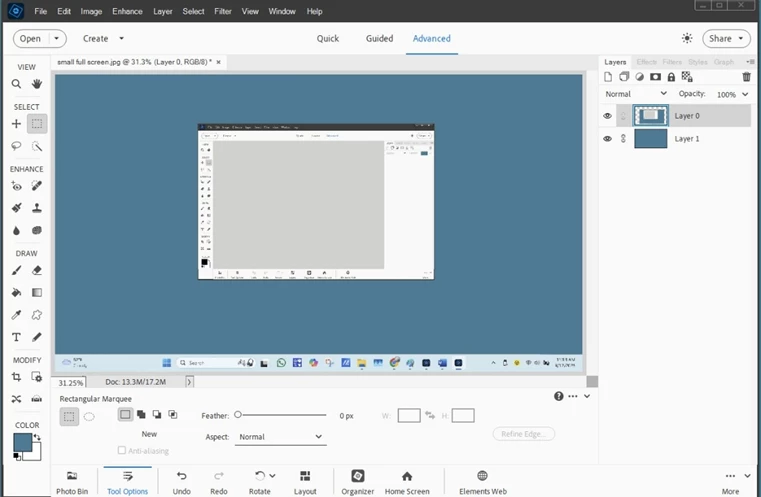


One suggestion was to reset the Workspace but it happens that the Windows Panel doesn't the Workspace option either.

How do I resolve the display with the tool bar?


3 replies

Greg_S.
Community Expert
Community Expert
Sep 13, 2025 7:22 PM UTC

What is the pixel size of your monitor?

Try the following:

  • Go to the following folder C:\Program Files\Adobe\Photoshop Elements 2024
  • Right-click on the file named PhotoshopElementsEditor.exe
  • Select Properties from the context menu
  • Click on the Compatibility panel
  • Click on Change high DPI settings
  • Check the box to Override high DPI scaling behavior.
  • Select Application from the dropdown menu for Scaling performed by:


If that doesn't help, make a different choice from the dropdown menu.

Translate
Inspiring
Oct 11, 2025 2:04 PM UTC

didn't work.

I am at a loss nothing that I try works (?)

Translate
Glenn 8675309
Legend
Sep 13, 2025 12:31 PM UTC

NOTE:  The last version to have the pretty colored icons was pse 2023.  What was it changed to black and white icons?   It brought the pse product line to resemble the icons in Photoshop-   I actually really liked the colored icons- made it so that the interface seemed more friendly. 

LATER TODAY:  I see the bottom of of your  very first image is cut off- the directions greg provided should fix that.


That's in lite mode, that's the way it is.  Wanna change it to dark mode?  Change what the arrow is pointing to.


Translate