
Participant
October 17, 2023
Answered

Transferring image

  • October 17, 2023
  • 1 reply
  • 214 views

Hello all, I need to transfer components of one image onto layers in the primary piece I'm working on. I have no idea how to do that at this point (I've forgotten most of what I used to know!)I want to bring leaves from one photo, make them larger,smaller, rotate them, place them in assorted locations, you get the picture! Help!?!
This topic has been closed for replies.
Correct answer Greg_S.

There are several ways to do this.  Here is one way:


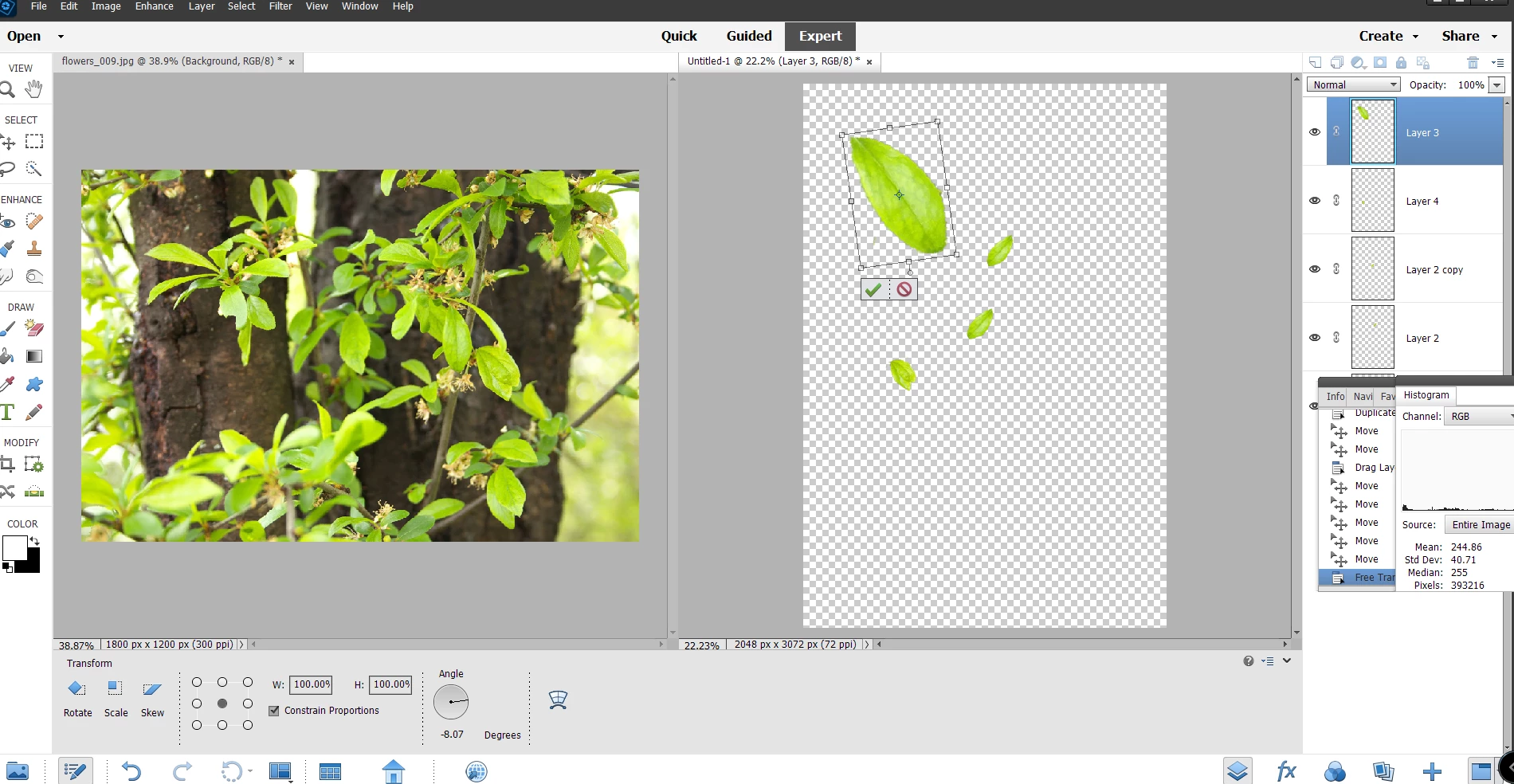
  1. Open your source and target photos in the Editor.
  2. Go to the Window>Images sub-menu and select Tile.  This will display both images next to each other.
  3. Make a selection of a leaf in the source image.  The Quick Selection tool is usually a fast way to do this.
  4. Press Ctrl+J.  This will create a new layer for the selected leaf.
  5. Wash, rinse and repeat for each leaf that you want to transfer.  Make sure that the Background layer is selected when you make your selection of the leaf and press Ctrl+J.  Otherwise, pixels may not be selected to copy to the new layer.  You will now have the background layer of the entire image and one or more leaves on separate layers for transfer to the target image.
  6. Select each leaf layer and drag it over to the target image.  Each leaf layer will now be added to the target image (your primary piece).
  7. Select one of the leaf layers and press Ctrl+T.  This puts the layer into transform mode. and handles will appear arournd the layer in the image.  You can now move the leaf by clicking and dragging the layer.  Or you can resize the leaf by dragging one of the handles.  Or you can rotate the leaf by hovering outside one of the corner handles and click-and-dragging the layer around.
  8. Once you have placed the leaf in the desired position, click the green checkmark to confirm that you are done with that layer.
  9. Wash, rinse and repeat for each other leaf layer.


1 reply

Greg_S.
Community Expert
Greg_S.Community ExpertCorrect answer
Community Expert
October 17, 2023

There are several ways to do this.  Here is one way:


  1. Open your source and target photos in the Editor.
  2. Go to the Window>Images sub-menu and select Tile.  This will display both images next to each other.
  3. Make a selection of a leaf in the source image.  The Quick Selection tool is usually a fast way to do this.
  4. Press Ctrl+J.  This will create a new layer for the selected leaf.
  5. Wash, rinse and repeat for each leaf that you want to transfer.  Make sure that the Background layer is selected when you make your selection of the leaf and press Ctrl+J.  Otherwise, pixels may not be selected to copy to the new layer.  You will now have the background layer of the entire image and one or more leaves on separate layers for transfer to the target image.
  6. Select each leaf layer and drag it over to the target image.  Each leaf layer will now be added to the target image (your primary piece).
  7. Select one of the leaf layers and press Ctrl+T.  This puts the layer into transform mode. and handles will appear arournd the layer in the image.  You can now move the leaf by clicking and dragging the layer.  Or you can resize the leaf by dragging one of the handles.  Or you can rotate the leaf by hovering outside one of the corner handles and click-and-dragging the layer around.
  8. Once you have placed the leaf in the desired position, click the green checkmark to confirm that you are done with that layer.
  9. Wash, rinse and repeat for each other leaf layer.


Participant
October 18, 2023

Thank you soooooo much! I know I'll have more questions as I work, but this was a big help!