

thisisirrational
Inspiring
November 24, 2023
Answered

type size

  • November 24, 2023
  • 9 replies
  • 5344 views

I have   Photoshop Elements 2024.  For people with perfect vision, it is fine. For older people with poor vision it is impossiable to see anything. I'm talking about the words in the bar at the top of the screen and the words in the drop down menues. The font is too small and I have to use a magnifying  glass to see anything, Yes I do wear glasses but still the size of the type is too small to see. Is there a way to make the words LARGER?
Correct answer Greg_S.

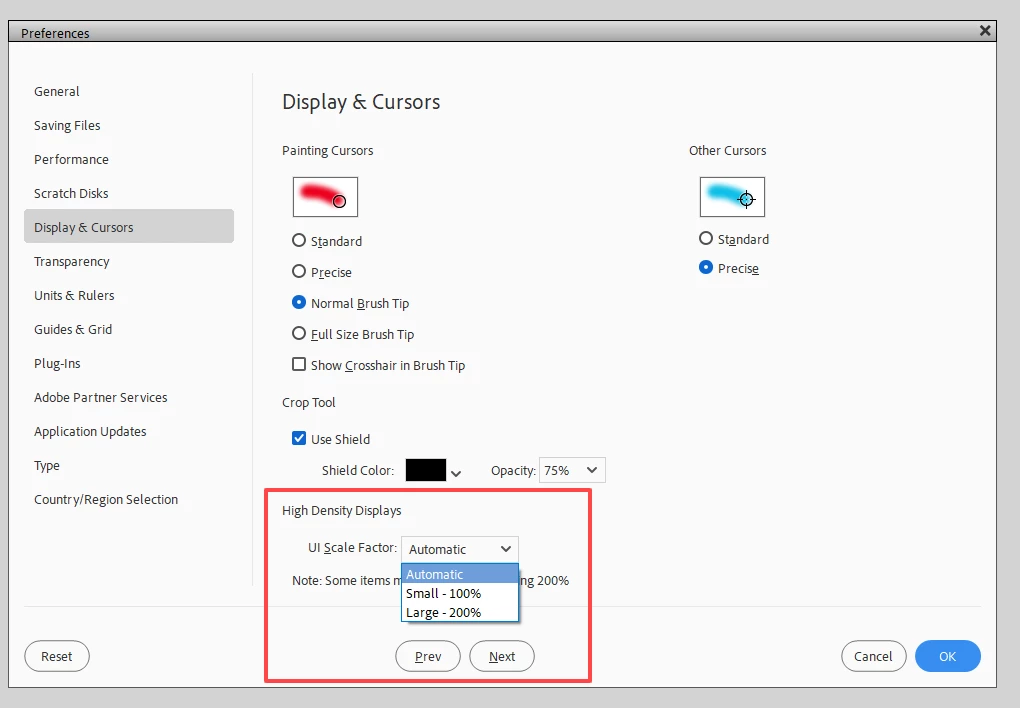
For those of you who have a high resolution monitor, go to Edit>Preferences>Display & Cursors.  There, you will find an option to increase the UI Scale Factor to 200%.


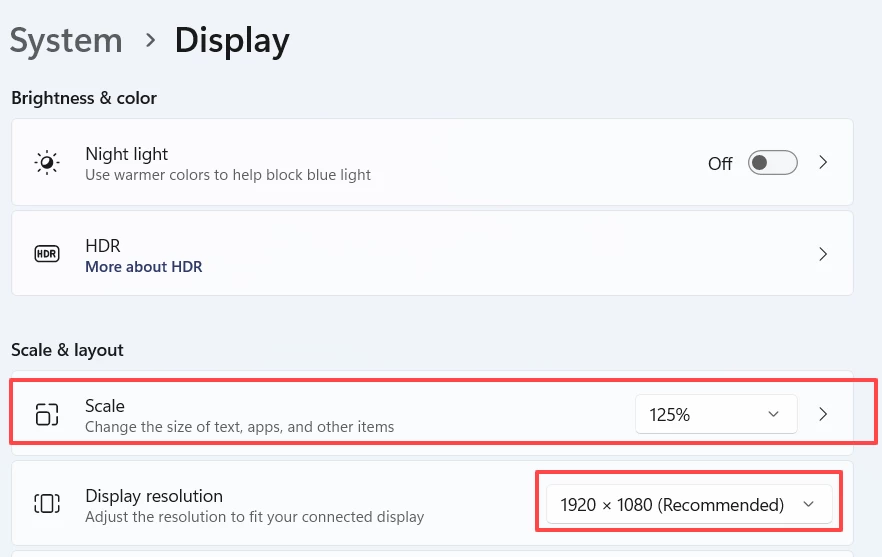
If that doesn't work for you, right-click on your Windows desktop and select Display Settings from the context menu.  Make sure that your Display Resolution is set to the recommended value.  You can then increase the Scale value and see if it makes any difference to the Elements menu text.


If neither of those suggestions work, tell us what the resolution of your monitor is.

9 replies

Participating Frequently
June 22, 2024

I have the same problem with the font size of the menus in Elements 2024.  I tried the UI scale factor, 100% or automatic are too small, 200% is too big and cuts off the icons on the side and you cannot scroll down.  Scaling my display did not help.  Tried changing text size but that did not work either and impacts all your other apps.  Right now it is not workable without a 150% UI scale factor.    Any other program you can either set the font size or just hit control+ or -.  Don't know why this has been such a problem since Elements 2018. 

Participant
August 29, 2024

I just upgraded from PE 2018 tot 2024 and the interface fonts are indeed way too small. I don't even have bad eye sight, but I need to squint or move the monitor way close to be able to work with it. The 200% UI option is unworkable as it cuts the workspace in half both in width and height and hardly leaves room to work in. There should be a 150% UI option, as mentioned above as it would enlarge the fonts and still allow space to work. Scaling screen settings in Windows doesn't change the UI font in PE and messes up the interface of any other programs you're working in. I'm very disappointed and flabbergasted to find this problem with PE24 has existed ever since this update came out and that adobe seems to have done nothing about it. I bought this software from an official dealer and cannot return it as I have opened the box for the code, but if I could I would return it. Having worked with Adobe software since Pagemaker in 1995 and CS ever since, I downgraded to PE as a quick app for simple editing after my work changed. PE2018 was awesome. But I'm surprised to find this weird flaw in Adobe software. I hope Adobe is going to fix it and in the meantime I'm going to reinstall my PE2018 as PE2024 doesn't allow any swiftness for having an almost illegible interface.

Greg_S.
Community Expert
Community Expert
April 3, 2024

@Rui0D44 said:  Why UI Scale Factor only give the option 100 (too small) or 200 (too large)? Is not possible to offer something in the middle (for instance 150)?


Try changing the Windows UI Scale factor to 150%.

Participant
April 3, 2024

Thanks @Greg_S. for your response. I’ve already tried that but don’t result well. Sure, we can work doing some changes on the laptop (and revert them after work) but it was more user-friendly (and expectable) if we could do it in PE (Edit>Preferences>Display & Cursors). Why not a UI Scale Factor =150%?

Participant
April 19, 2024
  • just bought mine today and the fonts are atrocious, iam. 76 and the eyes aren't the best, they need x to update 24 so we can see the text, as soon as
Participant
April 3, 2024

I have recently upgraded my old PE 2014 to Photoshop Elements 2024.  As others have already said here, for people with poor vision the layout is a disappointment. Working on laptop with a 1920 X 1080 resolution (125%) the font is too small and it’s impossible to see the words in the bars or in the drop down menus.

Yes, we can change de laptop resolution or even the de UI Scale factor, but is not the easy way.

Why UI Scale Factor only give the option 100 (too small) or 200 (too large)? Is not possible to offer something in the middle (for instance 150)?

I hope that Adobe could offer this update soon.

Participating Frequently
April 3, 2024
I had updated from Adobe Elements 2020 to Elements 2024 but like you said,
the fonts are too small to see. So because I bought it from Adobe, I
returned it and they were good about it.
Greg_S.
Community Expert
Community Expert
March 23, 2024

Jen, I think that once you have the scaling set to something you can see (did you try 125%?), you will be able to resize the program window so that all of the commands are visible.  Your monitor is not a standard 16:9 aspect ratio.  So the window is being stretched sideways.  If you reduce the width of the window, using the side and corner handles, you should be able to increase the height to show the entire user interface, including the color picker.  Although I have a regular HD monitor with 16:9 aspect ratio I hope my following screenshot will demonstrate what I mean.  After reducing the size of the window to place the color picker almost off screen, I simply used the window's lower middle-handle to stretch the height.


Greg_S.
Community Expert
Community Expert
March 23, 2024

@Jen95, when you respond via email, any attached screenshots will not be seen by others.  You have to come to the forum to attach photos to a post.  You also need to come to the forum to see what I was refering to in my last post.  And you haven't told us whether you have two graphics adapters on your computer.  If you need more assistance to figure that out, I will try to give you some more suggestions. 


Unfortunately, the Elements software suite uses an unusual format for the program window.  So there are some issues with how it interacts with the Operating System user interface.  However, most users are able to make some adjustments that allow them to work with the program.

Participating Frequently
March 23, 2024

First, thanks for all your help. I'm in the forum. I've attached the two photos of my monitor, one at 100%, the other at 200% and this is the one I need to see the things on the screen, but there are no color swatches at the bottom of the toolbar. As far as the graphics, I have one video card, MSI GeForce GTX 1050 TI 4GT, I hope this is what you meant. I made sure of the "recommended" setting in Windows was set and I scaled up to 150%. In Elements I did switch from Adobe to Windows. When I looked at the screen again I noticed at the bottom of the toolbar the very tops of the "Color" letters were there, but there's not enough of it to click on it. I've included a picture of the screen showing this.

Greg_S.
Community Expert
Community Expert
March 22, 2024

@Jen95, it's not clear to me what your problem is with the color swatches.  Please post a screenshot of your entire monitor when the problem exists.


You can also try using the Windows Color Picker instead of the Adobe one, by going to Edit>Preferences where you will find a dropdown menu as shown in my screenshot:

Participating Frequently
March 22, 2024
Below are the photos of my screen, the first one is set at 100% in Adobe
Elements 2024 and you can clearly see the color swatches at the bottom of
the toolbar. The second is set at 200% in Elements but the color swatches
are not visible in the toolbar.
Like I said, my vision is poor and in the 100% mode my eyes are straining
to see the screen. I've tried everything to adjust Windows and nothing has
worked. I did what you and the others have said and that didn't work either.
Do you think maybe Adobe is not able to adjust to a larger screen size? I'm
asking for your opinion and not trying to insult Adobe Elements which I
have used for over 20 years. Jenny
Greg_S.
Community Expert
Community Expert
March 18, 2024

@Jen95, you have an ultra wide monitor.  Try the following:


  • Click on the Restore button in the top right corner of the Elements window:


  • Click and drag the top bar of the window down so that you can see one of the corners:


  • Hover your mouse over a corner until the cursor changes to a two-headed arrow.  Then click and drag the corner to reduce the size of the Elements window.
  • Hover your mouse over the side of the window (until it becomes a two-headed arrow).  Then click and drag the side in to reduce the width of the window. 
  • Continue adjusting the size of the window until it fits more of a 16:9 aspect ratio (the same as a modern TV).
  • Once you have adjusted the size of the Elements window, try the other solutions that have been posted and see if it makes a difference.


Participating Frequently
March 22, 2024

Hi Greg! I did what you said several times to make the Adobe screen fit and if I put the Display settings on small, which does show the color swatches, the font is still tiny. If I set it to large it's perfect but again, I lose the swatches. I'm at a loss on what to do. Is there a way to reach the color swatches with the adjustable slide on the menu? I wouldn't mind that but I don't know where it is.

Greg_S.
Community Expert
Greg_S.Community ExpertCorrect answer
Community Expert
November 26, 2023

For those of you who have a high resolution monitor, go to Edit>Preferences>Display & Cursors.  There, you will find an option to increase the UI Scale Factor to 200%.


If that doesn't work for you, right-click on your Windows desktop and select Display Settings from the context menu.  Make sure that your Display Resolution is set to the recommended value.  You can then increase the Scale value and see if it makes any difference to the Elements menu text.


If neither of those suggestions work, tell us what the resolution of your monitor is.

Participating Frequently
March 18, 2024

Thanks for working hard on this. I'm not the person who started this conversation but I am having the same problem. I upgraded from Elements 2020 to Elements 2024. I have poor eyesight and can barely see the fonts. I have a Gigabyte G32QC Monitor, 2560 x 1440 resolution. I tried everything that people have said and nothing works. I even checked for updates on my monitor and there are none. Can you help me? Any help is appreciated.  Jenny

Participant
November 24, 2023

I totally agree! I upgraded fro Adobe 2020 to 2024 without a great deal of research and I think I wasted my money. The changes are not that great and the worst one is the lack of color of the icons! I'm also experiencing some commands locking up my cursor. I'm 72 so the vision issue is real!

Participant
November 25, 2023

I do hope that Adobe offers an "upgrade" soon. This user interface is awful. I am soooooo glad I got 2024 at a low price. I don't feel as bad about ditching it and returning to PSE 2023.

thisisirrational
Inspiring
November 25, 2023

not only the interface being bad but I upgraded from Elements 2021 to 2024. there is another problem. everytime I edit an image ans save it, it goes into the 2021 organizer. I then have to go to my file folder, find th image and open it in E 2024 to save again. this is very anoying.