
Participant
October 24, 2023
Question

Unable to convert PSE 11 Slideshows to PSE 2024 Slideshows

  • October 24, 2023
  • 4 replies
  • 594 views

I have just upgraded from PSE11 to PSE 2024. All Catalog’s converted successfully & all photo’s viewable.

 I have Slideshows created by PSE11, which I can see via File Explorer on Windows 11 as .psess files. I can also see the Videos I created -  .wmv files (Find – Media Type – Video), which I previously output to VCD.

I never had Premiere Elements, so did not output to DVD, but have more Videos, so now have Premiere Elements 2024.

I would like to output the old PSE11 created slideshows to a higher quality than VCD to the highest quality (seems to 1080p HD) for each viewing media option available now, but neither PSE2024 or Premiere Elements 2024 can access the Slideshows to allow any editing or new Export option.

I did a Find-Media Type – Media Type – Projects.

Did a double-click on .psess file and got
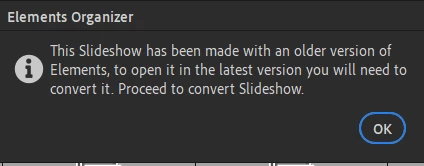
Pressed OK
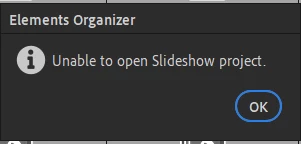
There does not seem to be a convert Slideshow option and it seems the structure of file to old for PSE 2024 to convert automatically.

Adobe Support were unable to help with this issue and suggested Community, but did say on PSE 2024 any new file would also be a .psess file.

I would be truly grateful if someone knows a solution for this, without me resorting to recreating the same Slideshows in PSE 2024.

    This topic has been closed for replies.

    4 replies

    Greg_S.
    Community Expert
    Community Expert
    October 25, 2023

    Here is another thought.  You can reframe the video using Premiere Elements.  In the following screenshot, on the left, you will see that I have opened a 1024x768 wmv file taken from Elements 11.  The Premiere Elements video project is set to HD (1920x1080).  That is why you are seeing the black borders on top and bottom.  I have then used the Auto Reframe tool to render the video and the result is seen on the right of the screenshot.  Obviously, it is necessary to zoom into the original slideshow to display the filled HD resolution screen.  This may result in some unwanted cropping.  But the auto reframe tool does a pretty good job of find the important parts of the video and I have been quite impressed with it.

    And if you are not familiar with the Auto Reframe tool in Premiere Elements, here is a screenshot:

    Participant
    November 1, 2023

    I did follow your advice and I successfully used the Auto Reframe Tool within Premiere Elements. Thank you for the advice. 

    I have also seen the options for Output Resolutions now available. 

    The leap from PSE 11 to PSE 2024 is considerable. PSE 2024 is far better for control of the increased quality of the source photo's from DSLR & mobile phone's, to Smart TV's, PC Monitors etc. 

    I am aware that for the remastering process for old films and audio, there is always a need to return to the original source before using the latest technology for that process. 

    In my research and knowledge, I am aware of current playback, viewing and even hardware connections that can upscale the quality of Legacy media and you mentioned Software. 

    I will now consider and Test the options for the Legacy Slideshows and how much time will be needed on either solution v quality of the output that I will get with each option.

    Greg_S.
    Community Expert
    Community Expert
    October 24, 2023

    Hi John.  I was able to reproduce the slideshow behavior you have described on an old slideshow.  I have never seen the convert slideshow option before and, like you, clicking on the message did nothing. 


    In any event, I don't think there is anything you can do other than to use the .wmv video files that you created previously.  There are some newer AI programs that might be able to upscale the video for you, but those are expensive.


    Hmmm . . .  I just created a new slideshow in Elements 11 and see that you can export to XGA resolution (1024x768) which is significantly better than VCD (if that is what your .wmv files are).  So, if you have removed Elements 11 from your computer, you can reinstall it and export the slideshow in that program to the higher resolution (if that is the case).


    Participant
    October 25, 2023

    Hi Greg

    I appreciate your efforts and reply. Good information. 

    I do still have PSE 11 and could try to export to XGA resolution (1024x768), but at this stage, I would rather see if there is a solution to convert a .psess / Slideshow created in PSE11 to 1080p. 

    If a solution cannot be found, I am the sort of person who would go back and recreate the Slideshow to get 1080p, but at this stage still hoping a technical solution is out there. 

    You answer prompted me to consider encoding / codec of the original .psess / Slideshow. 

    I have VLC (not a recommendation, but what I have on my PC), but could only convert from a .wmv / Slideshow not from a .psess file. There were many output options on VLC, and I am not an expert to know if a .wmv file could be upscaled to 1080p file and proven to be of 1080p quality. One option I used to output to 1080p, stretched the photo's in the Slideshow. 

    I have also now seen the many codec options for M-PEG, MP4 etc and I need to do some more research.

    Regards

    John

    Regards

    John

    Greg_S.
    Community Expert
    Community Expert
    October 25, 2023

    As I understand you, all you need do is open the slideshow in Elements 11 and export it again using the higher resolution output.  Double-click the slideshow thumbnail in the media grid and the slideshow editor will open. 

    Added:  Sorry, I did not read your post correctly. As I said earlier, there is software available that can upscale your standard definition video to HD or even 4K but I am not sure that would be worth it for your needs. A commercial codec or a program like VLC is not going to do anything for you other than distort the image. 

    Participant
    October 24, 2023

    I will check next time - thank you

    jane-e
    Community Expert
    Community Expert
    October 24, 2023

    @John32999329ibod No worries — we're happy to move posts to the forum where you are most likely to get assistance 😊

    jane-e
    Community Expert
    Community Expert
    October 24, 2023

    @John32999329ibod 


    I've moved your post from Using the Community to Photoshop Elements for you.


    Jane