
Participant
January 2, 2017
Answered

Upgrading from Photoshop Elements 10 to 15

  • January 2, 2017
  • 2 replies
  • 1234 views

I have been using Photoshop Elements 10 for years. Recently, I decided to upgrade to Photoshop Elements 15. There are 3 things that really annoy me, and I'm wondering if there's a fix:

(1) Most importantly, when I drag one image from the bin on top of another image in the main window, I'm used to the current selection remaining in place.

In Elements 15, however, it seems I now have to reload the selection every time I do this. Can I lock the selection in place and prevent it from going away every time I drag and drop a new image?

(2) Can I automatically default to "Fit Screen" when I open a JPEG?

(3) Can I automatically default and/or lock the Photo Bin in place? I find it often wants to switch to the Tool Options view without my asking it to. 

Thank you in advance!
    This topic has been closed for replies.
    Correct answer ShivaniParihar

    Hi,

    Sorry for the inconvenience. Following are the answers to your queries:

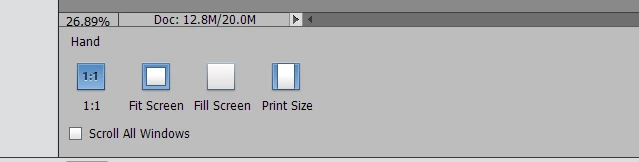
    • You can't default a file to "fit to screen" on open only. But as a workaround, you can always switch to the fit screen view with the use of Hand tool options. Select the hand tool on the tool bar (keyboard shortcut 'H').Select the fit screen option[Screenshot Below]


    • To disable the tool options view in the bottom. Click the dropdown button on the top right of the tool options as shown in the screenshot below. Uncheck the "Auto Show Tool Options" option. Then go to the photo bin using the photo bin button in the action bar in the bottom.

    Later on, to enable the tool options again, select a tool and click on the tool options button in the action bar and tool options would start showing.

    • Regarding your query as to selection is not restored in case of file drag and drop. We are looking into it.

    Please revert back with your feedback, if your issue is resolved or not.

    Regards,

    Shivani

    2 replies

    MichelBParis
    Legend
    January 18, 2017

    LogonLarry wrote:

    (1) Most importantly, when I drag one image from the bin on top of another image in the main window, I'm used to the current selection remaining in place.

    In Elements 15, however, it seems I now have to reload the selection every time I do this. Can I lock the selection in place and prevent it from going away every time I drag and drop a new image?

    Elements 10 is now an old version. What you are describing about the behaviour of dragging for the photo bin has nothing to do with 'selection'. It only means that with PSE10, you paste the dragged image in a new layer over your canvas with its real mm/in dimensions (it's supposed to be the same resolution in ppi as the canvas. Dramatic result: the most common use of dragging from the photo bin is to add components to a collage or a scrapbooking page; then if the dragged image is bigger than the canvas (very common with today's megapixels cameras), you have great difficulties to get the handles of the move tool to show and too reduce the size of the dragged image. That's what I did find terrible in PSE10.

    There is sitll a worse problem, but lets see how the PSE15 drag works: it is the best step for the purpose. The dragged image shown on the canvas is a 'smart layer', it has not yet a resolution, it's a link to the real original dragged image. So long as you don't 'simplify' the layer, any change you do: resisizing, moving, tilting, will always produce the best resolution and quality for the resulting layer. In PSE10 if you dragged a big image and reduced it too much, then enlarging it again, you did lose quality. That's the major advantage of smart layers.

    There are other ways than the 'drag from photobin' feature to get the same PSE10 old behaviour, but I think you should first practice the new way and see how quick it is without bothering about caring about the resolution of your imported layers before the import.

    Participant
    January 18, 2017

    Thanks for responding. It's not clear from your message what the "new way" is. You talk about smart layers but don't explain how I can easily get around my problem. Truth is, after a fair amount of frustration, I ultimately uninstalled 15 and returned to using 10 because it works for me (I'm not a photographer and don't use the program that extensively). Also, I don't do collages and that sort of thing. I use it mostly for cookie cutting images of the same dimensions, general cleanup, that sort of thing.

    MichelBParis
    Legend
    January 18, 2017

    LogonLarry wrote:

    Thanks for responding. It's not clear from your message what the "new way" is. You talk about smart layers but don't explain how I can easily get around my problem.

    Your problem is that in recent PSE versions, the image you paste as a new layer is shown as big as possible over the background/canvas, without hiding it if it's bigger (once more, that's what troubles most users).

    For such dragging from the photobin, you should have the Move tool active so that after dragging, you can use the Move tool handles to resize, move, tilt your image like you want. You would have to do that anyway in PSE10 after the hassle of reducing it to be able to see the handles, move, resize or tilt. So long as the file is shown as a smart layer (special icon on the layer pallet), what you see is a visual, virtual image of the dragged real image, it's not yet the definitive pixels of the new layer, it's the image of what you want. That image is linked to the real original file so that when you 'simplify', the editor creates the final pixels from the original with the transformations needed by what you want. You can move and resize the smart layer many times, the result will be always optimal with the resolution of your canvas. When resized, a smart layer can be edited with more options. Generally, you simplify as soon as the final size is approximately good.

    Truth is, after a fair amount of frustration, I ultimately uninstalled 15 and returned to using 10 because it works for me (I'm not a photographer and don't use the program that extensively). Also, I don't do collages and that sort of thing. I use it mostly for cookie cutting images of the same dimensions, general cleanup, that sort of thing.

    You should try again with PSE15, you soon get used to the process and that will be good if you try something different than the cookie tool.

    ShivaniParihar
    Adobe Employee
    ShivaniPariharCorrect answer
    Adobe Employee
    January 18, 2017

    Hi,

    Sorry for the inconvenience. Following are the answers to your queries:

    • You can't default a file to "fit to screen" on open only. But as a workaround, you can always switch to the fit screen view with the use of Hand tool options. Select the hand tool on the tool bar (keyboard shortcut 'H').Select the fit screen option[Screenshot Below]


    • To disable the tool options view in the bottom. Click the dropdown button on the top right of the tool options as shown in the screenshot below. Uncheck the "Auto Show Tool Options" option. Then go to the photo bin using the photo bin button in the action bar in the bottom.

    Later on, to enable the tool options again, select a tool and click on the tool options button in the action bar and tool options would start showing.

    • Regarding your query as to selection is not restored in case of file drag and drop. We are looking into it.

    Please revert back with your feedback, if your issue is resolved or not.

    Regards,

    Shivani

    Participant
    January 18, 2017

    Thanks.