
Participating Frequently
November 27, 2022
Answered

User Interface On-Screen Size

  • November 27, 2022
  • 6 replies
  • 3866 views

I have just purchased Elements and Premier Elements 23 ... Premier Elements is fine, but the scaling or visual on screen size of Photoshop is either to small to use or oversized. I have tried changing 'User Interface Scaling' but there are only 3 options: 100% is tiny and 200% is oversized - Automatic give the same as 200%. I have tried changing the display settings, but the results just dont work. This is really frustrating. Anyone got a solution - PLEASE?
Correct answer Greg_S.

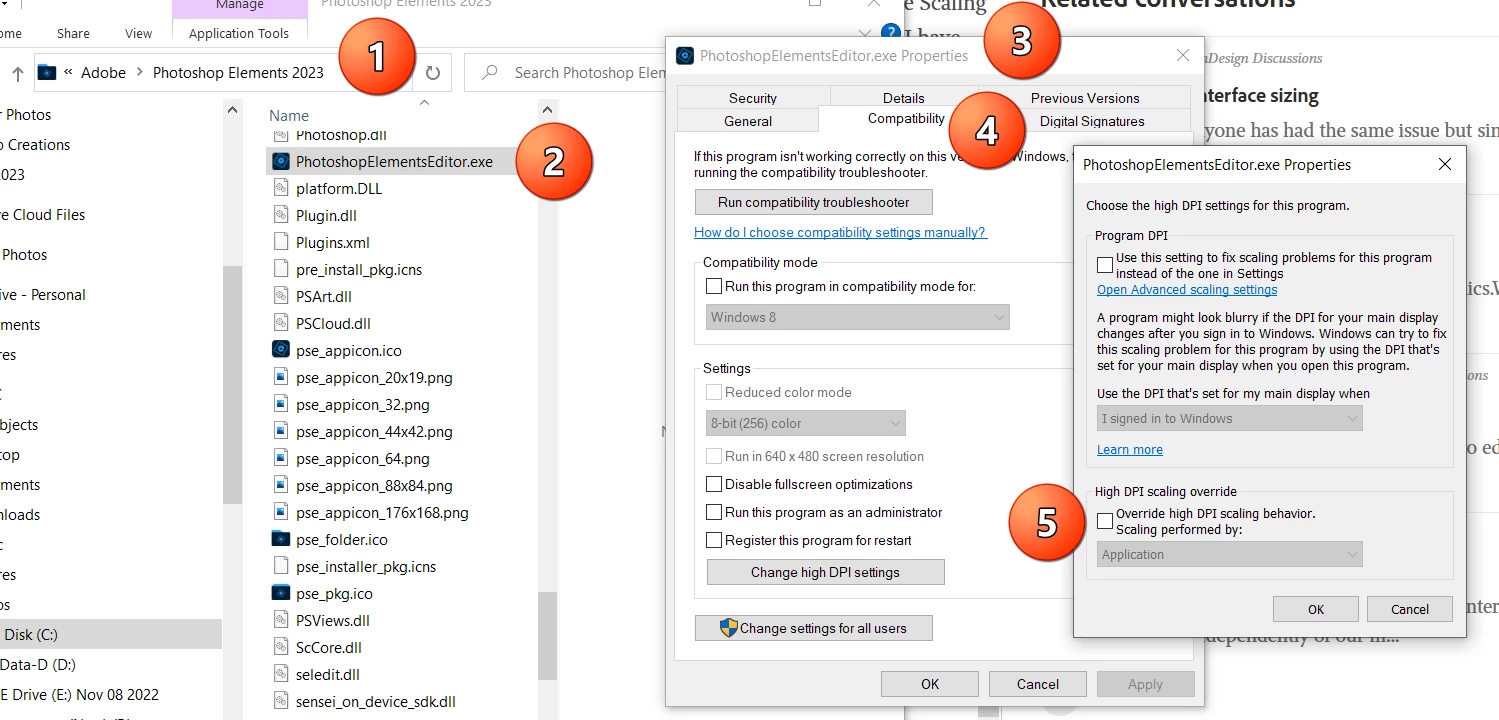
Go to C:\Program Files\Adobe\Photoshop Elements 2023, right click on the PhotoshopElementsEditor.exe file and  click on Properties>Compatibility>Change high DPI Settings>Override high DPI scaling behavior>System Enhanced.


6 replies

Greg_S.
Community Expert
Community Expert
October 24, 2024

@Mystic_Raindrop154A your screenshot shows that you are looking at the program folder for Elements 2025.  You must double-click on that blue folder icon (which confuses many users because it is not the normal yellow folder icon used by most other programs).  Then you must right-click on the file named PhotoshopElementsEditor.exe to get to the correct Properties dialog.


Greg_S.
Community Expert
Community Expert
February 13, 2024

@David33614039uahd, again you have not answered my questions.

1.  What is the pixel resolution of your problem monitor?

2.  Do you have it set to the recommended resolution in Windows>Settings?

3.  Does your computer have more than one GPU?


Have you tried going to Edit>Preferences>Display & Cursors and changing the options for High Density Displays?


@Dr Lobster, please stop marking every reply in this thread as Correct.


Greg_S.
Community Expert
Community Expert
February 13, 2024

@David33614039uahd, while a picture is normally worth a thousand words, it doesn't help us if you don't say which screenshot is your laptop and which your desktop.  You also are not answering my specific questions.

Greg_S.
Community Expert
Community Expert
February 13, 2024

@David33614039uahd, you still haven't said how Elements 2024 is different than earlier versions or fixes.  Nor have you given any detail about the terrible proportions.  Do you mean the window dimensions or the UI scaling?  What is the size of your larger monitor?   

Do you have more than one GPU?  If so, disable the Intel internal GPU and see if the suggestions for UI scaling work (if that is what the problem is). 

Participant
February 13, 2024

Participant
February 13, 2024

the top picture is from my laptop - the work area is what I would call normal.  The bottom picture is when I move Elements to the secondary monitor.  Here everything seems out of proportion to me.  Which is the issue I'm trying to correct.

Greg_S.
Community Expert
Community Expert
June 18, 2023

@Mark305777580kh6, the Adjustment panel is dockable.  So you can click on the top bar of the panel and move it wherever you want.  You can also move it over other panels and dock them together.

Greg_S.
Community Expert
Greg_S.Community ExpertCorrect answer
Community Expert
November 27, 2022

Go to C:\Program Files\Adobe\Photoshop Elements 2023, right click on the PhotoshopElementsEditor.exe file and  click on Properties>Compatibility>Change high DPI Settings>Override high DPI scaling behavior>System Enhanced.


Participant
June 18, 2023

I applied this fix which solved most of the problem but the adjustments menu onthe right is in the missle of the screen