Inspiring
January 16, 2022
Answered

Using tags

  • January 16, 2022
  • 7 replies
  • 934 views

I am using Photoshop Elements 2020 and attempting to search for photos using tags.  When I attempt to find photos, I get a blank screen with "No media available. Please close applied filer and try again."  I have no idea what this means and how to clear applied filters.  

This topic has been closed for replies.
Correct answer Landcaster
quote

Greg,

I am not able to access anything in the D drive when in the Organizer, but am able to from the tree when in Elements.


By @Landcaster

You mean you can open files from the editor when you browse the tree in the Windows explorer?


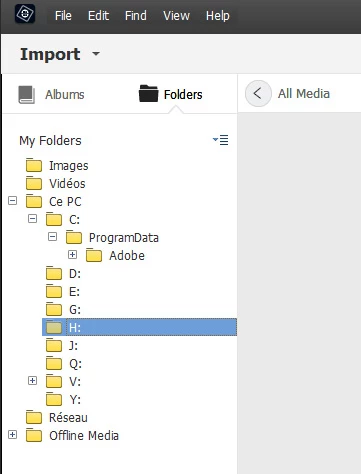
Could you post a screenshot like this of your left folders panel in tree mode?


Michel/Creg,


 I think that I have found the problem!!  I noticed that pictures weren't checked in the View pull down.  Thanks so much for your time spent helping me.  Greatly appreciate the customer service.


Dan 

7 replies

Greg_S.
Community Expert
Community Expert
January 19, 2022

@Landcaster said:

I think that I have found the problem!! I noticed that pictures weren't checked in the View pull down. Thanks so much for your time spent helping me. Greatly appreciate the customer service.

That would do it!!

BTW, this is a user to user forum.  Neither Michel or I work for Adobe (despite the title we are given on the forum).

Greg_S.
Community Expert
Community Expert
January 17, 2022

Have you actually imported the files from the D drive to your Organizer catalog?  If you have, you should see the thumbnails of the files in the media grid.  If you double-click on a thumbnail, do you see the image in full screen, or do you see a dialog come up saying that the file is missing?

Inspiring
January 18, 2022

Greg,

I am not able to access anything in the D drive when in the Organizer, but am able to from the tree when in Elements.  Yes, I always download images from my camera using the download feature.  I always, then tag pictures using the Organizer tags.  No, when searching, (using the tags), I only check one box.  
I can't get thumbnail pictures at all when in Organizer.  
The strange thing about my current problem is that everything used to work fine.  If I changed something by mistake recently to cause this problem, I'm unaware of it.  

Thanks for your continued help with any ideas.  


MichelBParis
Legend
January 18, 2022
quote

Greg,

I am not able to access anything in the D drive when in the Organizer, but am able to from the tree when in Elements.


By @Landcaster

You mean you can open files from the editor when you browse the tree in the Windows explorer?


Could you post a screenshot like this of your left folders panel in tree mode?

Greg_S.
Community Expert
Community Expert
January 17, 2022

But we still need to figure out why you are unable to see any images in the grid when checking the tag boxes.  I'm guessing that you are trying to search for several tags.  You cannot use this simple approach to find alternative tags. For example if you want to find photos of Jack OR Jill, if you click both the Jack and Jill tag boxes, you will only see photos of Jack AND Jill.  If there are no such photos in your catalog, you will receive the no media message.

Greg_S.
Community Expert
Community Expert
January 17, 2022

Here is the Grid button that Michel is referencing:


Greg_S.
Community Expert
Community Expert
January 17, 2022

. . .  And the Clear button will only appear if you have a search filter in place, either by checking a tag or by going through the Search facility that appears when you click the blue Search button in the top right of the screen.


[Michel, I love the dog in your screenshot.]

Inspiring
January 17, 2022

Hello,


 I'm not able to solve the problem with the suggestions offered.  Any other ideas why I'm getting the "no media available/clear filters message."  I did see thumbnail pictures when I used the "search button",  but was unable to open anything from there.  I've spent several hours trying to figure this out so I'm hopeful you are able to think of something to help.  Thanks...

MichelBParis
Legend
January 17, 2022

Are you using the search button which is a magnifying glass on the top right of the display?

If you get thumbnails as a result, you have to return to the normal grid .

Look on the very top left: you have [ < grid ]

Click on the < to switch back to the grid view.

 The thumbnails shown on the search result page can't be access from there. You find them selected in the normal grid as a selection (= as filtered elements).

Then the 'clear' button should be visible and active.

Inspiring
January 16, 2022

Thanks for your help.

Greg_S.
Community Expert
Community Expert
January 16, 2022

See my screenshot below for the Clear (filter) button:


The message means that your search criteria has not found any relevant files.  There are a number of reasons why there are no files found even though you think there should be.  Give us more details about your search and we may be able to figure out the problem. Are you using the blue Search button? Are you simply clicking tag boxes?  Are you looking for Smart Tags?  Do you have a folder or date range selected?

Inspiring
January 16, 2022

I thought you addressed my problem, but that was before I opened the program and noticed that my screen doesn't show a "clear" button like the one you sent.  I was over anxious for a simple fix.   how do you get to the page with the "clear" button?


How was I searching?  I was clicking the box beside any of the tags and got the blank screen instead of pictures.  On the top, I have the "Media" category highlighted.  

I appreciate any help to fix the search and end my frustration.

MichelBParis
Legend
January 16, 2022

Another situation when your files are 'filtered' without your entering a search criteria:  it's when you have selected a folder in the left folder in 'tree' mode. You have 'selected' the contents of the folder and there are no 'criteria' to clear. Just click on 'show all' and verify that show all is written on top of the thumbnails space.