Participant
August 28, 2025
Answered

Venster passend maken werkt niet meer

  • August 28, 2025
  • 1 reply
  • 109 views

Hallo Adobe

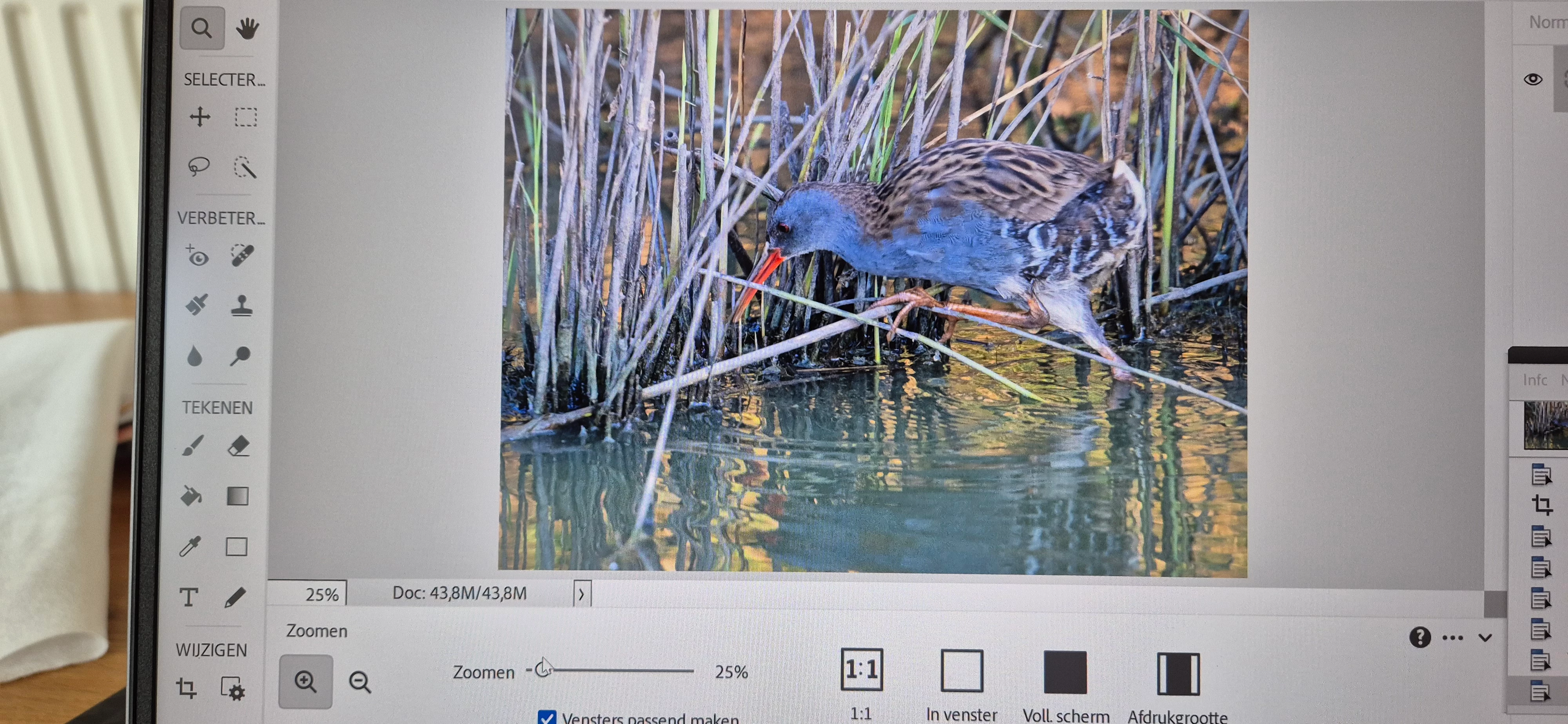
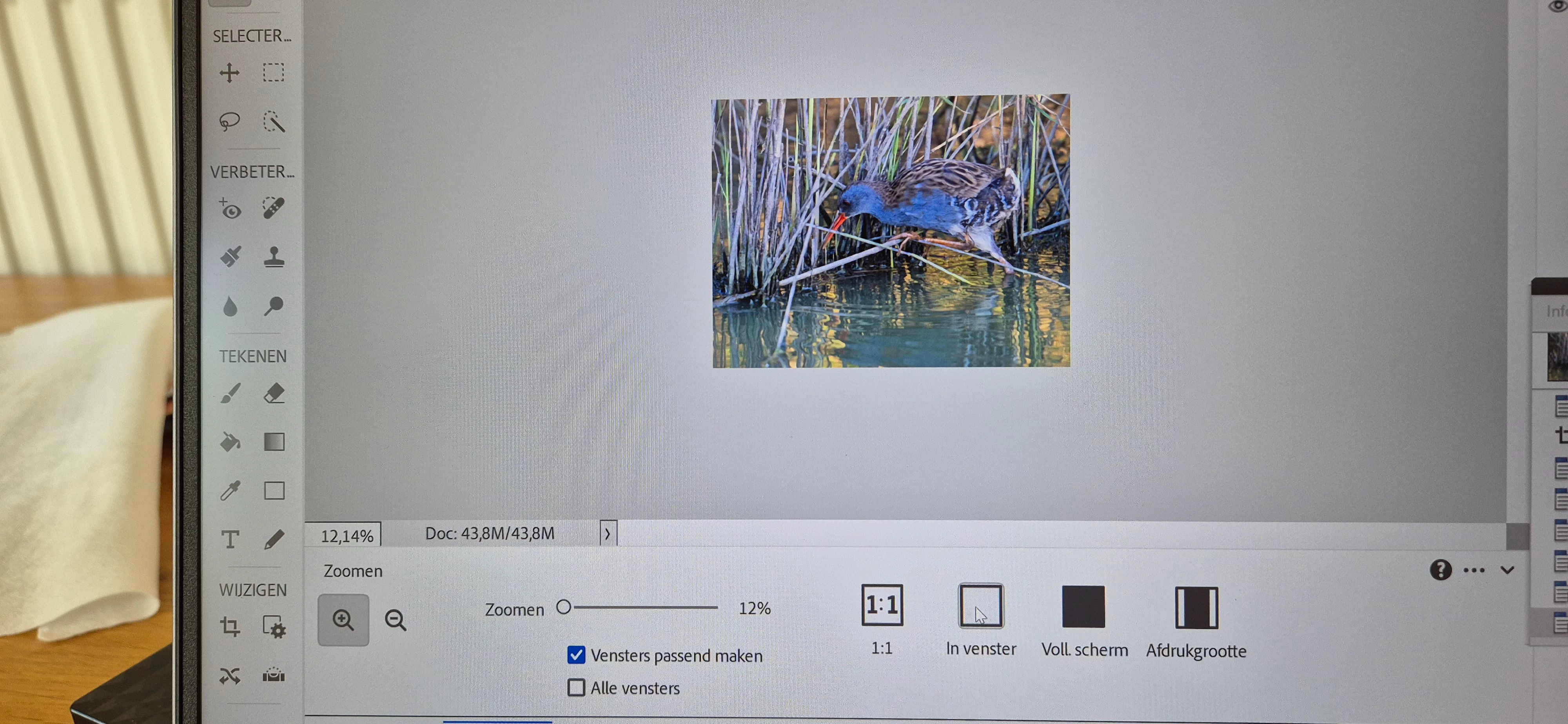
Ik heb een probleem met photoshop elements 2024. Venster passend maken werkt niet meer. Ik moet nu alles elke keer handmatig inzoomen om de foto's passend te maken. Als ik op (venster passend maken) klik dan worden de foto's heel klein. Wat heel erg vervelend is. En venster passend maken staat aangevinkt. Eerst werkte dat wel. Hoe los ik dit op? 

Correct answer Peru Bob

Try this:

Restore default preferences
Preference settings control how Photoshop Elements Editor displays images, cursors, and transparencies, saves files, uses plug‑ins and scratch disks, and so on. If the application exhibits unexpected behavior, the preferences file could be damaged. You can restore all preferences to their defaults.

Note: Deleting the preferences file is an action that cannot be undone.

Do one of the following:

Press and hold Alt+Control+Shift (Mac: Option+Command+Shift) immediately after Photoshop Elements begins launching. Click Yes to delete the Adobe Photoshop Elements settings file.
Go to Edit > Preferences (Mac: Photoshop Elements > Preferences > General), click the Reset Preferences on next launch button, and then click OK. When you restart Adobe Photoshop Elements, all preferences are reset to default settings.
A new preferences file is created the next time you start Photoshop Elements Editor. For information on a specific preference option, search for the preference name in Help.

from here:

https://helpx.adobe.com/photoshop-elements/kb/preference-file-locations-photoshop-elements.html

1 reply

Peru Bob
Community Expert
Peru BobCommunity ExpertCorrect answer
Community Expert
August 28, 2025

Try this:

Restore default preferences
Preference settings control how Photoshop Elements Editor displays images, cursors, and transparencies, saves files, uses plug‑ins and scratch disks, and so on. If the application exhibits unexpected behavior, the preferences file could be damaged. You can restore all preferences to their defaults.

Note: Deleting the preferences file is an action that cannot be undone.

Do one of the following:

Press and hold Alt+Control+Shift (Mac: Option+Command+Shift) immediately after Photoshop Elements begins launching. Click Yes to delete the Adobe Photoshop Elements settings file.
Go to Edit > Preferences (Mac: Photoshop Elements > Preferences > General), click the Reset Preferences on next launch button, and then click OK. When you restart Adobe Photoshop Elements, all preferences are reset to default settings.
A new preferences file is created the next time you start Photoshop Elements Editor. For information on a specific preference option, search for the preference name in Help.

from here:

https://helpx.adobe.com/photoshop-elements/kb/preference-file-locations-photoshop-elements.html
Participant
August 28, 2025

Peru Bob Dankjewel voor je snelle reactie. Het werkt nu weer 

Peru Bob
Community Expert
Community Expert
August 28, 2025

You're welcome.