
Inspiring
February 21, 2019
Answered

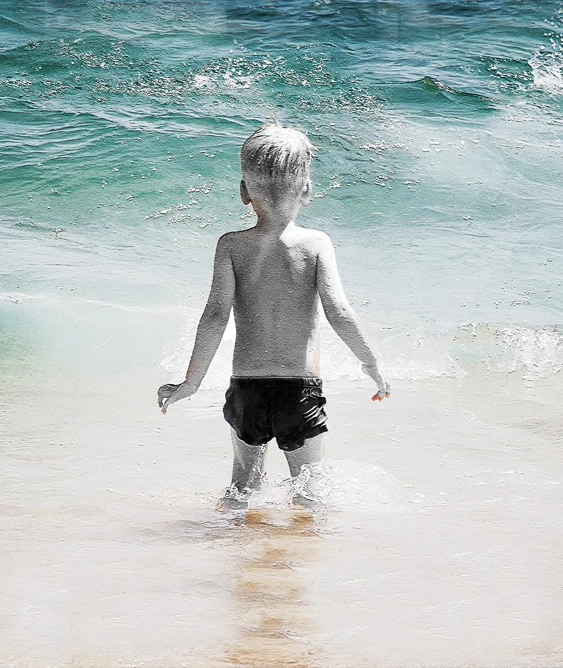
What did I do to make the change from image A to image B?

  • February 21, 2019
  • 2 replies
  • 880 views

I'm using Photoshop Elements 2019 on Windows 10 Pro. I made this change yesterday with one click. (I did not do several different things.) Today I wanted to replicate it and I couldn't figure out what I'd done. I searched the "history" and it didn't reveal what I'd done. Is there some way to find out what I did? (I still have the original .psd file.) And if not, can somebody maybe recognize how the change was made? Thanks.

Image A
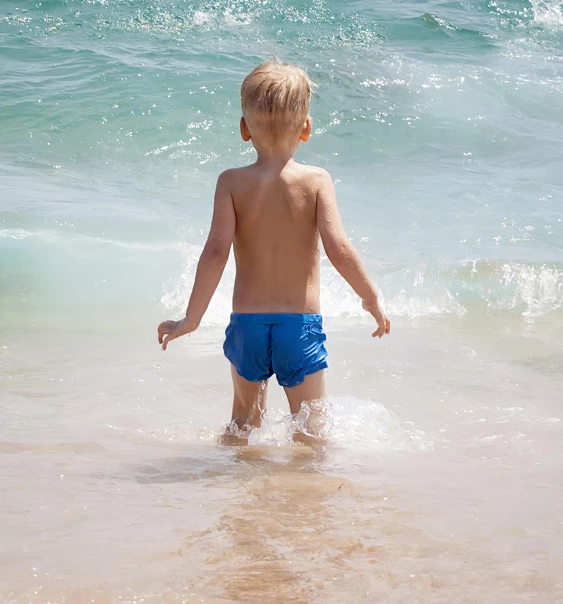
Image B
    This topic has been closed for replies.
    Correct answer 99jon

    It looks like you may have opened the image in “Guided” and used B&W Selection clicking on the child with the B&W selection brush.

    2 replies

    Inspiring
    February 21, 2019

    Another way is to select the boy using the various selection tools and make a Hue/Saturation adjustment, moving the saturation slider all the way to the left. I recommend that you use a Hue/Saturation adjustment layer. Then you can paint on the mask with white if your original selection missed some of the boy, or paint with black if your selection had portions outside the boy.

    BadStarAuthor
    Inspiring
    February 21, 2019

    Thanks a lot, Mark. I can see that just by playing with the sliders in the hue/saturation adjustment, I can achieve very similar, and interesting, looks. Appreciate you responding.

    99jon
    99jonCorrect answer
    Legend
    February 21, 2019

    It looks like you may have opened the image in “Guided” and used B&W Selection clicking on the child with the B&W selection brush.

    BadStarAuthor
    Inspiring
    February 21, 2019

    Thanks very much, Jon. Your way gets it very close (and is very easy). But whatever I did also lightened the color of the sand below the boy's feet and also darkened and sharpened the blue water. But now, I can do those things on my own to achieve the same effect, so I'm good.