Participant
April 14, 2020
Answered

Where is Photomerge?

  • April 14, 2020
  • 4 replies
  • 3344 views

I am using Photoshop Elements 2020. Recently, I've been trying to do a project where you merge two images together, so I looked for Photomerge. Unfortunately, I couldn't find it anywhere, and not many posts on this forum helped me resolve this problem. I tried:


Looking under Enhance

Looking under Edit for a "Guided" Folder

Resetting my Preferences


Any insight? Or is Photomerge not available of P.E. 2020?
This topic has been closed for replies.
Correct answer Phinny

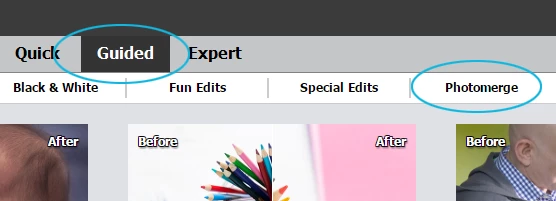
You're just two mouse clicks away ...


4 replies

Greg_S.
Community Expert
Community Expert
January 13, 2022

@johns84464189, yes, I expect that a photomerge requires some overlap.  Generally, for landscape panoramas, I think an overlap of at least 10% is best.  Your project only requires some stitching together of two adjacent images without any overlap.  I'm glad my suggestion worked out for you.

Greg_S.
Community Expert
Community Expert
January 12, 2022

@johns84464189 are the 2 maps of the same scale and simply need to be overlapped?  Or is it a more complex job than that?  It would be helpful if you showed us a screenshot of the two images.


Basically, you should:

  • create a new file of the dimensions that the merged map will have
  • drag and drop the two map images into the new blank file.  This will create a file with a blank background and two layers with the maps.
  • use the Move tool or the Free Transform tool (Ctrl+T) to move (and or resize) each layer into the correct position


You can lower the opacity on one of the layers to help you move one of the maps over the other and find the correct position. 


In the following screenshots, I have created a map of the United States with two images, one of the West and one of the East.  By lowering the opacity of the top overlapping layer (West), I have moved the layer over the middle layer (East) to create a merged map:


johns84464189
Participant
January 12, 2022

Thank you, Greg!  Your suggestion to: (1) create a new file, (2) drag both map images into it, and (3) use the Move tool to align the images while in Expert mode was the guidance I needed.  It worked.

For what it's worth, when using Guided mode I was trying to stitch together two maps, both of which look very much like the one example below.  One map was to be on the left and the other stitched on its right.

I think that the panorama merge function in Guided mode could not handle the fact that both maps look much alike and have no overlap.  When I tried to run the merge, I got this error message.

And this result.

But, again, following your instructions, I was able to achieve the desired result as shown below.

There is a little visual artifact where the two images come together, but the result meets my needs.

Thank you again!


johns84464189
Participant
January 11, 2022

I am using Photoshop Elements 2020 and want to perform a photo merge to create a panorama but...  the Guided photomerge does not seem to be able to handle the job I am asking of it.  I get an error message something to the effect that Photoshop Elements could not process all the impages that I asked it to.  I am trying to merge only two images, so number of images isn't the problem.  I think it is just something about my two images (which are maps) that the artificial intelligence chokes on.  I think that I need to try Expert mode and perform a panoramic photo merge there.  I'm not finding instructions.  Can anyone help me with that?

PhinnyCorrect answer
Legend
April 14, 2020

You're just two mouse clicks away ...