
Participant
February 8, 2018
Answered

White background

  • February 8, 2018
  • 2 replies
  • 827 views

I am trying to clean up a large number of photos with unwanted shadows etc and put them on a white background. I have created the layers but can find no means of creating a white background (just about every other combination of shape and colour seems possible). I am new to this so am probably missing the simplest of solutions. Can anyone help? Thank you.

    This topic has been closed for replies.
    Correct answer hatstead

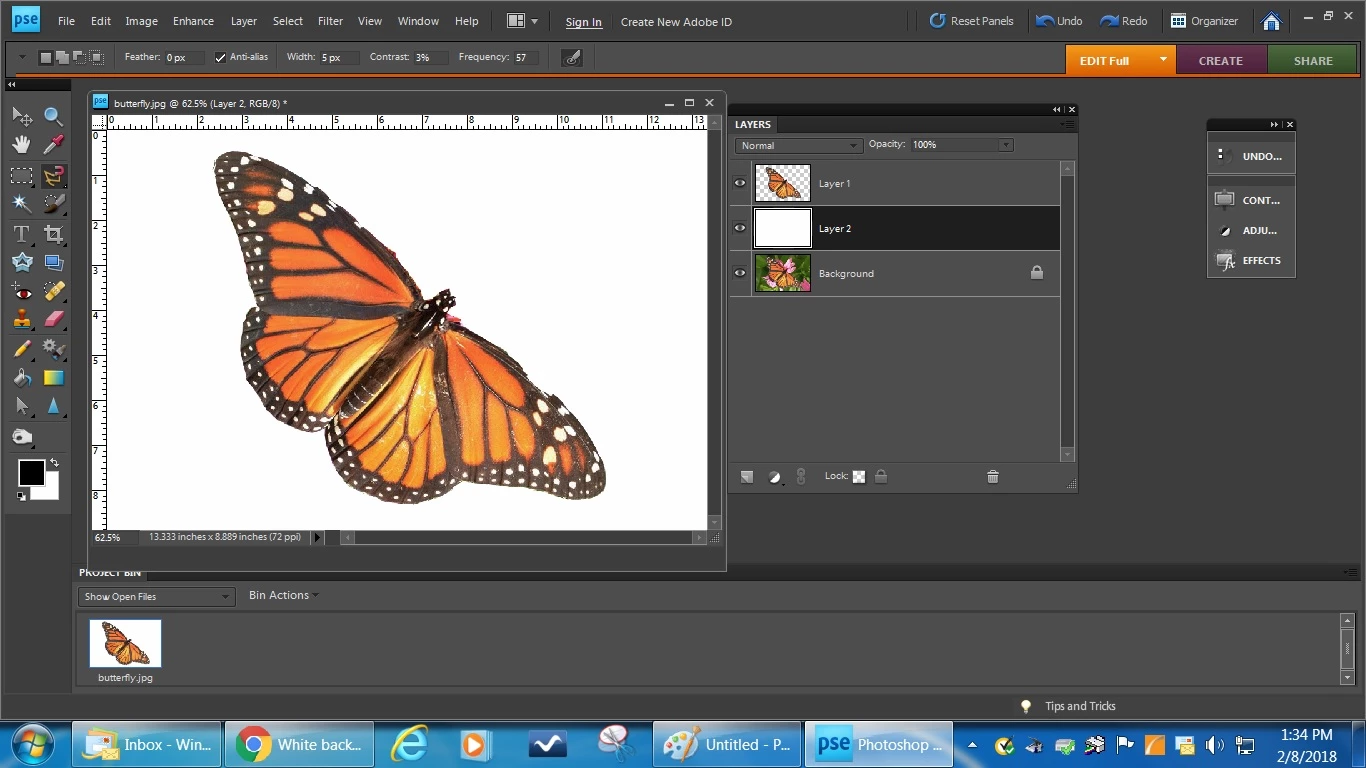
    Nothing shows up. I have used one of my butterfly pictures for demonstration

    1. Open the picture file
    2. Use one of the selection tools to select the butterfly . I used the magnetic lasso tool. Once the selection is complete, you should see an outline ("marching ants".
    3. Place the selection on its own layer (CTRL+J). The butter fly will be surrounded by a checker-board pattern, which denotes transparency.
    4. Place a blank layer between the Background layer and Layer 1 (this will be Layer 2) and fill with white (Edit menu>Fill Layer>Background color -- White is default - - make sure that color chips are black for foreground color & white for background color -- keyboard shortcut D

    2 replies

    Participant
    April 15, 2022

    I am a new user of this Photoshop as from November 2021. Up to then it was plain sailing for me to have oerfect photos etc on my website. From then I have only difficult, however I managed to have a white background on my photos until the new Adobe and it is very complicated for me, however I had managed until this evening to have a white background on my photos, I am not sure how to do this on my Photo Shop now.

    hatstead
    Inspiring
    February 8, 2018

    I have created the layers but can find no means of creating a white background (

    You don't state what is on these layers.

    Suggest that you post a representative picture here on the forum, and we may be able to provide you with targeted guidance for your project. To do that, click on the "Insert Image" icon at the top of the reply box. You can not to it via an e-mail reply, however.

    Participant
    February 8, 2018

    Many thanks,

    Here is an image. I am writing a scientific work on butterflies. I have the photos, but they nearly all have shadows and  for the plates I need a pure white background. Having looked at all the tutorials I could find I went into Expert, cleaned them up but when I pressed the OK button I found I had created a layer rather than a finished picture. That wouldn't matter if the background options included white but just about everything except pure white is available. I imagine that there is a simple solution but I have spent a long time unsuccessfully trying to find it. There are about 500 butterfly images, so I am keen to get it right!

    I have tried to attach a  sample is attached as you suggest. It hasn't worked: it won't upload. So I attach a picture of a 'before' butterfly instead. What I have but cannot unload is an image of a butterfly with all the surround cleaned up but on a grey-and -white chequerboard effect. As per the tutorial I could then insert another picture and use the mask to transfer it to that, but I would be no further forward. Sorry that I cannot be more specific.

    Many thanks

    hatstead
    hatsteadCorrect answer
    Inspiring
    February 8, 2018

    Nothing shows up. I have used one of my butterfly pictures for demonstration

    1. Open the picture file
    2. Use one of the selection tools to select the butterfly . I used the magnetic lasso tool. Once the selection is complete, you should see an outline ("marching ants".
    3. Place the selection on its own layer (CTRL+J). The butter fly will be surrounded by a checker-board pattern, which denotes transparency.
    4. Place a blank layer between the Background layer and Layer 1 (this will be Layer 2) and fill with white (Edit menu>Fill Layer>Background color -- White is default - - make sure that color chips are black for foreground color & white for background color -- keyboard shortcut D