DarcyElements
Inspiring
July 19, 2019
Answered

Why is it so hard (impossible) to get a crisp edge?

  • July 19, 2019
  • 2 replies
  • 706 views

For example, I create a circle selection, I then modify selection for a border.  I then fill that selection area with a color but the color bleeds out from the selected area.

It wouldn't bleed out of just the circle (or any) selection.  Why can't it behave properly in the border selection? 

Then one goes to find videos on how to fix blurry edges and it's an "easy!" 52 step process that is overwhelming, if it even does the job.  Isn't this part of what

design software should be doing?

I need to make large, 300 px per inch resolution image with rings in it that doesn't look faded at the edges.  Tell me, is that even possible?

I'm just baffled and too frustrated to work anymore on this right now but in case my headache goes away and I calm down a bit, I'll check back... in a couple of months.  Scrap this project for now.
    This topic has been closed for replies.
    Correct answer hatstead

    DarcyElements  wrote

    I need to make large, 300 px per inch resolution image with rings in it that doesn't look faded at the edges.  Tell me, is that even possible?

    Try this:

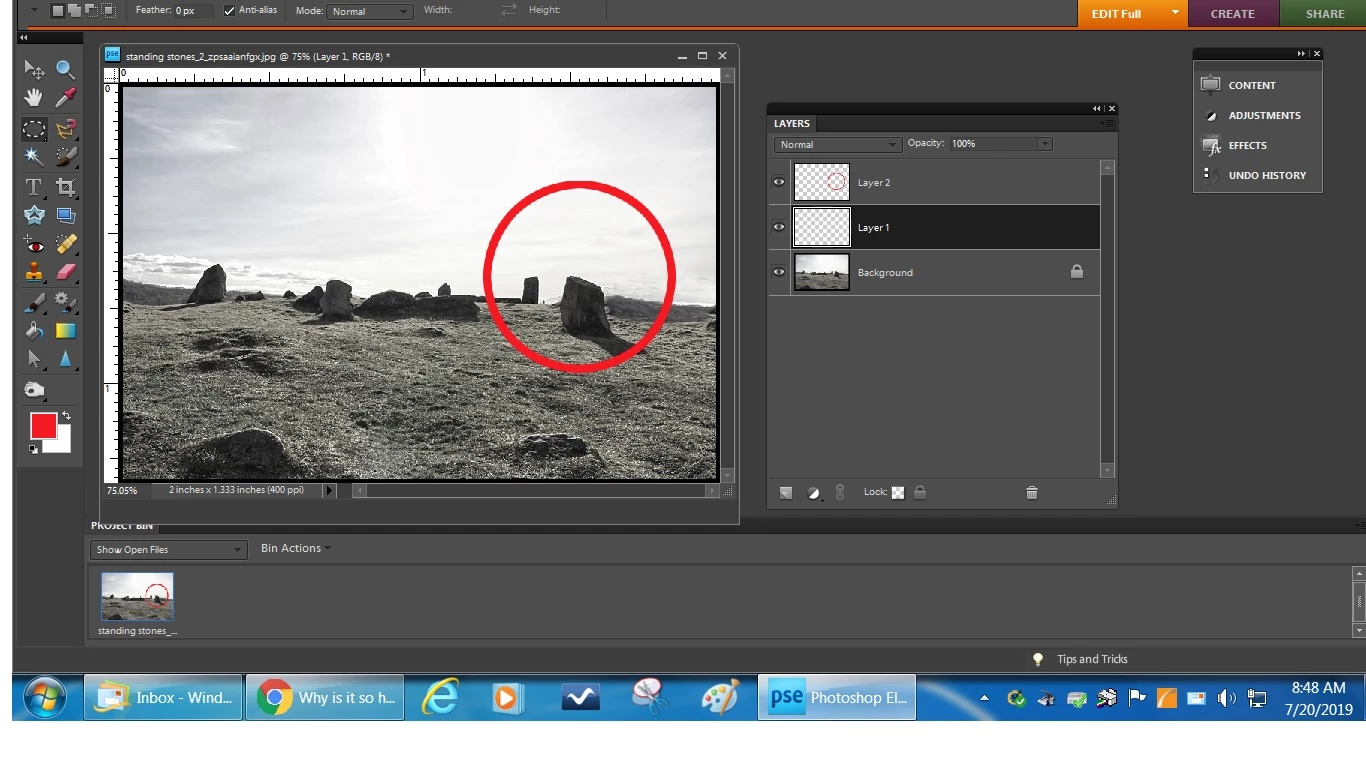
    1. Open your picture file. This will be the Background layer
    2. Open a blank layer above this - Layer 1
    3. Activate the Elliptical Marquee tool. Hold down the Shift key and drag out a circle..
    4. Open a blank layer above this -  Layer 2
    5. Go to Edit menu>Stroke (outline) selection. In the dialog, place stroke inside, width try 10 px

    2 replies

    hatstead
    hatsteadCorrect answer
    Inspiring
    July 20, 2019

    DarcyElements  wrote

    I need to make large, 300 px per inch resolution image with rings in it that doesn't look faded at the edges.  Tell me, is that even possible?

    Try this:

    1. Open your picture file. This will be the Background layer
    2. Open a blank layer above this - Layer 1
    3. Activate the Elliptical Marquee tool. Hold down the Shift key and drag out a circle..
    4. Open a blank layer above this -  Layer 2
    5. Go to Edit menu>Stroke (outline) selection. In the dialog, place stroke inside, width try 10 px

    Greg_S.
    Community Expert
    Community Expert
    July 19, 2019

    If you come back, can you post a screenshot of what you are talking about.  Is it possible that you are using a feathered brush to make your selection?