


Participant
August 8, 2020
Answered

Green Lines in Adobe Premiere Elements
  • August 8, 2020
  • 5 replies
  • 6514 views

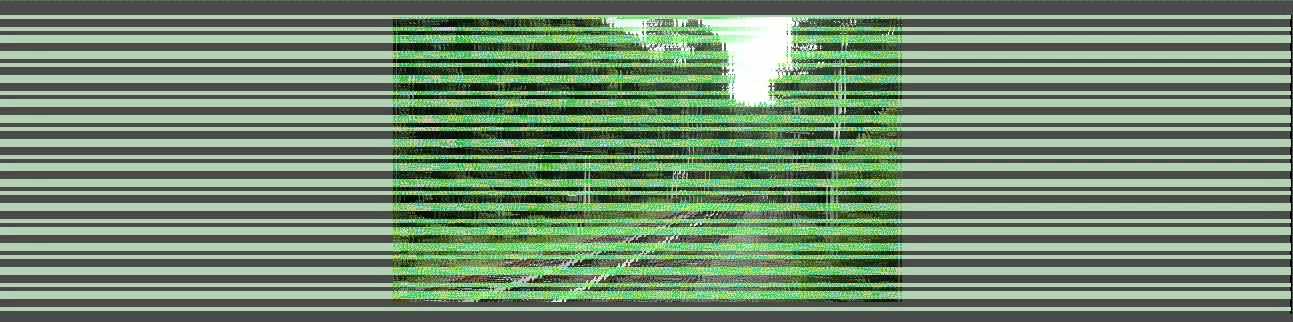
I recently did an update on my computer, and after the update all I see are these green lines in my preview.  I've heard of this problem before, but the solution seems to be to get an older version of a driver, which I don't really plan on doing.  Is there any way to fix this without getting an older driver, or am I stuck with a green barcode on my screen?  Thanks.

Note: I am using Adobe Premiere Elements 2019

This topic has been closed for replies.
Correct answer Steve Grisetti

I'm not sure why this is suddenly becoming an issue, but yours is the third posting I've seen on this issue in the last two weeks!

https://community.adobe.com/t5/premiere-elements/stripes-in-the-workspace/td-p/11335268?page=1


Indications are that it's related to your graphics card's driver. Don't trust Windows to give you the latest driver. Go to the nVidia, AMD or Intel site and search for the driver for your card. These drivers are updated every couple of weeks, and an outdated one can cause all sorts of problems. (Although, as you've noted, sometimes the LATEST driver can cause issues and you have to backdate to an earlier one. But in the vast majority of the cases, updating solves the problem.)

You don't say what graphics card you have, but my nVidia card's latest driver is dated July 9. 

5 replies

Participant
November 17, 2021

Hi All. I've had a bit of a going on trying to resolve the issue I have had with my 2021 APE and horizontal green lines in the main video editing window!!!

Thankfully I managed to fix this irritating issue (after some perseverance), the answer for me was down loading the very latest Intel Graphics Driver for my Acer Predator Helios 300 PH517-53. It's a simple fix but takes a frustrating amount of time to find the answer and resolve.


I hope my fix helps those involved with Non Professional video editing.

Participant
November 15, 2020

Exactly the same happened to me today/ They want us to move/buy a newer version

Legend
November 17, 2020

You shouldn't have to buy anything. Just keep your GPU drivers up to date. nVidia even has free software called GeForce Experience that will help you ensure you have the latest.

Crustyoldman
Participant
June 23, 2021

Newest drivers downloaded here using GeForce Experience...no luck, still the green lines all over my video preview, it can't be just me that it's costing Adobe money from as I'm not upgrading to 2021 with this issue ongoing, I'm on a new Acer laptop with an i7 processor and an NVidia RTX3060 graphics card with 16GB of RAM

Community Expert
September 27, 2020

Although this YouTube is about Premiere Pro, I suspect the same 'repair' will work with Premiere Elements.  The video shows how to easily 'roll back' the Intel driver.


https://www.youtube.com/watch?v=VFASW5oZtwg

Participant
November 13, 2020

this def did not help at all i have the news dirvers and im so frustrated i have a 2000 Legion Lenovo and i cant work im paying for a what at this point i need more reliable software that when it recommends something for it to actually be compatible with it.

Participant
August 11, 2020

Hi, i have the same problem with the stripes. All drivers checked and they where new. I looked by Intel. What can i do ?

Sorry for my bad english! Greetings

Participant
September 21, 2020

Same problem.  Updated drivers and still green lines.

Participant
September 27, 2020

Same here! Drivers are all newest version (and none to roll back to), and green lines.

Steve GrisettiCorrect answer
Legend
August 8, 2020

I'm not sure why this is suddenly becoming an issue, but yours is the third posting I've seen on this issue in the last two weeks!

https://community.adobe.com/t5/premiere-elements/stripes-in-the-workspace/td-p/11335268?page=1


Indications are that it's related to your graphics card's driver. Don't trust Windows to give you the latest driver. Go to the nVidia, AMD or Intel site and search for the driver for your card. These drivers are updated every couple of weeks, and an outdated one can cause all sorts of problems. (Although, as you've noted, sometimes the LATEST driver can cause issues and you have to backdate to an earlier one. But in the vast majority of the cases, updating solves the problem.)

You don't say what graphics card you have, but my nVidia card's latest driver is dated July 9. 

Ok_ThenAuthor
Participant
August 8, 2020

Hi Steve, thanks for the reply.

Turns out you were right, Windows thought I had the latest drivers, but when I went to Intel's website there was a new update available.  I downloaded the latest driver and everything seems like it's back to normal.  Thanks!