Participating Frequently
November 30, 2018
Answered

Premiere Elements 2019 Dual Monitor Feature Broken / Unusable

  • November 30, 2018
  • 5 replies
  • 3521 views

Just upgraded to PE19, and a must have feature I use daily (Dual Monitors) is broken?!? 😞

As you can see above, the "undo redo organizer home" menu covers ALL of the essential controls shown below.

Does anyone know how to remove that "undo redo" menu, or fix it so it doesn't cover the timeline in dual monitor mode?

This topic has been closed for replies.
Correct answer Pete.Green

Shawn,

I do not work for Adobe and don't have access to any first hand information.  That said, if 2019 is not workable for you, I would file for a refund while you can get it.  It is a guess, but I would not expect an update before your refund window expires. 

I used versions 13 and 15, but not 14.  Although I stay current, my actual workflow and results have changed little. 

Good luck with your projects!


Shawn and Whsprague,

Thanks for the report!

The engineering team has provided an updated layout file that should resolve this. Download the below file and replace the existing workspace with the downloaded layout file using the following instructions.

Download the DualMonitorEditing.layout17 file
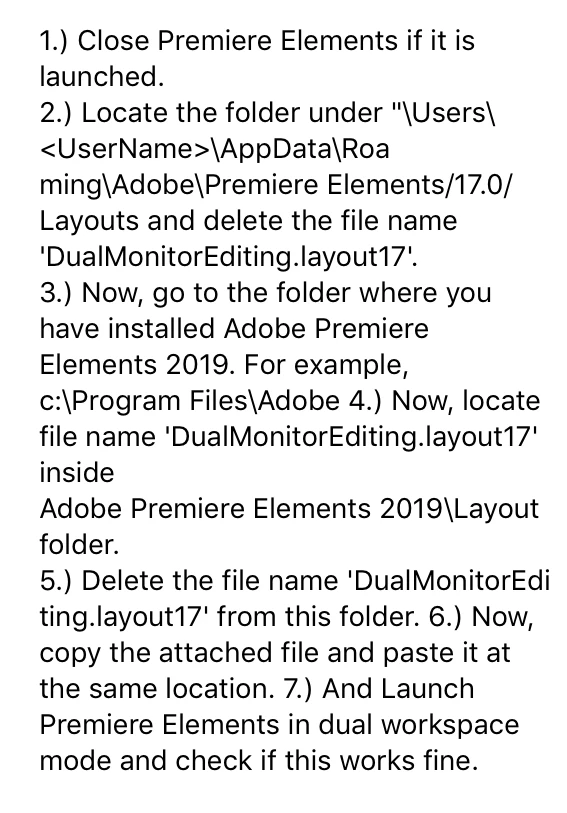
Give that a try on your systems and let me know if this new layout works for you.

Regards,

Pete

5 replies

Participant
February 12, 2021

However it probably does not apply  to foreign, non-english  versions of the software and  no-english operation system.  My issue was not solved yet. Hier my screenshots

Participant
February 27, 2020

These instructions seem to work. Thank you

David Stephen

art_wie
Participant
November 27, 2019

So my issue is similar, but not entirely. I'm on Premiere Elements 2019 too, but on a Mac; and still on Mojave, for what it matters (is it better on Catalina?). When I switch to Dual Monitor mode I get the same issue as described here, but on top of that the tracks window keeps on jumping back to the same monitor where the main preview area, toolbars etc are. So for example - when I press 'render' then the pop-up message about rendering in progress appears on the 2nd monitor - where the tracks window was (!), but in the same instant that track window jumps back to my 1st monitor and covers it all; so to continue working after the render is done, I have to move window 2 back to monitor 2...

hence:

1/ will the file attached to previous reply work on Mac too?

2/ if not, may I request one for Mac please? it can be Catalina if that's easier - I'll be moving to it soon anyhow;

3/ will that file solve the jumpiness of the tracks window? or do I have to do something else altogether to make it stick to the monitor I chose for it?

Pete.Green
Community Manager
Community Manager
December 5, 2018

Thanks for bringing this up Shawn, we have now created an article to help others with this issue:

Issue with Dual Monitor workspace in Adobe Premiere Elements 2019

Regards,

Pete

whsprague Feel free to pass this around if others are seeing this!

Participating Frequently
December 6, 2018

Thank you very much Pete (and Bill)!

Can't wait to try this out today!

Much appreciated,

Shawn

Update 120818: Tried this fix on my Win10 desktop and it worked fabulously! So very thankful for this fix :-D

Community Expert
December 1, 2018

I worked on it for 30 minutes and couldn't find a solution.   Maybe someone else......?

Community Expert
December 1, 2018

I sent an and recieved an email from and Adobe manager.  In his reply he wrote he would forward this to the engineering team. 

Participating Frequently
December 1, 2018

Thank you for not only trying it yourself and confirming there's no easy fix, but also for sending it into Adobe.

I really hope they can patch this soon as over the last five years I've modified my workspace to accommodate this feature - I need the full screen preview while editing to be sure my training courses look correct and my code is readable in full screen.

Thanks again,

Shawn