js_chicago
Known Participant
August 23, 2011
Answered

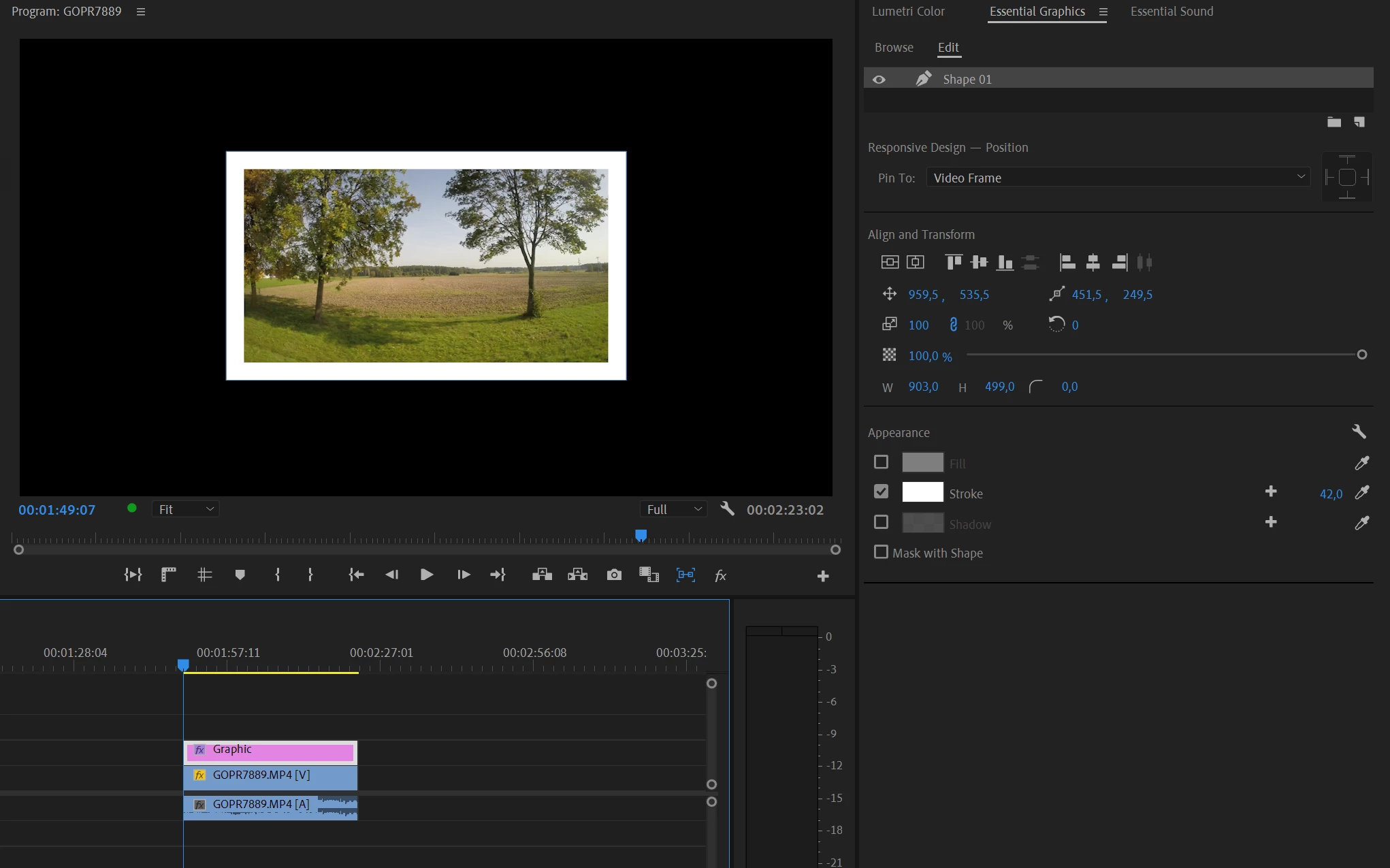
Add stroke or border to still image or video clip

  • August 23, 2011
  • 12 replies
  • 225467 views

Hi,

Is there a simple way to add a white border around a still image or video clip in Premiere Pro CS 5.5? I've seen the suggestions for adding a radial shadow and am unsatisfied with the results; it's nearly impossible to center the image within the border and many other suggestions out there do not address CS 5.5.

Thanks!

-jason
This topic has been closed for replies.
Correct answer Ann Bens

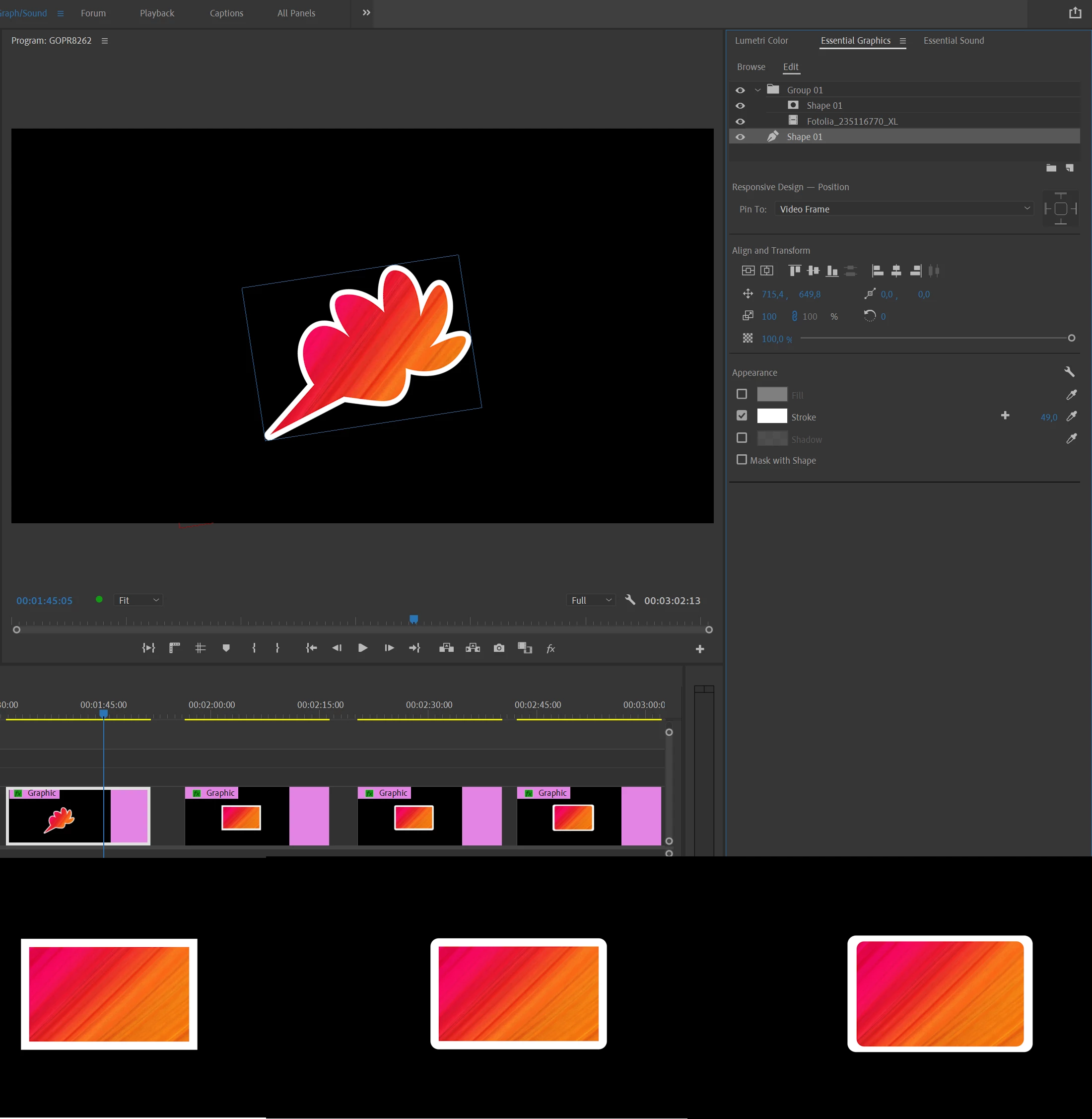
So many ways to do this:

12 replies

Inspiring
December 30, 2011

Another easy way to make a stroke or border is to use Photoshop, but make sure you match the sequence.

Kevin J. Monahan Jr.
Community Manager
Community Manager
August 23, 2011

Try these settings for Radial Shadow: from the Premiere Pro wiki

Shadow color as desired
Opacity 100%
Projection Dim: start with 7; adjust to make border width as desired
Softness: start with 0 or adjust as desired
Render: as desired
Shadow only unchecked
Resize Layer: CHECKED

You can also place a color matte behind the clip and upsize it to be slightly larger than the clip.

Kevin Monahan - Sr. Community and Engagement Strategist – Adobe Pro Video and Audio
js_chicago
Known Participant
August 23, 2011

I'm not sure where "Projection Dim" is unless this is "Projection Distance" is in CS5.5 and I'm curious what you would suggest for use under "Light Source." I'm having trouble centering the image within the border. I don't like to eyeball things, it's always nice to have something 100 percent accurately centered.

Thanks!

Kevin J. Monahan Jr.
Community Manager
Community Manager
August 23, 2011

You're right, it is a little fiddly. For precision, I'd probably go with the color matte technique. In the mean time, please put in a feature request for a border effect. I think we need a simpler solution too. http://www.adobe.com/go/wish

Kevin Monahan - Sr. Community and Engagement Strategist – Adobe Pro Video and Audio